Transcription of User Guide: How to Access Reliance Virtual Workplace
1 User Guide: How to Access Reliance Virtual WorkplaceLogin into Virtual Workspace, , using RIL Pass Mobile App & citrix Receiver Welcome to the simple, secure wayto connect on any device, Browser: Google Chrome latest version [Recommended] RIL-PASS Token: RIL-PASS Mobile App is required when MYWFH citrix is accessed outside the RIL Network Web Address: 1. To Configure RIL-PASS APP To Access Virtual Desktops Get your credentials: Get your user name and passwordfrom GETIT. Token ID generation steps are mentioned in this documentUsername: [Domain ID]Password: [**]Token ID: [**] (RIL-PASS Mobile App Token generated on your Mobile) Network Connection:Minimum internet bandwidth require 200 Kbps, Recommended is 1 Mbps broadband citrix Receiver Version:Minimum citrix Receiver , Recommended version is Workspace App 1912 Don ts.
2 Do not Access one Virtual Desktop inside another Virtual by Step Guide to activate Two Factor Authentication and login to citrix portal Activating Two Factor Authentication (2FA) for citrix This is a two (2) step self-provisioning process. Please follow the steps mentioned below to complete the activity: Step 1: Install RIL Pass App from Google Play Store / App Store (iOS) on your mobile. Step 2 : Login to URL: to enable RIL authenticator. your laptop/PC, open Google Chrome (preferably) and enter and enter Domain credentials onto yourlogin screen. you ve entered your AD credentials, you ll receive an OTPonto your registered mobile number, (Keep this mobile handywith you at the time of activation) and your official RIL Email to the Google Play Store (Android) / App Store (iOS) of yourmobile and type the RIL Pass on the search bar and then clickto click Allow to all the required permissions during the 2 the OTP is authenticated, select application from the dropdown, citrix -2FA and verify the other details in the activationform.
3 Then, click the Submit the left, select Dashboard and click on Generate QRCode . your RILPass mobile app as directed in Step 1 and follow Step6 to scan the QR Generate QR Code scan the QR Code using your RIL Pass mobile app and it willautomatically scan the QR code and you ll receive the Token onyour RIL Pass App as shown YOU RE DONE WITH THE ACTIVATION. Congratulations!!! Now you re done with the 2FA activation Step 3: In case your current RIL-Pass token is not working & phone lost/stolen/changed, then you can re-validate the token from the Dashboard. Follow the below step.
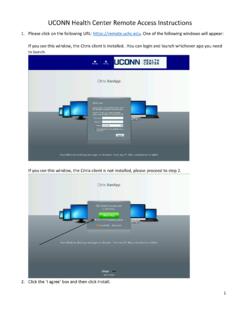
4 The existing app and re-install the RIL Pass in your currentmobile / again install RIL Pass app as per step to then click on Dashboard then Revalidate Token (as shown in the picture).Finally, click on Generate QR Code and scan the QR code using the RIL Pass mobileapp as mentioned in point 5 and 6 in Step Token User ActionsVisit ( citrix ) and provide your credentials to login With Token IDgenerated in RIL-Pass Mobile Application. You would Need citrix Receiver to Access publish Virtual Desktop & App, follow the next slides for DomainIDDomain PasswordRIL MOBILE PASS APPPSTEP 2 :Installing citrix Receiver on Windows Open your web browser and navigate to citrix Click on Download citrix Workspace App for Windows CLICK HERE.
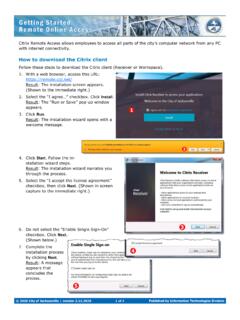
5 Right-clicktheCitrixWorkspaceAppexecutab leandselectRunasAdministratorCitrix Workspace App Installation Steps Installing citrix Receiver on MAC Open your web browser and navigate to citrix Click on Download citrix Workspace App for MAC CLICK Login: Go to your Browser and type Enter Domain id password and RIL Pass TokenLogin Process 2. Click on Detect Receiver3. Click on Open citrix Workspace Launcher4. Desktop tab: To launch, simply click on the ClickonCitrixWorkspaceLauncher