Transcription of How to Remotely Access your Priory Academy Work ...
1 How to Remotely Access your Priory Academy Work Environment Using citrix Receiver 1. INTRODUCTION TO citrix RECIEVER 2. SETUP citrix RECIEVER FOR YOU HOME COMPUTER 3. citrix ON A IOS DEVICE Introduction to citrix Receiver citrix Receiver is an easy-to-install software client that lets you Access your applications, desktops and data easily and securely from any device, including smartphones, tablets, PCs and Macs. Working with a citrix -enabled IT infrastructure, Receiver gives you the mobility, convenience and freedom you need to get your work done.
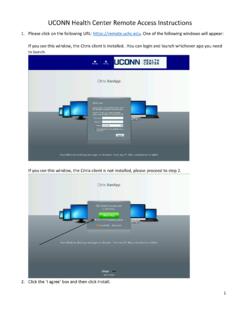
2 Connect to The Priory Academy network infrastructure using citrix to Access : A full desktop environment. Email. Academy data applications SIMS Microsoft Office your own user area and shared drive Access . citrix receiver uses your home broadband to setup a secure connection to our network. Setup citrix for your Home Computer To use citrix receiver you first need to visit this link Log on to the citrix front end by entering your Priory Academy domain username and Password.
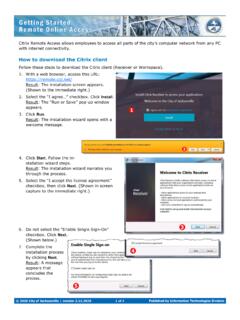
3 When prompted to install Receiver tick I agree and click install. your browser will then begin to download Receiver, if you are using Internet Explorer you will need to choose to Run the application on the pop-up at the bottom of your screen. If you do not wish to Install citrix Receiver choose to Log on without installing the application and your desktop will load in a Web Browser window, however you will not have Access to local drives or devices on your computer. Once the installer has finished downloading, run it and follow the on-screen instructions to correctly install it.
4 If at any point the installer requests you for a server address you need to enter this should prompt you for your password, use the same username and password that you use to log into the computers in school. If you do not get the prompt to enter the server address you need to launch citrix Receiver on your PC Once you have successfully installed citrix Receiver and set the server address up as return to the remote Access webpage ( ) This time, when you log in it may prompt you to run the citrix Plugin, if it does this accept.
5 When you login you ll see your available desktop. Click the desktop. Once you click this your browser should launch citrix Receiver and start the desktop. citrix on a IOS Device First go to the app store, search for citrix receiver and then download it Once the application has been installed, select add account and fill out the appropriate details ( your work email) Once you get to the screen below, fill out your user details that you use for school computers and put the domain as Once all the details are filled out and you have logged in you will be presented with the screen below, select the desktop that you wish to use and it will load into said desktop If at any point during this set-up procedure it requests you to enter a Server Address you must enter