Transcription of How to Setup Hikvision DDNS
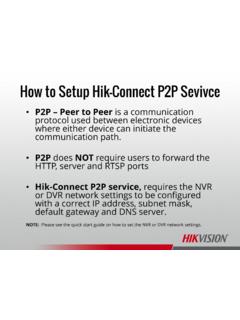
1 How to Setup Hikvision ddns ddns (Dynamic Domain Name Service) allows users to access their NVRs and DVRs or IP Camera remotely without the expensive requirement for a static IP. ddns requires users to forward the http, server and RTSP ports How to Setup Hikvision ddns From the main menu select System Configuration The system configuration menu is where to set the date and time, configure the network setting, change port numbers, enable ddns settings, Setup email, users accounts and more. NOTE: Right clicking anywhere on the live view screen and select main menu. How to Setup Hikvision ddns Select the Network Menu[1] from the left, click on the ddns tab[2] along the top. 1 2 How to Setup Hikvision ddns Click Check Box to Enable ddns Change Continent/Country to be America and United States for ddns reliability. ddns name must be lowercase letters plus numbers, with no spaces or special characters. How to Setup Hikvision ddns When the system communicates successfully with ddns server and name is available system will return a Register success message.
2 Clicking get url in lower right should provide this response. How to Setup Hikvision ddns If system is communicating properly with ddns sever the status can be verified at any time by clicking on the ddns tab and system should return this screen. Quick Note on Port Forwarding In order to clearly tell your router to send data sent on a specific port to a particular address, you must set up your router to forward. Routers are usually provided by the ISP or company IT department. Port forwarding is different for every router so it is best to contact the ISP or IT helpdesk for assistance. Forward the http port [default 80]. Forward the server port [default 8000]. Forward the RTSP port [default 10554]. Forwarding a range of ports is not recommended for the HTTP/Server/RTSP ports NOTE: Please see the quick start guide for more information about changing the default ports.