Transcription of If yes, then read step 1. Installation Guide
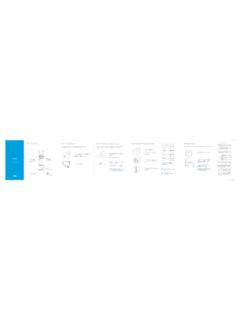
1 17458362 WindowsPCVista wirelessIntel PROSet wirelessLinksys wirelessXP wirelessSony Vaio wirelessOpen a web browser (for example: Internet Explorer, Firefox, Safari, etc.) on the computer you connected by Ethernet. You should be taken to the CenturyLink Internet setup page. What if you don t see the CenturyLink Internet setup page? Check the cable connections in steps 3 - 5 and use your browser to go to Need help? phoneBefore you start, check the date and time on the letter that came with this kit includes:black power cordyellow Ethernet cablegreen cordconnect the modem to an outletplug in the power cordphone filterall phones and other power cordmodempower outletgreen cordmodemphone outletoptional phoneDo you have landline phone service?
2 If no, go to step yes, you can plug a phone (or device) into the port labeled Phone on the modem. The phone filter is already built into the the power cord into an outlet near your computer and into the modem. Wait for the power light on the modem to turn solid green. Then go to step 4. It should take about a minute to stop blinking. Ignore any other lights for now. Find a phone outlet close to your computer. Temporarily unplug any phone connected to this outlet. Plug one end of the green cord into the phone the other end into the port labeled DSL on the connects the modem to your High-Speed Internet line.
3 Wait for the DSL light on the modem to turn solid green. Ignore any other lights for now. If the DSL light isn t solid green after a minute: - Your service might not be active yet. Check your activation letter. - Otherwise, try a different phone the modem to computeryellow Ethernet cablemodemcomputer / laptopFinal Ethernet configuration:modemcomputer / laptopphone outletpower outletPowerPowerEthernetPhoneDSLPlug the yellow Ethernet cable into any Ethernet port on the modem and your computer.
4 This connects your computer to the modem by cable. The Ethernet light on the modem will turn green and may flicker. Go to step 6. If your computer doesn t have an Ethernet port, call us for help: connection (optional)check before you re you have ..a security alarm system that automatically contacts your security company?If yes, contact them and tell them that you installed High-Speed Internet (DSL). They may need to test the alarm system to ensure it is still working properly. phones or other devices identified in step 1 that are not filtered?
5 If yes, make sure they are disconnected. Order more separate filters or a special wall-mount filter by calling CenturyLink at computers to connect? - If using a cable, repeat step 5, then go to - If using wireless, repeat step 8, then go to !Printed on recycled paper. online installationMac OS X: Select your wireless network. Click the AirPort icon in the top menu bar and turn it on. It should list your wireless network and possibly others. If it s not listed, try turning Airport off and back on.
6 You can also try Join Other Network to manually enter your network name (SSID). Enter your wireless network security key (password). It is case sensitive. If entered correctly, your computer should wirelessly connect to the modem. Test your wireless this computer is connected to the modem using a cable, unplug it. Open your browser. If you do not see a web page from the Internet, make sure your wireless network name and password are correct, then repeat steps C and D to reconnect. Repeat this step for each Mac you want wirelessly / computerNETWORK NAME (SSID): qwest12345 PASSWORD: 12345 ABCDEMac AirPort iconMac OS X Write down your wireless network name and security key.
7 You may have printed or saved these during the online setup Installation . Or look on the back of your modem for the name and key. Wireless Network Name (SSID):Wireless Network Security Key (Password): this is case sensitive Carefully follow step 8 to connect each wireless computer and enable your home Wi-Fi network. The wireless setup process for each computer and its software varies by the CenturyLink Internet setup page and follow the online instructions. When finished, return to these instructions to complete step you can use wireless to connect this computer, but follow steps 5 - 7 using a cable E.
8 PC: Select your wireless the system tray (usually in the bottom right corner of your computer screen), click (or double-click) the icon for your wireless connection software (see examples above). It should list your wireless network and possibly others. Select your network and follow your software s next steps. If you see Windows cannot configure this wireless connection, try a different icon in the system tray (see above for common icons). Another application is managing your wireless connections.
9 You might have to contact your computer manufacturer and / or the wireless software company for additional help. Enter your wireless network security key (password). It is case sensitive. If entered correctly, your computer should wirelessly connect to the modem. Test your wireless connection. If this computer is connected to the modem using a cable, unplug it. Open your browser. If you do not see a web page from the Internet, make sure your wireless network name and security key are correct, then repeat steps C and D to to Repeat this step for each PC you want wirelessly connected.
10 Phone filterphone outletLandline phones and devices that are on the same line as your high-speed Internet service must have a filter to strip off the Internet signal. Filters are essential to:- Avoid Internet connection problems. - Prevent static on your phone you have on the same line (same phone number) could include:- Telephones - Caller ID box - Automatic water meter - Wall-mounted telephone - Satellite TV receiver - Fax machine, if same line - Answering machine - TiVo boxYour modem has a built-in filter, and the phone cord from a device can be plugged into the Phone port on the modem.