Transcription of Introduction to Microsoft Word 2010 - …
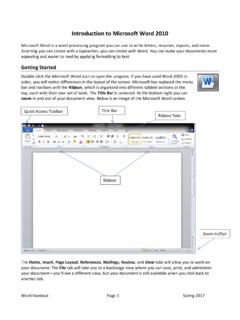
1 Computer Classes @ Nashua Public Library Introduction to Microsoft Word 2010 Microsoft Word is a word processing program you canuse to write letters, resumes, reports, and more. Anything you can create with a typewriter, you can create with Word. You can make your documents more appealing and easier to read by applying formatting to text. To Start Double click the Microsoft Word icon toopenthe program. If you have used Word 2002 or 2003, you will notice differences in the layout of the screen. Microsoft has replaced the menu bar and toolbars with the Ribbon. The Title Bar is centered. Below is an image of the Microsoft Word screen. Ribbon Quick Access Toolbar Title BarComputer Classes @Nashua Public Library Introduction to Microsoft Word 2010 Created 6/2010 2 Creating a New Document Choosethe File tab above the ribbon and select New in the left sidebar. Click Blank Document. OR Click the New Document icon on the Quick Access Toolbar.
2 Typing and Inserting Text Start typing to enter text. The text will appear where the blinking cursor is located. Move the cursor by using the arrow buttons on the keyboard or positioning the mouse and clicking the left button. Hold the Shift key if you want to type a capital the Enterkey (also called a hard return) will add a line break to your document. Templates Templates are preformatted documents. When you open a template, you will see text that you can type over. Word has templates for many kinds of documents including resumes, brochures, award certificates, and letters. To open a template: Choose the File tab above the ribbon and select New in the left sidebar. Click the appropriate category to see samples. Click the template of your choice and click Download. Toggling Between Documents When you are working on a computer, it is possible to have multiple windows open. To switch between windows, look at the task bar at the bottom of your screen and click the box with the icon for the program you want to open.
3 Ifyou have more than one window of the same program type open, you will see layers behind the icon box. When you place your arrow over the icon, a preview of the windows will appear. Click the appropriate preview to select the window you want to view. File Management Files are saved in folders on your computer, disk drives, CD drives, and USB drives. To save a document: Click the File tab above the ribbon. Click Save As on the left side of the screen. Choose the folder you want to save your file in. Type the name you want to give the file in the File Name box. Click Save. If you want to use a computer with Word 2000 2003 to access a document that you created in Word 2010, be sure to select Word 97 2003 Document in the Save As Type box. If you save your document this way, also called Compatibility Mode, you will not be able to access some of the Office 2010 Classes @Nashua Public Library Introduction to Microsoft Word 2010 Created 6/2010 3 Word will automaticallyuse the first line ofthe document as the file name.
4 You can use it or type in a new one. After you save the first time, you can click the Save iconon the Quick Access Toolbar. To move a file into a folder: Click the file to select it. Hold down the left mouse button, and drag the file to the folder. The file is moves into the folder. To open an existing document: Click the File tab, then click Open. Choose the appropriate drive or folder. Use the navigation pane to select the folder or drive the file is stored in. Select the file by clicking it once,thenclick Open. Libraries Versus Folders When you are in the Save As dialog box, you will notice that the navigation bar lists Libraries and Computer. The libraries are a more direct route to your documents. The items in the libraries are actually stored in a user folder on the computer. Youwill be able to access your document from either location. Documents saved on a removable disk (CD, DVD, some USB drives) will not appear in the libraries.
5 Items on external hard drives will appear when the hard drive is connected. To include a folder in a library: Open the library you want to add the folder to. At the top of the box, you will see the wordIncludes followed by the number of locations included in the folder. Click the word locations. Click the Add button. Select the folder you want to addto the Classes @Nashua Public Library Introduction to Microsoft Word 2010 Created 6/2010 4 Selecting Text To change any attributes of text,you must highlight it first. Select the text by dragging the mouse over the desired text while keeping the left mouse buttondepressed, or hold down the Shift key on the keyboard while using the arrow icons to highlight the text. Deselect the text by clicking anywhere outside of the selection or press an arrow key on the keyboard. Note that when you highlight text, you will see a shadow above the text. If you place your arrow on this shadow, you canuse the formatting icons that appear.
6 Deleting Text Use the Backspace and Delete keys on the keyboard to delete text. Backspace will delete text to the left of the cursor and Delete will erase text to the right. To delete a large selection of text, highlight and press either key. Undo You can always undo your last action by clicking the Undo icon on the Quick Access Toolbar. Items that appear in the Documents Library are physically saved in a Computer Classes @Nashua Public Library Introduction to Microsoft Word 2010 Created 6/2010 5 Cutting, Copying and Pasting Text Cutting and pasting on the computer works like using scissors and glue. You cut what you want to move and paste it someplace else. Copying allows you to move text elsewhere while keeping it in its original place. To Cut: Highlight the text that will be moved. Select the Cuticon from the Home tab. To Copy Highlight the text that will be copied. Select the Copy icon from the Home tab To Paste: Move the cursor to the location you want to place the text.
7 Select the Paste icon fromHome tab. Paragraph Attributes Format the alignment, spacing, and indentation of a paragraph by placing the cursor within the paragraph and clicking on the arrow in the bottom right hand corner of the paragraph section of the Home tab. Font The Font is the texttype. Word allows text to be edited by font style, size, and color. To change the Font: Highlight the text you want to change. Click the dropdown arrow next to the Font Name box in the Home tabto select a different font style. Click the dropdown arrow next to the Font Size box in the Home tabto select a different font size. Click the dropdown arrow next to the Font Color icon in the Home tabto select a different color. OR Click the arrow in the Font section of the Home tab for a dialog box that will allow you to make all of the changes at the same time. Bolding, Underlining or Italicizing Text Click the Bold, Italics, orUnderline icons onthe Home taband begin typing.
8 OR Select the text and click on the Bold, Italics, or Underline Classes @Nashua Public Library Introduction to Microsoft Word 2010 Created 6/2010 6 Making Bulleted and Numbered Lists Creating Lists Click the Bulleted List iconorNumbered List icon on the Home tab. Type the first entry and press Enteron your keyboard. This will create a new bullet or number on the next line. If you want to start a new line without adding another bullet or number, hold down the Shift key while pressing Enter. Continue to type entries and press the Bulleted List iconwhen you are finished typing to end the list. Use the Increase Indent and Decrease Indent icons on the Home tabto create lists of multiple levels. You can also type the text first, highlight the section, and press the Bulleted List or Numbered List icons to add bullets or numbers. Formatting Lists Use the dropdown arrows next to the Bulleted List and Numbered List icons to change the format of the bullets or numbers.
9 Highlight the entire list to change all the bullets or numbers, or place the cursor on one line within the list to change a single bullet. Click the dropdown arrow next to the Bulleted List or Numbered List icon to see different style options. Click the style you would like to apply. Spelling and Grammar Check Word will automatically check for spelling and grammar errors as you type unless you turn this feature off. Spelling errors are noted in the document with a red underline. words that are spelled correctly but do not fit in the context of the sentence are underlined in blue. Grammar errors are indicated by a green underline. To check the spelling and grammar: Select Spelling and Grammar from the Review tab. The Spelling and Grammar dialog box will notify you of the first mistake in the document, and misspelled words will be highlighted in red. If the word is spelled correctly, click Ignore or click Ignore All if the word appears more than once in the document.
10 If the word is spelled incorrectly, choose one of the suggested spellings in the Suggestions boxand click Change or Change Allto correct all occurrences of the word in the document. If the correct spelling is not suggested,type the correct spelling over the red text in the Not In Dictionary box and click the Change icon. If the word is spelled correctly and will appear in many documents you type (such as your name), click Add to Dictionaryto add the word to the dictionary so it will no longer appear as a misspelled word. If the word is spelled correctly but does not fit in the context of the sentence, choose one of the suggestions and click Classes @Nashua Public Library Introduction to Microsoft Word 2010 Created 6/2010 7 As long as the Check Grammar box is checked in the Spelling and Grammar dialog box, Word will check the grammar in addition to the spelling. If you do not want the grammar checked, remove the checkmark from this box.