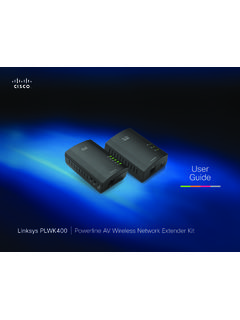
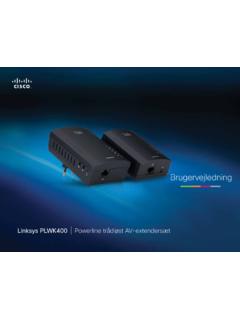
Transcription of Linksys PLW400 User Guide
1 user GuideLinksys PLW400 Powerline AV Wireless Network Extender2 ContentsLinksys PLW400 Overview .. 3 Features ..3 How .Powerline .networking .works ..4 Example installation 4 Installing .the . PLW400 .. 5 Installation .overview ..5 Tips 5 How .to .connect .your . PLW400 ..5 Setting .up .advanced .security ..6 Using .the .Utility .. 6 Troubleshooting .. 8 Specifications ..10 Contents3 OverviewLinksys PLW400 Thank you for choosing this Linksys PLW400 wireless Powerline network adapter This adapter provides easy setup and let you connect wireless network devices to your Powerline network This setup Guide assumes you already have a working Powerline network You can find more help from our award-winning.
2 24/7 customer support at Protected Setup button Press this button to connect with other wireless network devices that have a Wi-Fi Protected Setup button HomePlug Simple Connect button Configures advanced security (the network password) for your Powerline network Reset button (recessed) To restore the factory default settings (including the advanced security settings and the network password), use a pointed object to press and hold the Reset button for at least ten seconds Powerline LED The Powerline LED turns on when the adapter is connected to the Powerline network The LED flashes to indicate network activity Ethernet LED The Ethernet LED turns on when a wired network device is turned on and connected to the adapter s Ethernet (network)
3 Port The LED flashes to indicate network activity Wireless LED The Wireless LED turns on when a wireless network device is connected to your PLW400 Wi-Fi Protected Setup LED This LED flashes while a wireless network device is connecting with your PLW400 using Wi-Fi Protected Setup Power LED The power LED turns on when the adapter is connected to a powered electrical outlet Ethernet port Use a network (Ethernet) cable to connect this port to a wired network device Overview4 OverviewLinksys PLW400 How .Powerline .networking .worksElectrical wiring runs through your home or office, carrying power to electrical outlets in every room The typical wired Ethernet network uses Ethernet network cables to connect your wired network devices A Powerline network uses your existing household wiring as the wiring for your Powerline network To create your Powerline network, use two or more Powerline adapters Each device on your Powerline network requires a connection (either wired or wireless)
4 To a Powerline adapter Your PLW400 contains one Ethernet port and a wireless access point You can connect one wired device and several wireless devices to it Example .installationThis diagram shows a basic Powerline network in a house The router upstairs is connected to a Powerline adapter, which is plugged into an electrical outlet Downstairs, the gaming console and a computer are connected to the PLW400 , which is plugged into an electrical outlet Using the household wiring of the home, the router expands the local network to include the gaming console and desktop computer in the living room Internet access, files, and printers can be shared between the computers and other networked devices For online gaming.
5 You can play downstairs in the comfort of your living room, while using the high-speed Internet connection of the router and modem upstairs ModemRouterComputerGaming ConsolePLE400 PLW4005 Installing the PLW400 Linksys PLW400 Installation .overviewTo set up your Powerline network, you should: Make sure you already have Internet access and a working home Powerline network Make sure that the wireless devices that you want to connect to the PLW400 have a working wireless feature An easy way to test this is to first try to connect the wireless network device to your home s wireless router while near the router Tips If possible, connect Powerline adapters directly to a wall power outlet, and not to an extension cord, power strip, or surge protector If a Powerline adapter must be installed onto a power strip.
6 Make sure that no other electronic devices are connected to the same power strip If possible, position the PLW400 near the wireless devices that you want to connect Avoid obstructions (such as metal file cabinets, mirrors, and thick walls) between the PLW400 and any wireless device you want to connect How .to .connect .your . PLW400 After you have a basic Powerline network set up, you can add this PLW400 anywhere in your home TIPYou can also set up and configure all of your Linksys Powerline devices using the configuration utility For more information, see Using the Utility on page 6 To connect your PLW400 :1.
7 Make sure that the power switch on the right side is set to I (on) 2. If your home network already has security set up (recommended): a. Connect the PLW400 to a power outlet near your main wireless router b. On the PLW400 , press and hold the Wi-Fi Protected Setup button at least one second, until the the Wi-Fi Protected Setup LED flashes Installing the PLW4006 Using the UtilityLinksys PLW400c. Within two minutes, press the Wi-Fi Protected Setup button on your wireless router The PLW400 retrieves the security settings from the router and connects to your wireless network 3.
8 Move your PLW400 to a power outlet near the wireless network device(s) you want to connect Typically, this area is not covered well by your home s wireless network router The Powerline LED flashes, then stays on when the connection to the rest of the Powerline network is finished Your home s wireless network is now available in the area surrounding the PLW400 4. Connect the wireless network device to the wireless network in the usual manner For instructions, see your wireless network device s user documentation The PLW400 s Wireless LED flashes, then stays on when a wireless network device successfully connects Setting.
9 Up .advanced .securityNOTEThe devices connected to the Powerline adapters will temporarily lose Internet connection during the security setup To configure your network adapter with advanced security:1. On one of the existing Powerline adapters that already have advanced security set up, press and hold the HomePlug Simple Connect button for at least one second, until the Powerline LED begins flashing slowly 2. On your PLW400 , press and hold the HomePlug Simple Connect button for at least one second, until the Powerline LED begins flashing slowly When the LED stops flashing, the network key has been shared with the PLW400 NOTEThe devices connected to the adapters will regain Internet access within five minutes Using the UtilityIf you re having difficulty connecting the adapters using the previous method, or if you d like to set more advanced options, you can use the configuration utility To install the configuration utility:1.
10 Connect a computer s Ethernet port to the PLW400 s Ethernet port using the provided cable 2. Insert the setup CD into the computer s CD or DVD drive, then follow the on-screen instructions To use the configuration utility:1. After the utility is installed:On Windows systems:a. Click Start, All Programs, Cisco Systems, then Cisco Powerline AV Utility The utility opens On Mac OS X systems:a. Open the Applications folder, then double-click the Cisco Powerline AV Utility icon The utility opens 7 Using the UtilityLinksys PLW400 NOTEIf you try to change the settings of a Powerline device from a computer that is not connected directly to that device with a cable, you are prompted for a password The device password is printed on the back of the device 2.