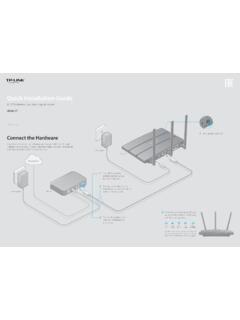
Transcription of next to your router. Wait Quick Installation Guide
1 1. 2021 TP-Link 7106509367 Power On Plug the extender into a power outlet next to your router. Wait until its Power LED turns solid on. Quick Installation Guide Note: For safety, only plug the extender in the direction as shown below. Range extender Next to Setup with videos Scan the QR code, or visit Solid On * Images may differ from your actual product. 2 Set Up Via the Tether App More Setup Methods 1. Get the up-to-date Tether app from the 3. Tap the button and select Range extender . Via a Web Browser Apple App Store or Google Play, or simply Note: If you cannot find your device, please refer to 1.
2 Connect your computer or smartphone to scan the QR code. FAQ > Q1. the extender 's network TP-Link_Extender. 2. Visit or My Devices in a web browser. No devices found. Create a password to log in. or 3. Follow web instructions to complete the setup. Choose your device type Router Tether Gaming Router Via the WPS Button Range extender Scan for Tether 1. Press the WPS button on your router. 2. Launch the Tether app and log in with your 4. Follow app instructions to complete the setup. 2. Within 2 minutes, press the WPS button on the TP-Link ID. If you don't have an account, The RE LED should turn solid on, indicating extender for 1 second.
3 The RE LED should create one first. successful connection to your router. change from blinking to solid on, indicating Note: If the LED does not turn solid on, please successful connection. refer to FAQ > Q2. Extended Network Name: Welcome to Tether Router's network name with _EXT at the end TP-Link ID (Email) Password: Same as your router Password Log In Sign Up Forgot Password? For more details, please refer to the user Guide at Solid On 3 Relocate Best 5. 4. 3 Good 3 LEDs light up 1. Plug in the extender about halfway between your router and the Wi-Fi dead 1.
4 2. zone. The location you choose must be within the range of your router. 2. Wait for about 2 minutes until 3 or more LEDs light up. If not, relocate the extender closer to the router to achieve better signal quality. Router Devices Halfway Tip: To place the extender for optimal Wi-Fi performance, access extender settings via the Tether app and go to Tools > Location Assistant, or simply scan the QR code to visit Enjoy! Connect your devices to the extender wirelessly or via an Ethernet cable, Smartphone Tablet Laptop then enjoy the internet. The password of your extended network is the same as your host router.
5 Tip: You can also set up the extender in Access Point mode to transform your existing wired network to Smart TV Game Console Desktop a wireless one. For details, refer to the user Guide at Access extender Settings LED Explanation After setup, you can access extender settings via any of the methods below. You can reselect host network, change extended network settings and more. Note: If your extender and router use the same network name, Method 1 is recommended. Method 1: Via the Tether App 5. 4. 3. 2. 1. Tether LED Status Indication (For Range extender Mode).
6 1. Connect your smartphone to the extender s or router's network. The extender is connected or not connected to 2. Launch the Tether app, select your extender , and log in. On/Off RE your router's wireless network. 3. View or change extender settings as needed. Blinking WPS connection is in progress. The extender 's wireless function is enabled or Method 2: Via a Web Browser Wireless On/Off disabled. On/Off The extender is on or off. Power The system is starting up or firmware upgrade is in Blinking progress. Indicates the Wi-Fi connection between the 1.
7 Connect your computer or smartphone to the extender 's network. If (Signal On/Off extender and the router. More lit LEDs indicates a you are using a computer, unplug the Ethernet cable if any. Strength) better signal strength. 2. Launch a web browser, enter in the address bar, and log in. The Ethernet port is connected or not connected Ethernet On/Off to a powered-on device. 3. View or change extender settings as needed. Q1. What should I do if the Tether app cannot find my device during Q3. How do I reset the extender ? setup? With the extender powered on, use a pin to press the RESET button for 1.
8 Try another method by following the steps below: second. The extender will reboot. 1. Connect your smartphone to the extender 's network TP-Link_Extender. < Settings Wi-Fi Wi-Fi CHOOSE A TP-Link_Extender RESET. 2. Launch the Tether app, and select your extender . Tip: If you have connected to the extender 's Wi-Fi but still cannot find your device, try turning off your cellular data. If you need more setup help, please visit , or simply scan the QR code. My Devices Local Device Safety Information TL-WA850RE. XX-XX-XX-XX-XX-XX Keep the device away from water, fire, humidity or hot environments.
9 Do not attempt to disassemble, repair, or modify the device. If you need service, please contact us. 3. Follow app instructions to complete the setup. Do not use the device where wireless devices are not allowed. The socket-outlet shall be installed near the equipment and shall be easily accessible. If you are still having problems, contact our technical support. Please read and follow the above safety information when operating the device. We cannot guarantee that no accidents or damage will occur due to improper use of the device. Please use this Q2.
10 What should I do if the RE LED doesn't turn solid on after product with care and operate at your own risk. completing setup via the Tether app or web browser? TP-Link hereby declares that the device is in compliance with the essential requirements and other relevant provisions of directives 2014/53/EU, 2009/125/EC, 2011 /65/EU and (EU) 2015/863. You may have entered incorrect Wi-Fi password for your host router during the The original EU Declaration of Conformity may be found at configuration. Check the password and try again. TP-Link hereby declares that the device is in compliance with the essential requirements and other Make sure the extender is close to your router, preferably within 16 feet, and away relevant provisions of the Radio Equipment Regulations 2017.