Transcription of Operating System for Ubiquiti EdgeRouters
1 Operating System for Ubiquiti EdgeRoutersRelease Version: of ContentsEdgeOS User GuideUbiquiti Networks, Inc .Table of ContentsChapter 1:Overview ..1 Introduction ..1 Configuration Interface System Requirements ..1 Hardware Overview and Installation ..1 Typical Deployment Scenarios ..1 Chapter 2: Using EdgeOS ..3 Ports and Status Information ..3 Navigation ..3 Common Interface Options ..4 Chapter 3: Dashboard ..9 Hardware ..9 Services ..9 Interfaces ..10 Chapter 4: Traffic Analysis ..17 Traffic Analysis ..17 Top Hosts ..18 Hosts ..18 Category ..19 Chapter 5: Routing ..21 IPv6 Routing ..21 Routes ..22 OSPF ..24 Chapter 6: Firewall/NAT ..27 Port Forwarding ..27 Firewall Policies ..28 NAT.
2 33 Firewall/NAT Groups ..36 Chapter 7: Services ..39 DHCP Server ..39 DNS ..43 PPPoE ..44 Chapter 8: VPN ..45 PPTP Remote Access ..45 IPsec Site-to-Site ..46iiTable of ContentsEdgeOS User GuideUbiquiti Networks, Inc .Chapter 9: QoS ..49 Smart Queue ..49 Advanced Queue ..51 Chapter 10: Users ..59 Local ..59 Remote ..60 Chapter 11: Config Tree ..61 User Interface ..61 Discard and Preview ..62 CLI Modes ..62 Configuration Example ..62 Chapter 12: Wizards ..65 Setup Wizards ..65 Feature Wizards ..78 Chapter 13: Toolbox ..79 Ping ..79 Bandwidth ..80 Trace ..80 Discover ..81 Packet Capture ..81 Log Monitor ..82 Appendix A: Command Line Interface ..83 Overview ..83 Access the CLI ..83 CLI Modes.
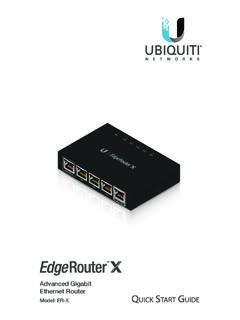
3 85 Appendix B: Contact Information ..93 Ubiquiti Networks Support ..931 Chapter 1:OverviewEdgeOS User GuideUbiquiti Networks, 1:OverviewIntroductionEdgeOS is a powerful, sophisticated Operating System from Ubiquiti It allows you to manage your EdgeRouter and networks. This User Guide is designed for use with version or above of the EdgeOS Configuration Interface and all of the EdgePoint and EdgeRouter models, which this User Guide will collectively refer to as EdgeRouter. Additional information is available on our website at: intuitive EdgeOS Configuration Interface allows you to conveniently manage your EdgeRouter using your web browser. (See Using EdgeOS on page 3 for more information.) If you need to configure advanced features or prefer configuration by command line, you can use the config tree or the Command Line Interface (CLI).
4 (See Config Tree on page 61 or Command Line Interface on page 83 for more information.)Configuration Interface System Requirements Microsoft Windows 7, Windows 8, Windows 10, Linux, or Mac OS X Web Browser: Google Chrome, Mozilla Firefox, Microsoft Edge, or Microsoft Internet Explorer 8 (or above)Hardware Overview and InstallationThe Quick Start Guide that accompanied your EdgeRouter includes a hardware description and instructions for hardware Deployment ScenariosWhile there are numerous scenarios that are possible, this section highlights three typical deployments: Small Office/Home Office (SOHO) Deployment Service Provider Deployment Corporate DeploymentSOHO DeploymentClick the Wizards tab and follow the on-screen instructions.
5 See SOHO Deployment Wizards on page 71 for more Provider DeploymentThis scenario uses six EdgeRouter devices:1. OSPF Area 0 to OSPF Area 12. OSPF Area 0 to OSPF Area 23. OSPF Area 14. OSPF Area 1 to Internet5. OSPF Area 26. OSPF Area 2 to InternetSite-to-Site LinkOSPF Area 0 OSPF Area 1 OSPF Area 2 InternetInternetSite ASite BHere are the typical steps to follow:1. Configure the appropriate settings on the System tab (see System on page 4 for more information): Host Name Time Zone Gateway Name Server Domain Name NTP2. Configure the interfaces on the Dashboard tab; see Interfaces on page 10 for more Configure OSPF settings on the Routing > OSPF tab; see OSPF on page 24 for more Configure DHCP server(s) on the Services tab; see DHCP Server on page 39 for more Configure NAT rules on the Firewall/NAT > N AT tab; see NAT on page 33 for more 1:OverviewEdgeOS User GuideUbiquiti Networks, Configure firewall rules on the Firewall/NAT > Firewall Policies tab; see Firewall Policies on page 28 for more Configure additional settings as needed for your DeploymentThis scenario uses a single EdgeRouter device.
6 The three independent interfaces connect to the following: Internet DMZ LANI nternetDMZLANF irewall PoliciesHere are the typical steps to follow:1. Configure the appropriate settings on the System tab (see System on page 4 for more information): Host Name Time Zone Gateway Name Server Domain Name NTP2. Configure the interfaces on the Dashboard tab; see Interfaces on page 10 for more Configure DHCP server(s) on the Services tab; see DHCP Server on page 39 for more Configure NAT rules on the Firewall/NAT > N AT tab; see NAT on page 33 for more Configure firewall rules on the Firewall/NAT > Firewall Policies tab; see Firewall Policies on page 28 for more Configure additional settings as needed for your User GuideUbiquiti Networks, 2: Using EdgeOSChapter 2: Using EdgeOSEdgeOS is a powerful, sophisticated Operating System that manages your EdgeRouter.
7 It offers both a browser based interface (EdgeOS Configuration Interface) for easy configuration and a Command Line Interface (CLI) for advanced configuration. To access the EdgeOS Configuration Interface:1. Connect an Ethernet cable from the Ethernet port of your computer to the port labeled eth0 on the Configure the Ethernet adapter on your computer with a static IP address on the subnet ( , ).Note: As an alternative, you can connect a serial cable to the Console port of the EdgeRouter. See Command Line Interface on page 83 for more Launch your web browser. Type in the address field. Press enter (PC) or return (Mac). 4. The login screen will appear. Enter ubnt in the Username and Password fields. Read the Ubiquiti License Agreement, and check the box next to I agree to the terms of this License Agreement to accept it.
8 Click EdgeOS Configuration Interface will appear, allowing you to customize your settings as needed. Note: To enhance security, we recommend that you change the default login using one of the following: Set up a new user account on the Users > Local tab (preferred option). For details, go to Local on page 59. Change the default password of the ubnt login on the Users > Local tab. For details, go to Configure the User on page and Status InformationThe Ports image displays the active connections. A purple port indicates 10 Mbps, an amber port indicates 100 Mbps, and a green port indicates 1000 Mbps. The Status bar graphs display the following:CPU The percentage of processing power used by the The percentage of RAM used by the The duration of the EdgeRouter s your mouse over a port to view the following:Enabled/Disabled The administrative status is The connection status is displayed.
9 Speed The speed (in Mbps) and duplex mode are displayed. NavigationThe EdgeOS software consists of 10 primary tabs, and some of these tabs have sub tabs. This User Guide covers each tab with a chapter. For details on a specific tab, refer to the appropriate chapter. Dashboard Dashboard on page 9 displays status information about services and interfaces. You can also configure interfaces and Virtual Local Area Networks (VLANs). Traffic Analysis Traffic Analysis on page 17 displays Deep Packet Inspection (DPI) information about the applications and IP addresses using the most bandwidth. Routing Routing on page 21 configures static routes and Open Shortest Path First (OSPF) settings, including metrics, areas, and interfaces.
10 Firewall/NAT Firewall/NAT on page 27 configures port forwarding, firewall policies, Network Address Translation (NAT ) rules, and firewall/NAT groups. Services Services on page 39 configures DHCP servers, DNS forwarding, and the PPPoE server. VPN VPN on page 45 configures PPTP remote access and IPSec site to site VPN User GuideUbiquiti Networks, 2: Using EdgeOS QoS QoS on page 49 configures Smart Queue and Advanced Queue management. Users Users on page 59 configures user accounts with administrator or operator access. Config Tree Config Tree on page 61 is a graphical representation of the CLI config settings. Wizards Wizards on page 65 offers a variety of wizards: setup wizards that configure the EdgeRouter for typical SOHO deployments, load balancing wizards, and feature wizards that configure TCP MSS clamping and on the tab you click, some of the screens display information and options in multiple sections.