Transcription of Outlook Web App: Contacts and Distribution Lists
1 Outlook Web App: Contacts and Distribution Lists Table of Contents Contacts .. 1 Adding Contacts .. 1 Quick Add Contacts .. 3 Distribution Lists .. 4 Creating Distribution 4 Removing Names .. 5 Page 1 Prairie State College Updated: 6/12 Contacts In Outlook Web App (OWA) you can save Contacts so that you do not need to type the email address every time you send an email. Adding Contacts 1. Select Contacts from the bottom left corner. 2. Select New. 3. Enter the First and Last Name. 4. Enter the Email. Note: Prairie State College email addresses are already included in the PSC global address list and do not need to be added to your Contacts list. Page 2 Prairie State College Updated: 6/12 5. Optional: Enter any phone numbers. 6. Optional: Enter any addresses. 7. Select Save & Close. Page 3 Prairie State College Updated: 6/12 Quick Add Contacts 1. Select the message from your messages list. 2. From the email header, double click on the email address.
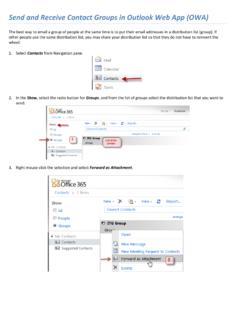
2 3. A new contact window opens with the display name and address. Select Add to Contacts . 4. Add the First and Last Name as well as any additional information ( phone numbers or addresses). 5. Select Save & Close. Page 4 Prairie State College Updated: 6/12 Distribution Lists In Outlook Web App (OWA) you can create a Distribution list so that you do not need to enter every email address every time you need to send an email to the same group of people. Creating Distribution Lists 1. Select Contacts from the bottom left corner. 2. Select the drop-down arrow next to New. 3. Select Group. 4. Enter a Group Name ( English Department). 5. Select Members. 6. There are three options for adding members: Global Address List: Use this to add a PSC employee to your list. Page 5 Prairie State College Updated: 6/12 Select Default Global Address List from the left list. Locate the name in the list and select Members. Contacts : Use this to add an existing contact to your list.
3 Select Contacts from the left list. Locate the name in the list and select Members. New Address: Use this to add an address not found in the Global Address List or Contacts . Enter the email address in the Members field. 7. Select OK. 8. Select Add to Group. 9. Select Save & Close. Removing Names 1. Open the group list. 2. Select the address that you want to remove. 3. Select Remove from Group. 4. Select Save & Close.