Transcription of Personal TV Remote Control
1 DISHP layer 500 Personal TVRemote ControlCopyright 2000 EchoStar Technologies CorporationEnglewood, Colorado 80112 All rights information contained herein is subject to change without notice. Revisions may be issued to advise of such changes and/or additions. Correspondence regarding this publication should be addressed directly to:EchoStar Technologies Corporation,Technical Publications, 90 Inverness Circle East,Englewood, Colorado 80112 Catalog Number: 101681 Rev AA Printed in United StatesDISH network , DISHP layer , and the dish network logo aretrademarks of EchoStar Technologies WebTV logo is a registered trademark of Microsoft Corporation in the United States and/or other countries. 1 Table of ContentsWelco me .. page 1 Important Safety Instructions .. page 2 Installing Batteries.. page 2 Main Features of the Personal TV Remote Control .. page 3 Using the Remote Control .. page 4 Personal TV Service.. page 6 Personal TV and the Original RemoteControl/Wireless Keyboard.
2 Page 25 Controlling YourVCR with the Remote Control .. page 27 Programming the Remote Control .. page 28 Remote Control Codes .. page 30 FCC Compliance .. page 33 Limited Warranty .. page 34We lc o m e !Congratulations on your purchase of the Personal TV Remote Control !This Remote will help you Control the main functions of yourDISHP layer unit as well as simplify the use of the Personal TV make full use of the Personal TV Remote Control , subscribe toPersonal TV by contacting the dish network service center at 1-800-333- dish (3474). For Personal TV features and operation, see Personal TV Service on page 6. For more information about the useof your Personal TV Remote Control , see the User Guide that came withyour DISHP layer receiver or select Help from TV can also program your Personal TV Remote Control to Control mosttelevisions and video cassette recorders. This is very useful, as itallows you to adjust the volume of your television, turn your televisionon and off, switch television inputs, and Control your VCR.
3 To set upthe Personal TV Remote Control to operate your television and VCR,see Programming the Remote Control on page aware that when you use your new Personal TV Remote Control , the original Remote Control that came with your DISHP layer will operate slightly different. The original Remote can be identified by looking on the back. The number 123477447 is written in bold lettering on the back of the Remote . See page 25 for more Important Safety InstructionsFor your protection, you must remember certain safety issues whileusing this devise. Please keep these and any additional instructions forfuture Warnings: Carefully follow all warnings on the device and inthe operating : DO NOT place the device near heat sources such as radiators,stoves, heat registers, or other appliances that produce and UseCleaning: DO NOT use liquid, abrasive, solvent, or aerosol a damp cloth for Not In Use: Remove the batteries if this device is to be leftunattended or unused for a long period of servicing to qualified personnel when a solid object or liquidhas fallen onto or into the NOT attempt to service this device.
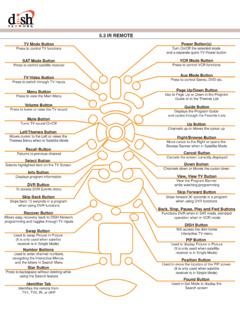
4 Refer all servicing toqualified personnel. Opening covers other than the battery cover willvoid the of batteries properly. Follow the instructions that came withyour batteries for proper BatteriesThe Remote Control uses AA batteries. When you replace old batteries,you should replace all of the batteries. Use batteries of the same gradeand do not mix batteries of different grades. Alkaline batteries providelonger battery down on the slot in the battery case cover (on the back of the Remote Control ) and slide the cover the new batteries, making sure to match the plus (+) ends with the plus markings on the battery the battery cover by sliding the cover back up into place. 3 Main Features of the Personal TVRemote ControlTurn TV on/offMove PIP(Picture-in-Picture win-dow) while on the WebChange channelsDisplay Options panel for TV and WebMove yellow box or cursorScroll screens,TV Listings andWeb pagesTV/VCR SAT MODES witch between TV/VCR receiver controlDisplay TV program or Web page informationTurn satellite receiver on/offDisplay TV Listings and cycle through FavoritesCycle throughvideo inputson your TVCODESETSet Remote to controlyour TV/VCRD isplay PIP (Picture-in-Picture window) whileusing the WebSwitch between TVand Web viewingGo to current Home(TV or Web)Return toprevious screenSelect highlighted itemDisplay recent channels or Web Control TV volumeReturn toprevious channelTurn TV soundon/offSelect channels;enter numbersin text fieldsPause programRewind programReplay.
5 Skip back7 secondsDisplay PersonalTV screenStop recordingRecord the current show to Personal TV Skip forward the next 30 secondsFast Forward programPlay; resume playing program4 Using the Remote ControlThe table below describes the Remote functions. The Remote controluses infrared (IR) light to communicate with the DISHP layer should stay within 30 feet of the receiver when using the Remote ,and point it directly at the front panel of the Control Actiontop gray arrowsMove yellow box or cursorGOSelects item surrounded by yellow boxCHANNELC hanges satellite (or TV) channelsVOLUME Controls TV volumeLISTINGSD isplays TV Listings (and cycles through Favorites lists)SCROLLS crolls TV Listings and Web pages one page at a timeRECALLR eturns to previous channelOPTIONSD isplays Options panel (includes Search Listings, Go Live, and Go Interactive features)MUTET urns TV sound on/off Personal TVDisplay Personal TV screenBACKR eturns to previous screenRECENTD isplays recent channels (or Web pages)TV/WEBS witch between TV and Web viewingHOMEGo to current Home screen (TV Home or Web Home)numbersSelect channels.
6 Enter numbers in text fieldsPIPD isplays PIP (picture-in-picture) while using WebTV serviceSAT (POWER)Turns the receiver on/offTV (POWER)Turns TV on/off 5TV/VIDEOC ycles through TV video inputsTV/VCR SAT MODEOn the side of the Remote , switches receiver Control between TV/VCR and Satellite ReceiverENTERM oves PIP (Picture-In-Picture) while on the WebCODESETSet code to Control your TV and VCRR eplayJumps back in the current or recorded program 7 secondsSkipSkips the recorded or paused program ahead 30 secondsPausePauses program. Press this button again to resume For-wardFast forwards through the current pro-gram until another function is selectedRewindRewinds the current program until another function is selectedStopStops the current recordingRecordRecords the current programPlayResumes playing the current or recorded programINFOD isplays information about current TV program (or Web page) Remote Control Action6 Personal TV ServiceWebTV s Personal TV service is the wave of the future.
7 It gives youthe capability never to miss a program and to watch it at your conven-ience. With Personal TV you can: Schedule programs to record on your Personal TV service or your VCR Play and replay recorded programs Receive Instant News from your TV ListingsPersonal TV also lets you pause live TV programs. When you vepaused a program you can then fast forward and rewind through theprogram as you are watching it. For instance, you can use instantreplay to see that winning touchdown again, or skip ahead past a sceneyou already viewed. Subscription to Personal TV service requires asubscription in addition to your satellite TV service. Call 1-800-333- dish (3474) to HomeThe TV Home screen has a link to Personal TV. A green indicator willlight up next to the Personal TV link when a new program has beenrecorded. During recording the indicator will be TV ListingChoose Personal TV from TV Home or press the Personal TV buttonon the Remote Control .
8 The Personal TV Listing screen lists previouslyrecorded programs, future recording events, TV reminders, and VCRrecording events. From this screen you can find information about TVprograms that you ve already recorded and programs that are sched-Displays Personal TV recording events, and reminders. 7uled to be recorded in the future. This is also where you chooserecorded programs to a Program On Personal TVRecording a program on Personal TV is like recording a program onyour VCR only instead of recording on to a tape, you are recording onto the hard drive of the DISHP layer receiver. If you record a programon to your Personal TV service and then decide you want a copy savedon video tape, follow the instructions Saving a Recorded Program onto a Video Tape on page 16. The DISHP layer has a limited capacityfor recording (between 4 and 12 hours of record time). Depending onthe model of your receiver, the size of the hard drive, and what you arerecording, your Personal TV service may erase previously recordedprograms if it needs the space to record scheduled recording : You cannot change channels while recording.
9 If you try tochange channels, a warning panel will appear at the bottom of yourscreen prompting you to stop recording. Select Stop Recording if youwish to quit recording the current program to Personal Personal TV ListingGreen listings are recorded programs. Blue listings are recordings or reminders that are sched-uled to occur in the highlighted program is described at the top of the To Instantly Record a Program on Personal TVWhile watching the program: Press the Record button on the Remote Control ().A record icon will display for a few seconds, then disappear to indicate the program is being Press the Info button on the Remote Control or optional Select the Record option on the Program Info Record on Personal TV on the Personal TV screen and select next screen will verify that Recording is Select stop recording, press the Stop button on your Remote Control () and select the Stop Recording option from the panel that Record a Future Program on Personal TV1.
10 Select TV Listings from TV Select how you want to view the TV Listings (by today, time, date, search, category, etc.).3. Select an upcoming program you want to record from the list (upcoming programs are colored blue).The Program Info screen for that program appears. 94. Select Record screen Make sure the Record on Personal TV red indicator light is turned on, then select Recording Scheduled screen Select TV Listing screen appears with a red dot next to the program. This indicates that the program is scheduled to be recorded on Per-sonal : The Record on VCR option will only appear if your DISHP layer has been set up to Control your To Record a Program Daily or Weekly1. Select TV Listings from TV Select how you want to view the TV Listings (by today, time, date, search, category, etc.).3. Select the program you want to record daily or weekly from the Program Info screen for that program will Select Record screen Select Record daily or weekly then select Recording Scheduled screen Select TV Listings screen appears with several dots next to the pro-gram.