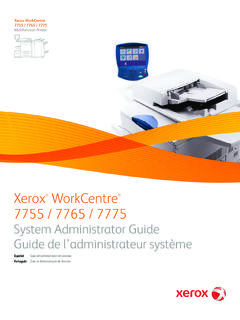
Transcription of Phaser® 6130 Printer User Guide - Xerox
1 IJ BetjeningsvejledningAnv ndarhandbokGebruikershandleidingGuia do Usu rioGu a del usuarioBenutzerhandbuchGuida dell'utenteGuide d utilisationUser Guide 6130printerUnpublished rights reserved under the copyright laws of the United States. Contents of this publication may not be reproduced in any form without permission of Xerox protection claimed includes all forms of matters of copyrightable materials and information now allowed by statutory or judicial law or hereinafter granted, including without limitation, material generated from the software programs which are displayed on the screen such as styles, templates, icons, screen displays, looks, , CentreWare , Phaser , PrintingScout , and Walk-Up are trademarks of Xerox Corporation in the United States and/or other countries. Adobe and PostScript are trademarks of Adobe Systems Incorporated in the United States and/or other countries. Apple , Bonjour , ColorSync , EtherTalk , Macintosh , and Mac OS are trademarks of Apple Computer, Inc.
2 In the United States and/or other is a trademark of Hewlett-Packard Corporation in the United States and/or other countries. Microsoft , Vista , Windows , and Windows Server are trademarks of Microsoft Corporation in the United States and/or other , NetWare , and IPX/SPX are trademarks of Novell, Incorporated in the United States and/or other countries. As an ENERGY STAR partner, Xerox Corporation has determined that this product meets the ENERGY STAR guidelines for energy efficiency. The ENERGY STAR name and logo are registered 6130 PrinteriContents1 Printer InformationUser safety .. 1-2 Electrical safety .. 1-2 Laser safety .. 1-3 Maintenance safety .. 1-3 Operational safety .. 1-4 Moving the Printer .. 1-6 safety Symbols Marked on Product .. 1-7 Printer Specifications.. 1-8 Regulatory Information .. 1-9 United States (FCC Regulations) .. 1-9 Canada (Regulations) .. 1-9 European Union .. 1-10 Material safety Data Sheet.
3 1-11 Product Recycling and Disposal .. 1-12 All Countries .. 1-12 European Union .. 1-12 North America.. 1-13 Other Countries .. 1-132 Printer FeaturesMain Components and Their Functions .. 2-2 Front View .. 2-2 Rear View .. 2-3 Internal View.. 2-4 Printer Configuration .. 2-5 Options .. 2-5 Control Panel .. 2-6 Control Panel Layout .. 2-6 Display .. 2-6 Information Pages .. 2-7 Power Saver Mode.. 2-8 Exiting the Power Saver Mode .. 2-8 Checking Status of Print Data .. 2-9 Checking in Windows .. 2-9 ContentsPhaser 6130 PrinteriiDisplaying Optional Accessory Configuration and Paper Tray Settings .. 2-10 More Information .. 2-11 Resources .. 2-113 Network BasicsOverview of Network Setup and Configuration .. 3-2 Choosing a Connection Method .. 3-3 Connecting via Ethernet (Recommended) .. 3-3 Connecting via USB .. 3-4 Configuring the Network Address.. 3-5 TCP/IP and IP Addresses .. 3-5 Automatically Setting the Printer s IP Address.
4 3-5 Dynamic Methods of Setting the Printer s IP Address .. 3-6 Manually Setting the Printer s IP Address .. 3-7 Installing the Printer Drivers .. 3-9 Available Drivers .. 3-9 Windows 2000 or Later.. 3-10 Macintosh OS X, Version and Higher .. 3-104 Printing BasicsSupported Paper and Media.. 4-2 Paper Usage Guidelines .. 4-3 Paper That Can Damage Your Printer .. 4-4 Paper Storage Guidelines .. 4-4 About Paper .. 4-5 Setting Paper Types and Sizes.. 4-7 Setting the Paper Tray .. 4-7 Setting Paper Types .. 4-7 Setting Paper Sizes .. 4-7 Loading Paper .. 4-8 Loading Paper in the Paper Tray .. 4-8 Loading Paper in the Manual Feed Slot .. 4-12 Selecting Printing Options.. 4-14 Selecting Printing Preferences (Windows) .. 4-14 Selecting Options for an Individual Job (Windows).. 4-15 Selecting Options for an Individual Job (Macintosh) .. 4-17 ContentsPhaser 6130 PrinteriiiPrinting on Specialty Media.
5 4-20 Printing Envelopes .. 4-20 Printing Labels .. 4-23 Printing Glossy Paper .. 4-27 Printing Custom Size .. 4-31 Defining Custom Paper Sizes .. 4-31 Printing on Custom Size Paper .. 4-32 Printing Confidential Document - Secure Print.. 4-34 About Secure Print .. 4-34 Configuring Secure Print .. 4-34 Print After Checking Printing Result - Proof Print .. 4-36 About Proof Print .. 4-36 Configuring Proof Print .. 4-365 Using the Control Panel MenusControl Panel Menus .. 5-2 Menu Configuration .. 5-2 Changing Menu Settings .. 5-3 Description of Menu Items .. 5-4 Tray Settings .. 5-4 Information Pages .. 5-5 Billing Meters .. 5-6 Admin Menu .. 5-6 Menu List.. 5-156 Print QualityPrint-Quality Problems .. 6-2 Color Registration .. 6-6 Automatic Color Registration Adjustment .. 6-6 Manual Color Registration Adjustment .. 6-6 Enabling/Disabling Automatic Color Registration .. 6-87 TroubleshootingPaper Jams.
6 7-2 Preventing and Clearing Paper Jams.. 7-2 Paper Jams in the Paper Tray .. 7-3 Paper Jams at the Fuser .. 7-6 Problems With the Printer .. 7-8 Enabling Options.. 7-11 ContentsPhaser 6130 PrinterivControl Panel Error Messages .. 7-12 Messages About Supplies .. 7-12 Messages About the Printer and Other Items .. 7-13 Getting Help .. 7-16 Control Panel Messages .. 7-16 PrintingScout Alerts .. 7-16 Online Support Assistant .. 7-16 Web Links .. 7-178 MaintenanceCleaning the Printer .. 8-2 Cleaning the Exterior .. 8-2 Cleaning the Interior .. 8-2 Ordering Supplies .. 8-3 Consumables .. 8-3 Routine Maintenance Items .. 8-3 When to Order Supplies .. 8-3 Recycling Supplies .. 8-4 Managing the Printer .. 8-5 Checking/Managing the Printer with CentreWare IS .. 8-5 Checking Printer Status with PrintingScout .. 8-5 Checking Printer Status Through E-mail .. 8-6 Checking Page Counts.. 8-9 Moving the Printer .
7 8-10 IndexPhaser 6130 Printer1-1 This chapter includes: user safety on page 1-2 Printer Specifications on page 1-8 Regulatory Information on page 1-9 Material safety Data Sheet on page 1-11 Product Recycling and Disposal on page 1-12 Printer InformationUser SafetyPhaser 6130 Printer1-2 user SafetyYour Printer and the recommended supplies have been designed and tested to meet strict safety requirements. Attention to the following information ensures the continued safe operation of your Printer . Electrical safety Use the power cord supplied with your Printer . Plug the power cord directly into a properly grounded electrical outlet. Make sure each end of the cord is securely connected. If you do not know if an outlet is grounded, ask an electrician to check the outlet. Do not use a ground adapter plug to connect the Printer to an electrical outlet that does not have a ground connection terminal. Do not use an extension cord or power strip.
8 Verify that the Printer is plugged into an outlet that is capable of providing the correct voltage and power. Review the Printer s electrical specification with an electrician if : Avoid the potential of electrical shock by ensuring that the Printer is properly grounded. Electrical products may be hazardous if misused. Do not place the Printer in an area where people might step on the power cord. Do not place objects on the power cord. Do not block the ventilation openings. These openings are provided to prevent overheating of the Printer . Do not drop paper clips or staples into the Printer . Warning: Do not push objects into slots or openings on the Printer . Making contact with a voltage point or shorting out a part could result in fire or electrical shock. user SafetyPhaser 6130 Printer1-3If you notice unusual noises or off the Printer the power cord from the electrical outlet. an authorized service representative to correct the power cord is attached to the Printer as a plug-in device at the back of the Printer .
9 If it is necessary to disconnect all electrical power from the Printer , disconnect the power cord from the electrical outlet. Warning: Do not remove the covers or guards that are fastened with screws unless you are installing optional equipment and are specifically instructed to do so. Power should be OFF when performing these installations. Except for user -installable options, there are no parts that you can maintain or service behind these covers. Note: Leave the Printer on for optimum performance; it does not pose a safety hazard. If however the Printer will not be used over an extended period of time, it should be turned off and unplugged. The following are hazards to your safety : The power cord is damaged or frayed. Liquid is spilled into the Printer . The Printer is exposed to any of these conditions occur, do the off the Printer the power cord from the electrical an authorized service representative. Laser SafetyWith specific regard to lasers, this Printer complies with laser product performance standards set by governmental, national, and international agencies and is certified as a Class 1 Laser Product.
10 The Printer does not emit hazardous light because the beam is totally enclosed during all modes of customer operation and maintenance. Maintenance safety Do not attempt any maintenance procedure that is not specifically described in the documentation supplied with your Printer . Do not use aerosol cleaners. The use of supplies that are not approved may cause poor performance and could create a hazardous condition. Do not attempt to open, reuse, or burn any consumables or routine maintenance items. For information on Xerox supplies recycling programs, go to user SafetyPhaser 6130 Printer1-4 Operational SafetyYour Printer and supplies were designed and tested to meet strict safety requirements. These include safety agency examination, approval, and compliance with established environmental attention to the following safety guidelines helps to ensure the continued, safe operation of your Printer . Printer LocationPlace the Printer in a dust-free area within a temperature range of 50 F to 90 F (10 C to 32 C) and a relative humidity range of 15 percent to 85 should be 70 percent or below at 90 F, and temperature should be 82 F or below at 85 percent : Sudden temperature fluctuations can affect print quality.