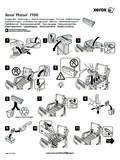
Transcription of Phaser3250 Guide EN - Xerox
1 User GuideThis manual is provided for information purposes only. All information included herein is subject to change without notice. Xerox Corporation is not responsible for any direct or indirect damages, arising from or related to the use of this manual. 2008 Xerox Corporation. All rights reserved. Phaser 3250D and Phaser 3250DN are model names of Xerox Corporation. Xerox and Xerox logo are trademarks of Xerox Corporation. IBM and IBM PC are trademarks of International Business Machines Corporation. PCL and PCL 6 are trademarks of Hewlett-Packard company. Microsoft, Windows and Windows Vista are either registered trademarks or trademarks of Microsoft Corporation. PostScript 3 is a trademark of Adobe System, Inc. UFST and MicroType are registered trademarks of Monotype Imaging Inc. TrueType, LaserWriter, and Macintosh are trademarks of Apple Computer, Inc. All other brand or product names are trademarks of their respective companies or Introduction.
2 And Labels .. Frequency Emissions .. Laser Safety Introduction .. Safety Information .. Information .. Safety Certification .. Information .. Recycling & Disposal .. Contact Information .. IntroductionSpecial features .. overview .. view .. view .. panel overview .. the LEDs .. more information .. up the hardware .. adjustment .. the font setting .. Basic setupPrinting a demo page .. toner save mode .. Software overviewSupplied software .. driver features .. requirements .. Network setup (Phaser 3250DN only)Introduction .. operating systems .. SetIP program .. Loading print mediaSelecting print media .. sizes of paper .. sizes supported in each mode .. for selecting and storing print media .. paper .. tray 1 or the optional tray 2 .. the size of the paper in tray 1 .. the manual feeder .. Output tray information .. Basic printingPrinting a document.
3 A print job .. Ordering supplies and accessoriesPrint cartridge .. to purchase .. MaintenanceCleaning the printer .. the outside of the printer .. the inside of the printer .. the print cartridge .. toner in the print cartridge .. the print cartridge .. a configuration page .. parts .. TroubleshootingClearing paper jams .. paper feed area .. near the print cartridge .. the paper exit area .. the duplex unit area .. for avoiding paper jams .. checklist .. general printing problems .. print quality problems .. Windows problems .. PostScript problems .. Linux problems .. Macintosh problems .. Installing additional memoryPrecautions to take when installing memory .. a memory module .. the added memory in the PS printer properties .. SpecificationsPrinter specifications .. GlossaryiSafetySafety IntroductionNotices and SafetyPlease read the following instructions carefully before operating the machine and refer to them as needed to ensure the continued safe operation of your Xerox product and supplies have been designed and tested to meet strict safety requirements.
4 These include safety agency evaluation and certification, and compliance with electromagnetic regulations and established environmental standards. The safety and environment testing and performance of this product have been verified using Xerox materials : Unauthorized alterations, which may include the addition of new functions or connection of external devices, may impact the product certification. Please contact your Xerox representative for more and LabelsSymbolsAll warnings and instructions marked on or supplied with the product should be : This symbol alerts users to areas of the equipment where there is the possibility of personal : This symbol alerts users to areas of the equipment where there are heated or hot surfaces, which should not be : This symbol alerts users to areas of the equipment which require special attention to avoid the possibility of personal injury or damage to the equipment. WARNING: This symbol indicates a Laser is being used in the equipment and alerts the user to refer to the appropriate safety information.
5 NOTE: This symbol identifies information that is being emphasized and is important for you to Frequency EmissionsFCC Notices For The USANOTE: This equipment has been tested and found to comply with the limits for a Class B digital device, pursuant to Part 15 of the FCC Rules. These limits are designed to provide reasonable protection against harmful interference in a residential installation. This equipment generates, uses and can radiate radio frequency energy and, if not installed and used in accordance with the instructions, may cause harmful interference to radio communications. However, there is no guarantee that interference will not occur in a particular installation. If this equipment does cause harmful interference to radio or television reception, which can be determined by turning the equipment off and on, the user is encouraged to try to correct the interference by one or more of the following measures:- Reorient or relocate the receiving Increase the separation between the equipment and Connect the equipment into an outlet on a circuit different from that to which the receiver is Consult the dealer or an experienced radio/TV technician for or modifications to this equipment not specifically approved by the Xerox Corporation may void the user's authority to operate this Compliance for CanadaThis Class "B" digital apparatus complies with Canadian appareil num rique de la classe B est conforme la norme NMB-003 du Canada.
6 Laser Safety IntroductionLaser SafetyCAUTION: Use of controls, adjustments, or performance of procedures other than those specified in this Guide may result in hazardous light exposure. This equipment complies with international safety standards and is classified as a Class 1 Laser specific reference to lasers, the equipment complies with laser product performance standards set by governmental, national, and international agencies as a Class 1 Laser Product. It does not emit hazardous light, as the beam is totally enclosed during all phases of customer operation and Safety InformationOperational Safety InformationYour Xerox equipment and supplies have been designed and tested to meet strict safety requirements. These include safety agency examination, approval, and compliance with established environmental ensure the continued safe operation of your Xerox equipment, follow these safety guidelines at all times:Do These Always follow all warnings and instructions that are marked on or supplied with the equipment.
7 Before cleaning this product, unplug the product from the electrical outlet. Always use materials specifically designated for this product, the use of other materials may result in poor performance and create a hazardous situation. Do not use aerosol cleaners, they may be explosive and flammable under certain conditions. Always exercise care when moving or relocating equipment. Please contact your local Xerox Service Department to arrange relocation of the copier to a location outside of your building. Always locate the machine on a solid support surface (not on plush carpet) that has adequate strength to support the weight of the machine. Always locate the machine in an area that has adequate ventilation and room for servicing. Always unplug this equipment from the electrical outlet before cleaning. NOTE: Your Xerox machine is equipped with an energy saving device to conserve power when the machine is not in use. The machine may be left on continuously. WARNING: The metallic surfaces in the fuser area may be hot.
8 Please use caution when removing paper jams from this area and avoid touching any metallic Not Do These Never use a ground adapter plug to connect the equipment to a power outlet that lacks a ground connection terminal. Never attempt any maintenance function that is not specifically described in this documentation. Never obstruct ventilation openings. They are provided to prevent overheating. Never remove covers or guards that are fastened with screws. There are no operator serviceable areas within these covers. Never locate the machine near a radiator or any other heat source. Never push objects of any kind into the ventilation openings. Never override or "cheat" any of the electrical or mechanical interlock devices. Never place this equipment where people might step on or trip on the power cord. This equipment should not be placed in a room unless proper ventilation is provided. Please contact your local Authorized dealer for further - Electrical Safety Information1 The power receptacle for the machine must meet the requirements stated on the data plate on the rear of the machine.
9 If you are not sure that your electrical supply meets the requirements, please consult your local power company or an electrician for socket outlet shall be installed near the equipment and shall be easily the power cable that is supplied with your machine. Do not use an extension cord or remove or modify the power cord the power cable directly into a correctly grounded electrical outlet. If you are not sure whether or not an outlet is correctly grounded, consult an not use an adapter to connect any Xerox equipment to an electrical outlet that lacks a ground connection not place this equipment where people might step or trip on the power not place objects on the power not override or disable electrical or mechanical interlock not push objects into slots or openings on the machine. Electrical shock or fire may not obstruct ventilation openings. These openings are used to provide proper cooling to the Xerox Device: The power cable is the disconnect device for this equipment.
10 It is attached to the back of the machine as a plug-in device. To remove all electrical power from the machine, disconnect the power cable from the electrical Supply1 This product shall be operated from the type of electrical supply indicted on the product's data plate label. If you are not sure that your electrical supply meets the requirements, please consult your local power company for WARNING: This equipment must be connected to a protective earth circuit. This equipment is supplied with a plug that has a protective earth pin. This plug will only fit into an earthed electrical outlet. This is a safety feature. If you are unable to insert the plug into the outlet, contact your electrician to replace the connect equipment to a correctly grounded power outlet. If in doubt, have the outlet checked by a qualified Device The power cable is the disconnect device for this equipment. It is attached to the back of the machine as a plug-in device. To remove all electrical power from the equipment, disconnect the power cable from the electrical outlet.