Transcription of PXIe-6570 Getting Started Guide - National …
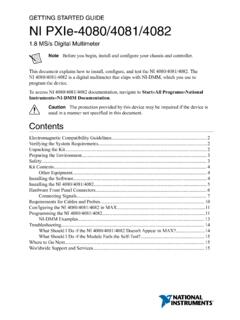
1 Getting Started GUIDEPXIe-657032-Channel Digital Pattern InstrumentNote Before you begin, install and configure your chassis and document explains how to install, configure, and test the PXIe-6570 . The PXIe-6570 is a32-channel digital pattern You can impair the protection provided by the PXIe-6570 if you use it ina manner not described in this Compatibility the System the the 3 Installing the Pattern Pattern the 7 PXIe-6570 Front to a Device Under 9 PXIe-6570 the PXIe-6570 in 11 Operating the Digital Pattern Pattern Instrument 13 What Should I Do if the PXIe-6570 Doesn't Appear in MAX?..13 What Should I Do if the Module Fails the Self-Test?
2 13 Why Is the ACCESS LED Off When the Chassis Is On?..14 Where to Go Support and Compatibility GuidelinesThis product was tested and complies with the regulatory requirements and limits forelectromagnetic compatibility (EMC) stated in the product specifications. These requirementsand limits provide reasonable protection against harmful interference when the product isoperated in the intended operational electromagnetic product is intended for use in industrial locations. However, harmful interference mayoccur in some installations, when the product is connected to a peripheral device or test object,or if the product is used in residential or commercial areas.
3 To minimize interference withradio and television reception and prevent unacceptable performance degradation, install anduse this product in strict accordance with the instructions in the product , any changes or modifications to the product not expressly approved by NationalInstruments could void your authority to operate it under your local regulatory To ensure the specified EMC performance, operate this product only withshielded cables and accessories. Do not use unshielded cables or accessories unlessthey are installed in a shielded enclosure with properly designed and shielded input/output ports and connected to the product using a shielded cable.
4 If unshieldedcables or accessories are not properly installed and shielded, the EMC specificationsfor the product are no longer To ensure the specified EMC performance, the length of all I/O cablesmust be no longer than 3 m (10 ft).Caution To ensure the specified EMC performance, you must install PXI EMCF iller Panels, National Instruments part number 778700-01, in all open chassis the System RequirementsTo use the NI-Digital Pattern Driver and Digital Pattern Editor, your system must meet to the product readme, which is available online at or on theNI-Digital Pattern Driver and Digital Pattern Editor Media (NI part number 785249-03), formore information about minimum system requirements, recommended system, and supportedapplication development environments (ADEs).
5 Unpacking the KitCaution To prevent electrostatic discharge (ESD) from damaging the module,ground yourself using a grounding strap or by holding a grounded object, such asyour computer Touch the antistatic package to a metal part of the computer | | PXIe-6570 Getting Started Guide2. Remove the module from the package and inspect it for loose components or other signsof Never touch the exposed pins of Do not install a module if it appears damaged in any Unpack any other items and documentation from the the module in the antistatic package when the module is not in ContentsThe kit contains the following items.
6 PXIe-6570 Digital Pattern Instrument PXIe-6570 Getting Started Guide (this document)Note You can download the NI-Digital Pattern Driver and Digital Pattern Editor at or purchase the NI-Digital Pattern Driver and Digital PatternEditor media (NI part number 785249-03) the EnvironmentEnsure that the environment in which you are using the PXIe-6570 meets the followingspecifications:Operating EnvironmentAmbient temperature range0 C to 45 C (Tested in accordance withIEC 60068-2-1 and IEC 60068-2-2. MeetsMIL-PRF-28800F Class 3 low temperaturelimit and MIL-PRF-28800F Class 4 hightemperature limit.)Relative humidity range10% to 90%, noncondensing (Tested inaccordance with IEC 60068-2-56.)
7 Maximum altitude2,000 m (800 mbar) (at 25 C ambienttemperature)Pollution Degree2 Indoor use the SoftwareYou must be an Administrator to install NI software on your Install an ADE, such as LabVIEW or Microsoft Visual Getting Started Guide | National Instruments | 32. Insert the software media USB or download the NI-Digital Pattern Driver and DigitalPattern Editor at The installer should open automatically afterinserting the software media the installation window does not appear, navigate to the drive, double-click it, anddouble-click Follow the instructions in the installation ) Select .NET Framework Languages Support or.
8 NET Framework Support in the NI-Digital Pattern Driver installer to install .NETsupport for the NI-Digital Pattern Driver Windows users may see access and security messages duringinstallation. Accept the prompts to complete the When the installer completes, select Restart in the dialog box that prompts you to restart,shut down, or restart Pattern EditorUse the Digital Pattern Editor to view, create, modify, and debug pin and channel maps,specifications, levels, timing, pattern, source waveform, and capture waveform files. You canalso use the Digital Pattern Editor to configure the state of the digital pattern Digital Pattern Editor is installed when you install NI-Digital Pattern Driver.
9 For moreinformation, refer to the Digital Pattern access Digital Pattern Editor documentation, in the Start menu, navigate toNI Digital Pattern Documentation in the National Instruments folder. The primary help fileis , and all other help files in the folder are embedded in InformationDigital Pattern Instrument Examples on page 12 Operating the Digital Pattern Instrument on page 11 You can operate the PXIe-6570 through use of the Digital Pattern Editor or the supportedADE of your Pattern HelpNI-Digital Pattern DriverNI-Digital Pattern Driver LabVIEW APIUse the NI-Digital VIs and properties in LabVIEW to configure and control the digital patterninstrument.
10 The NI-Digital Pattern Driver LabVIEW API is installed by default when you runthe installer. For more information, refer to the Digital Pattern Pattern Driver .NET APIYou can optionally install and use the NI-Digital Pattern Driver .NET API to configure andcontrol the digital pattern instrument. For more information, refer to the Digital Pattern | | PXIe-6570 Getting Started GuideTo access NI-Digital Pattern Driver documentation, in the Start menu, navigate toNI Digital Pattern Documentation in the National Instruments folder. The primary help fileis , and all other help files in the folder are embedded in InformationDigital Pattern Instrument Examples on page 12 Operating the Digital Pattern Instrument on page 11 You can operate the PXIe-6570 through use of the Digital Pattern Editor or the supportedADE of your Pattern HelpAssociated DriversNI-DCPowerThe NI-DCPower driver is required to use NI-DCPower modules within the Digital PatternEditor.