Transcription of Stowaway Portable Keyboard for Sony CLIÉ
1 Stowaway Portable Keyboardfor Sony iContentsThe Targus Stowaway Portable Keyboard .. 1 Setting Up Your 2 Installing the Stowaway Portable Keyboard 2 Removing the Stowaway Portable Keyboard 4 Setting Up the Stowaway Portable Keyboard .. 4 Closing the Stowaway Portable Keyboard .. 10 Using Your Stowaway Portable Keyboard .. 12 Things to 12 Customizing Your Stowaway Portable Keyboard Features .. 13 Typing Keyboard Shortcuts .. 19 Cursor Movements .. 20 Activating On-screen Button Shortcuts .. 21 Menu Commands .. 22 Miscellaneous Special Keystrokes .. 22 Changing Character Sets .. 24 Adding Diacritical 24 Creating Extended Characters .. 25 Creating Symbols .. 26iiUsing International Keyboard Settings .. 27 Calculator 27 Troubleshooting .. 28 Frequently Asked Questions .. 28 Warranty.
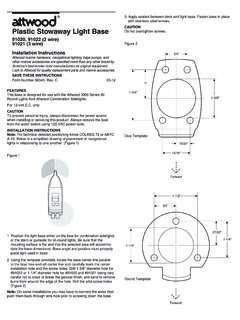
2 30 Technical 30 Regulatory Compliance .. 31 FCC 311 The Targus Stowaway Portable KeyboardThe Stowaway Portable Keyboard is a convenient solution for typing data and commands into your Sony . This compact, fully functional Keyboard : Enables you to type text and special characters into your quickly and easily Lets you instantly launch your favorite applications with simple key commands Folds down to a convenient pocket size for travelingStowaway Portable KeyboardStylus wellStylus wellEndgripEndgripApplicationkeys2In addition to this user s guide, this package contains: Targus Stowaway Portable Keyboard Targus Stowaway SoftwareSetting Up Your StowawayInstalling the Stowaway Portable Keyboard SoftwareBefore installing the software, make sure that: You disable any previously installed Keyboard software.
3 Your has at least 60K free memory. NOTE: To check the amount of free memory, tap the Menu icon, then tap App to display the menu list. Tap Info to view the amount of free memory, listed at the top of the : For your convenience, you can beam existing Stowaway software from one CLI to another. For the Stowaway Keyboard to work properly, make sure you beam both Keyboard and Keyboard Patch files. For more information on beaming files, refer to the documentation that came with your CLI .Windows 95/988/Me/2000 and Windows NT 1 Connect the to your computer and synchronize to back up your : Refer to the documentation that came with your CLI for instructions on how to synchronize the CLI with your : If your CLI is synchronizing files, wait for synchronization to complete before beginning the Stowaway Keyboard the Stowaway software CD into your computer s CD-ROM Setup does not begin automatically, click Start, then Run, and enter D:\ (where D.)
4 Is the path of your CD-ROM drive) and then click the on-screen instructions to complete copy the software to your , connect the to your computer and synchronize all active programs, including those in the Startup folder, and disable any virus-scanning the Stowaway software CD into your computer s CD-ROM Stowaway application folder and the Sony folder is added to your desktop. 3 From the Stowaway application folder, select the language folder that you are most comfortable with and open the file into the folder where your handheld applications are stored, such as the Add-on the Sony folder, drag the file into the same folder as the complete installation, connect the to your computer and : The and files appear as Keyboard and Keyboard Patch, respectively, on your CLI .4 Removing the Stowaway Portable Keyboard SoftwareIf necessary, you can remove the Stowaway software from your :1 Tap the Home icon to access the application launcher the Menu icon, then tap App to display the menu p and Keyboard Patch appear in the Programs in Storage Memory p Keyboard and then the on-screen Delete Application window p Yes to remove the Keyboard software, or No to cancel the removing the Keyboard , tap Keyboard Patch and then the on-screen p Yes to remove the Keyboard patch software, or No to cancel the p Done to exit the Delete use the Keyboard again, you must reinstall the Stowaway software.
5 For more information, see Installing the Stowaway Portable Keyboard Software on page Up the Stowaway Portable KeyboardOpening the KeyboardNOTE: You must install the Stowaway software before you can begin using the Keyboard . For more information, see Installing the Stowaway Portable Keyboard Software on page the unit and, using your thumb, push the latch down to unlock the Keyboard closed62 Unfold the Keyboard and set it on a firm, flat the Stowaway keyboard3 Slide the red end-grips inward, bringing the Keyboard sections the Stowaway Keyboard ends together7 Attaching Your the docking mechanism, underneath the docking connector, at the top of the the docking mechanismDockingconnectorDockingmechanis m82 Slide the docking mechanism all the way out of the Keyboard until the PDA foot flips : If the PDA foot does not flip up, check that the docking mechanism is fully the docking mechanism and PDA foot93 Line up the scroll button with the alignment marker on the Keyboard docking connector and push down gently to make the CLI and Stowaway Keyboard alignment markersYou can now begin.
6 Use the Keyboard on a firm, flat surface for optimum performance and the Stowaway Portable Keyboard1 Pull your upward to remove it from the docking down the docking connector and PDA foot until flat, then slide the docking mechanism into the the docking mechanism113 With the Keyboard still on a flat surface, slide the red end-grips toward the ends of the case, separating the Keyboard sections as far apart as the Stowaway Keyboard ends apart4 Lift the Keyboard , push the center up to form a W, then close the Keyboard , pressing the four corners of the case together until they click into the Stowaway keyboard12 Using Your Stowaway Portable KeyboardThings to RememberHardware If you are typing with the Stowaway Keyboard on an uneven surface, such as your knees, the Keyboard will not provide the same robust feel as typing on a flat, solid surface and may bow slightly in the center.
7 To stabilize the Stowaway Keyboard , place it on a firm, flat object such as a magazine, book, or briefcase. Use your stylus for selecting list items, for making menu selections, and for giving commands in applications that are not compatible with the Keyboard . (Palm OS does not support cursor control). Use the handy stylus wells in the right and left corners of the Keyboard to keep your stylus within reach. Make sure that you fully extend the docking mechanism before attaching your to the Stowaway Keyboard to avoid possible hardware Typing Research suggests that physical discomfort and injury to nerves, tendons, and muscles may be related to repetitive motion, an improperly set up work area, incorrect body posture, and poor work reduce the risk of injury, follow these precautions: Stand, stretch, and move around several times every hour.
8 Switch hands while performing tasks. Use shortcut keys to move efficiently and avoid repetitive, awkward Type gently and lightly. Relax your shoulders and keep your elbows at your sides. Adjust the Keyboard so that you don t have to stretch to reach it. Adjust your position so that you don t have to bend your wrists to type; avoid placing your wrists on a sharp edge. If you feel discomfort or numbness in your hands, wrists, arms, shoulders, neck, or back while typing, consult a qualified medical Your Stowaway Portable Keyboard FeaturesAfter installing the Keyboard software on your Sony , you can customize its options through the Keyboard the Keyboard ApplicationTo open the Keyboard application, tap the Home icon, then Keyboard on your To view the settings list, tap the drop-down arrow, located in the upper-right available settings are: GeneralShows the configuration options Cmd KeysLists the Cmd key assignments LayoutShows the language, tab key and Jog-Dial options HelpLists all key commands and functionality14 Adjusting General SettingsOpen the Keyboard application, then tap General on the settings list.
9 The General settings allow you to adjust the following preferences: Keyboard application General settingsKey Repeat RateThis option allows you to set the speed at which a letter, number or other character repeats when you press and hold a your stylus to drag the marker arrow toward Fast to increase or Slow to decrease the repeat Until RepeatThis option allows you to set the length of time before a letter, number or other character begins to repeat when you press and hold a your stylus to drag the marker arrow toward Long to increase or Short to decrease the length of the Repeat SettingsTest the repeat rate and delay by holding down a letter or number key on the Stowaway Keyboard . The character appears according to the settings you have chosen. Change and test these settings until you achieve the desired Key ClicksThis option simulates typewriter clicking sounds when you press keys on the Stowaway Keyboard .
10 To hear key clicks, tap Enable Key Clicks (places a check mark in the box). To prevent key clicks, tap Enable Key Clicks again (makes the check mark disappear). Enable KeyboardThis option allows the Stowaway Keyboard to work properly. Disabling the Keyboard suspends Keyboard functions and frees memory resources for tasks that do not require the Keyboard . The Keyboard is enabled by suspend Keyboard functions, tap Enable Keyboard (removes the check mark). To use the Keyboard again, tap Enable Keyboard again (places a check mark in the box).Assigning Application Shortcut Cmd KeysThe Stowaway Keyboard software provides nine user-definable application shortcut keys through the use of the Cmd key plus the 1 through 9 keys across the top of the : The default setting for the Cmd key assignments is unassigned.