Example: dental hygienist
User Manual - Electronics & Appliances: Tablets ...
BN46-00098M-01 User Manual ME65B ME75B This product is designed to be used in South Korea only, and the quality cannot be guaranteed in other countries.
Tags:
Information
Domain:
Source:
Link to this page:
Documents from same domain

Global Network - samsung.com
www.samsung.comCzech Samsung Electronics Czech (SECZ), Praha Tel: 420-225-020-710 Latvia Samsung Electronics Baltics (SEB), Riga Tel: 371-6750-8500 MIDDLE EAST & AFRICA

White Paper Samsung V-NAND technology
www.samsung.comSamsung V-NAND technology Yield more capacity, performance, endurance and power efficiency White Paper
PRODUCT SELECTION GUIDE - samsung.com
www.samsung.comDDR4 4Gb (D die) based 0 = IDT 2 = Montage PB = DDR4-2133(15-15-15) 5 = IDT 4 = Montage RC = DDR4-2400(17-17-17)

Windows 8.1 Update Step-by-Step Guide - Samsung
www.samsung.com– Your current Windows settings, personal files, and some applications will be kept. – Make sure to back up important data to an external hard drive prior to the update.

Electric Range - samsung.com
www.samsung.comfeatures of your new range Enhanced convenience. Better cooking. Easy maintenance. Your new electric range has been designed to bring you these benefits and more.

imagine a versatile laser MFP ready for any …
www.samsung.comimagine smart scanner Samsung’s Scan to E-mail solution is a powerful productivity tool for any small to medium sized enterprise or workgroup within a larger
Samsung SSD 840 PRO Series. datasheet
www.samsung.com- 5 - MZ-7PD128 datasheet MZ-7PD512 840 PRO Series Rev. 1.0 MZ-7PD256 1.0 General Description The Samsung SSD 840 PRO is a high-performance SSD (Solid State Drive) designed for power users.
Samsung Multifunction Printer's Practical Use Guide
www.samsung.com3 P rint Watermark printing • Add a watermark to your document. Samsung Anyweb Print • Print only the areas that you have selected on your web
SAMSUNG'S GUIDE TO DLNA
www.samsung.comHere’s how to set up your Samsung 7-series plasma or 7-, 8-, or 9-series LCD HDTV to operate on a home media network or connect to a networked PC.
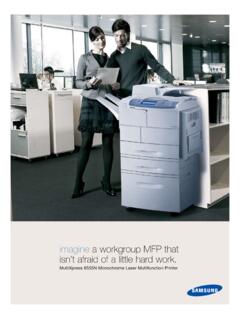
imagine a workgroup MFP that isn’t afraid of a little …
www.samsung.comMultiXpress 6555N Monochrome Laser Multifunction Printer imagine a workgroup MFP that isn’t afraid of a little hard work.
Related documents

MODEL NO. : LLX240AB01 - Digital X-Ray Systems
www.2020imaging.netVersion 1.0.2 Date: 2011. 6. 20 SAMSUNG Flat-Panel X-Ray Detector MODEL NO. : LLX240AB01 User Manual Samsung Mobile Display Co. , Ltd. This manual is provided for the installation and operation of LTX240AA01-A.

E-MANUAL - SAMSUNG PRODUCT SUPPORT …
support-us.samsung.comContents e-Manual Guide Viewing the e-Manual 1 Scrolling a Page 1 Using the Top Icons 1 Returning to the Home Page 2 Searching the Index 2 Searching Pages

ER-5100/5140 Electronic Cash Register Operator's …
www.cashregisterhelp.com8 • Introduction Samsung ER 5100/5140 Electronic Cash Register Using This Manual With this manual we hope to provide you with a means to use your Samsung …
User Manual
media.datatail.comBasics 8 Battery Charging the battery Charge the battery before using it for the first time or when it has been unused for extended periods. Use only Samsung-approved chargers, batteries, and cables.
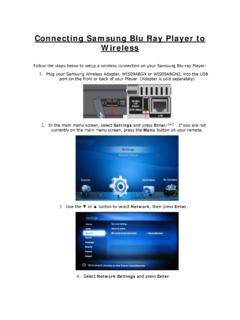
Connecting Samsung Blu Ray Player to Wireless
www.westriv.comConnecting Samsung Blu Ray Player to Wireless Follow the steps below to setup a wireless connection on your Samsung Blu-ray Player: 1. Plug your Samsung Wireless Adapter, WIS09ABGN or WIS09ABGN2, into the USB

OOOOoooaA? - Jumbo Remote Control, The Jumbo …
www.jumboremotecontrol.comSLEEP SETTING: This feature will automatically turn off your TV after the set specified time. 1. Press and hold SLEEP button for 3 seconds until the LED light turns to solid on.