Example: tourism industry
User Manual - Electronics & Appliances: Tablets ...
BN46-00098M-01 User Manual ME65B ME75B This product is designed to be used in South Korea only, and the quality cannot be guaranteed in other countries.
Tags:
Information
Domain:
Source:
Link to this page:
Documents from same domain

Global Network - samsung.com
www.samsung.comCzech Samsung Electronics Czech (SECZ), Praha Tel: 420-225-020-710 Latvia Samsung Electronics Baltics (SEB), Riga Tel: 371-6750-8500 MIDDLE EAST & AFRICA
Samsung SSD 840 PRO Series. datasheet
www.samsung.com- 5 - MZ-7PD128 datasheet MZ-7PD512 840 PRO Series Rev. 1.0 MZ-7PD256 1.0 General Description The Samsung SSD 840 PRO is a high-performance SSD (Solid State Drive) designed for power users.

White Paper Samsung V-NAND technology
www.samsung.comSamsung V-NAND technology Yield more capacity, performance, endurance and power efficiency White Paper
PRODUCT SELECTION GUIDE - samsung.com
www.samsung.comDDR4 4Gb (D die) based 0 = IDT 2 = Montage PB = DDR4-2133(15-15-15) 5 = IDT 4 = Montage RC = DDR4-2400(17-17-17)

Windows 8.1 Update Step-by-Step Guide - Samsung
www.samsung.com– Your current Windows settings, personal files, and some applications will be kept. – Make sure to back up important data to an external hard drive prior to the update.

Electric Range - samsung.com
www.samsung.comfeatures of your new range Enhanced convenience. Better cooking. Easy maintenance. Your new electric range has been designed to bring you these benefits and more.

imagine a versatile laser MFP ready for any …
www.samsung.comimagine smart scanner Samsung’s Scan to E-mail solution is a powerful productivity tool for any small to medium sized enterprise or workgroup within a larger
Samsung Multifunction Printer's Practical Use Guide
www.samsung.com3 P rint Watermark printing • Add a watermark to your document. Samsung Anyweb Print • Print only the areas that you have selected on your web
SAMSUNG'S GUIDE TO DLNA
www.samsung.comHere’s how to set up your Samsung 7-series plasma or 7-, 8-, or 9-series LCD HDTV to operate on a home media network or connect to a networked PC.
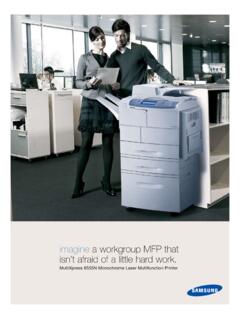
imagine a workgroup MFP that isn’t afraid of a little …
www.samsung.comMultiXpress 6555N Monochrome Laser Multifunction Printer imagine a workgroup MFP that isn’t afraid of a little hard work.
Related documents

GT-P5100 user manual - files.customersaas.com
files.customersaas.comUsing this manual 2 Using this manual Thank you for choosing this Samsung mobile device. This device will provide you with high-quality mobile communication and entertainment based on Samsung’s

E-MANUAL - Samsung
support-us.samsung.comContents e-Manual Guide Viewing the e-Manual 1 Scrolling a Page 1 Using the Top Icons 1 Returning to the Home Page 2 Searching the Index 2 Searching Pages
User Manual of WIFI Network Video Recorder - Hikvision USA
www.hikvision.comUser Manual of WIFI Network Video Recorder 2 Regulatory information FCC information FCC compliance: Please take attention that changes or modification not expressly approved by the party responsible for compliance could void the user’s authority to operate the equipment.
User Manual
media.datatail.com4 Basics Read me first Please read this manual before using the device to ensure safe and proper use. • Descriptions are based on the device’s default settings.

Samsung Galaxy J1 - User Guide | Bell Mobility - Solo Mobile
www.solomobile.caBasics 10 Charging the battery Charge the battery before using it for the first time or when it has been unused for extended periods. Use only Samsung-approved chargers, batteries, and cables.

OOOOoooaA? - Jumbo Remote Control, The Jumbo Universal …
www.jumboremotecontrol.comSLEEP SETTING: This feature will automatically turn off your TV after the set specified time. 1. Press and hold SLEEP button for 3 seconds until the LED light turns to solid on.