Example: bachelor of science
User Manual - Samsung Display Solutions
5 Connect the power cord to the product when cleaning is finished. 6 Power on the product and computer. Electricity and Safety Warning • Do not use a damaged power cord or plug, or a loose power socket. • Do not use multiple products with a single power socket. • Do not touch the power plug with wet hands.
Tags:
Information
Domain:
Source:
Link to this page:
Documents from same domain
Curved Monitor - displaysolutions.samsung.com
displaysolutions.samsung.com‒ Dust accumulation combined with heat can cause a fire, electric shock or electric leakage. • Use the product at the recommended resolution and frequency. ‒ Your eyesight may deteriorate. • Do not put AC/DC adapters together. • Remove the plastic …
User Manual - Samsung Display Solutions
displaysolutions.samsung.com• When installing the product on a cabinet or shelf, make sure that the bottom edge of the front of the product is not protruding. ... ‒ Contact Samsung Customer Service Center for repairs. • To move the product, first disconnect all the cables from it, including the power cable.

Easy Setting Box - Samsung Display Solutions
displaysolutions.samsung.comEasy Setting Box Install/Uninstall 07 6 Click Install. 7 Click Finish to complete the installation. 8 The executable Easy Setting Box icon is created on the desktop when installation is complete. To start the program, double-click the icon.

Samsung Flip 2
displaysolutions.samsung.comSamsung Flip is an intuitive and easy-to-use digital flipchart for any meeting environment, offering enhanced collaboration ... The 55-inch model offers increased workspace in front of the display, a hinge assembly structure and wheels for an efficient, moveable solution. The 65-inch model provides a larger screen which can be used as the main ...
User Manual - Samsung Display Solutions
displaysolutions.samsung.comApr 29, 2019 · User Manual The color and the appearance may differ depending on the product, and the specifications are subject to change without prior notice to improve the performance. Recommended hours of use per day for the DBJ, QBH, QBH-N, QHH models is less than 16 hours. If the product is used for longer than 16 hours a day, the warranty may be void.

MagicInfo Player I - Samsung Display Solutions
displaysolutions.samsung.comcustomized. In formal mode, devices can be arranged based on a predefined matrix such as 2x2 and 4x4. - Matrix Switcher Matrix Switcher refers to a device that converts and sends signals from a variety of external input sources, such as HDMI, DVI and videos, to display devices. - Stream Repeater Stream Repeater refers to a program that sends

INSTALL GUIDE - Samsung Display Solutions
displaysolutions.samsung.comThis TV B2B (Business to Business) model is designed for hotels or the other hospitality businesses, supports a variety of special functions, and lets you limit some user (guest) controls. Figures and illustrations in this Install Guide are provided for reference only and may differ from the actual product appearance.

Monitor User Manual - Samsung Display Solutions
displaysolutions.samsung.comMonitor User Manual The color and the appearance may differ depending on the product, and the specifications are subject to change without ... If a gas leakage is found, do not touch the product or power plug. Also, ventilate the area immediately. • Sparks can cause an explosion or fire.

Samsung SMART Signage
displaysolutions.samsung.comThe Samsung SMART Signage Platform (SSSP) is an open-source, all-in-one solution embedded in Samsung SMART signage that simplifi es installation and maintenance. With SSSP, there is no need for any external devices to communicate with the server or play digital media enjoying easy development, reinforced capability with

User Manual - Main | Samsung Display Solutions
displaysolutions.samsung.comAug 16, 2018 · Leaving the screen fixed on a stationary image for an extended period of time may cause ... " If dust or dirt from the supplied pen remains on the protective glass, clean it referring to the instructions below. Cleaning the exterior and display Wipe the surface with a slightly wet, soft cloth, and then wipe with a dry cloth. ...
Related documents

vSphere Networking - VMware vSphere 6
docs.vmware.comMigrate Network Adapters on a Host to a vSphere Distributed Switch 45 ... Connect an Individual Virtual Machine to a Distributed Port Group 55 ... Remote Direct Memory Access for Virtual Machines 158 PVRDMA Support 159 Configure an ESXi Host for PVRDMA 159
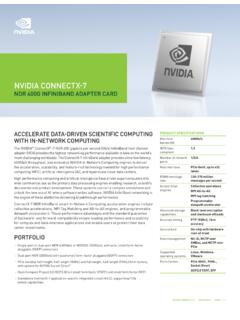
NVIDIA CONNECTX-7 | Datasheet
www.nvidia.comDimensions without brackets are 167.65mm x 68.90mm. All adapters are shipped with the tall bracket mounted and a short bracket as an accessory IC ORDERING INFORMATION Product Description OPN ConnectX-7 2-port IC, NDR, PCIe 5.0 x32, No Crypto MT29108A0-NCCF-NV ConnectX-7 2-port IC, NDR, Multi-Host, PCIe 5.0 x32, No Crypto MT29108A0-NCCF-NVM
Niagara Networking and Connectivity Guide
powellcontrols.comThis document is intended to help you connect Niagara hosts to: • Ethernet networks using IP • each other, directly through modems • an ISP for connectivity to other hosts Included are procedures for getting started, station engineering considerations, reference information on networking and IP addressing, troubleshooting tips, and
![Merlin@home Transmitter [RF] [symbol update] [RED ... - SJM](/cache/preview/3/8/9/5/7/2/3/7/thumb-38957237608c5ac8c02fd53fbfb77bde.jpg)
Merlin@home Transmitter [RF] [symbol update] [RED ... - SJM
manuals.sjm.comThe following information is applicable if you are using a telephone line to connect the transmitter. If you are using the cellular or wireless broadband adapters to connect the transmitter, a telephone line is not needed. The Merlin@home™ transmitter plugs into your telephone line, see Setting Up the Transmitter (page . 3

Dell OptiPlex 960 Service Manual
downloads.dell.comb. Connect the network cable to the connector on the network adapter card. Do not connect the network cable to the integrated network connector on the back panel of the computer. 12. Install any drivers required for the card as described in the card documentation. Removing a PCI Card 1. Perform the procedure Before Working on Your Computer . 2.

Basic Set up Quick Start Guide - manuals.harborfreight.com
manuals.harborfreight.com1 Connect DVR to Router "!Connect one end of Ethernet Cable to LAN port on DVR "!Connect other end to open LAN port on Router 2 Go to Parameter > Network "!Make sure DHCP is selected, then click Save "!IP Address, Subnet Mask, Gateway and DNS1 should automatically fill in "!Enable UPNP, then click Save 3 Install RXCamView app to Mobile Device

User Guide - Logitech
www.logitech.com8 ®Logitech Squeezebox™ Boom User Guide 9 Back Panel Connectors A. Line in. Ideal for connecting an MP3 player, portable CD player, or other audio device with a 3.5mm line level output and enjoying Squeezebox Boom’s advance driver design and acoustics.