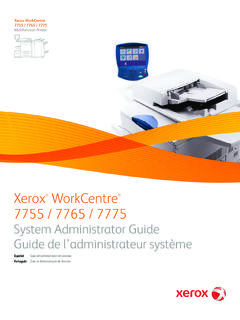
Transcription of WorkCentre 5945/5955 Multifunction Printer Quick Start …
1 Version 2014 Xerox WorkCentre 5945 / 5955 Multifunction PrinterQuick Start Guide 2014 Xerox Corporation. All rights reserved. Xerox and Xerox and Design are trademarks of Xerox Corporation in the United States and/or other company trademarks are also : December 2014 WorkCentre 5845/5855/5865/5875/5890 3 User GuideWorkCentre 5945 / 5955 Quick Start Guide1 Table of Contents1 Safety and RegulationsNotices and Safety .. 3 Safety Labels and Symbols .. 3 Operational Safety Information .. 4 Basic Regulations .. 7 Copy Regulations .. 10 Fax Regulations.
2 12 Product Recycling and Disposal .. 16 Energy Program Compliance .. 17 Material Safety Data .. 18 Environment, Health and Safety Contact Information .. 192 Getting StartedIdentifying the Parts of Your Device .. 21 Locating the Serial Number for Your Device .. 22 Services and Options.. 23 Identifying the Control Panel Buttons.. 28 Power On and Off .. 29 Loading Documents .. 31 Making Copies .. 32 Print .. 33 Fax .. 38 Using Workflow Scanning .. 53 Sending an E-mail .. 54 Saved Jobs .. 55 Enhancing Productivity .. 62 Maintenance and Consumables.
3 63 Help .. 65 WorkCentre 5945 / 5955 2 Quick Start GuideQuick Start Guide3 Safety and RegulationsNotices and SafetyPlease read the following instructions carefully before operating the device. Refer to them as needed to ensure the continued safe operation of your Xerox device and supplies have been designed and tested to meet strict safety requirements. These include safety agency evaluation and certification, and compliance with electromagnetic regulations and established environmental safety and environment testing and performance of this device have been verified using Xerox materials only.
4 !WARNINGU nauthorized alterations, which may include the addition of new functions or connection of exter-nal devices, may impact the device certification. Please contact your Xerox representative for more Labels and SymbolsAll warnings and instructions marked on or supplied for the device should be followed.!WARNINGThis WARNING alerts users to areas of the device where there is the possibility of personal This WARNING alerts users to areas of the device where there are heated surfaces, which should not be touched.!Caution This symbol alerts users to areas of the equipment which require special attention to avoid the pos-sibility of personal injury or damage to the equipment.
5 A symbol for items that must be performed. Follow instructions carefully to carry out these essential and RegulationsWorkCentre 5945 /59554 Quick Start GuideOperational Safety InformationYour Xerox device and supplies have been designed and tested to meet strict safety requirements. These include safety agency examination, approval, and compliance with established environmental standards. To ensure the continued safe operation of your Xerox device, follow the safety guidelines on this website at all SupplyThis document provides important electrical supply safety information that you should read before installing or using the the information in the following sections.
6 Power Outlet Electrical Safety Power Cord Electrical Safety Device Safety Emergency Power Off Disconnect DevicePower Outlet Electrical SafetyThis device must be operated from the type of electrical supply indicated on the data plate label located on the rear cover of the device. If you are not sure that your electrical supply meets the requirements, please consult your local power company or a licensed electrician for electrical supply outlet should be installed near the device and should be easily device must be connected to a protective earth circuit. This device is supplied with a plug that has a protective earth pin.
7 This plug will only fit into an earthed electrical outlet. This is a safety feature. If you are unable to insert the plug into the outlet, contact a licensed electrician to replace the outlet. Always connect the device to a correctly grounded power outlet. If in doubt, have the outlet checked by a qualified electrician. Improper connection of the device-grounding conduc-tor can result in electrical Cord Electrical Safety Use only the power cord supplied with this device. Plug the power cord directly into a grounded electrical outlet. Do not use an extension cord.
8 If you do not know whether or not an outlet is grounded, consult a qualified electrician. Do not place this device where people might step on or trip on the power cord. Do not place objects on the power cord. To reduce the risk of fire, use only No. 26 American Wire Gauge (AWG) or larger telecommunication line and RegulationsWorkCentre 5945 / 5955 Quick Start Guide5 Device SafetyThis device has been designed to provide operator access to safe areas only. Operator access to hazardous areas is restricted using covers or guards, which require a tool to enable removal.
9 Never remove the covers or guards that protect hazardous Safety - Do These Always follow all warnings and instructions that are marked on or supplied with the device. Before cleaning this device, switch off then unplug the device from the electrical outlet. Always use materials specifically designated for this device, the use of other materials may result in poor performance and create a hazardous situation. Always exercise care when moving or relocating the device. Please contact your local Xerox dealer to arrange relocation of the device to a location outside of your building.
10 Always locate the device on a solid support surface (not on plush carpet) that has adequate strength to support the weight of the machine. Always locate the device in an area that has adequate ventilation and room for : Your Xerox device is equipped with an energy saving function to conserve power when the device is not in use. The device may be left on Safety - Do Not Do These!WARNINGDo not use aerosol cleaners. Aerosol cleaners can be explosive or flammable when used on electro-mechanical equipment. Never use a ground adapter plug to connect the device to a power outlet that lacks a ground connection terminal.