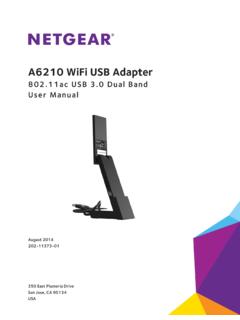
Transcription of Xerox Wireless Network Adapter User Guide
1 Guia do Usu rioGu a del usuarioBenutzerhandbuchGuida dell'utenteGuide d utilisationUser Guide Network AdapterCopyright 2007 Xerox Corporation. All Rights Reserved. Unpublished rights reserved under the copyright laws of the United States. Contents of this publication may not be reproduced in any form without permission of Xerox protection claimed includes all forms of matters of copyrightable materials and information now allowed by statutory or judicial law or hereinafter granted, including without limitation, material generated from the software programs which are displayed on the screen such as styles, templates, icons, screen displays, looks, is a trademark of Xerox Corporation in the United States and/or other countries.
2 Wi-Fi Protected Acces is a trademark of Wi-Fi Alliance WNA-100 Wireless Network AdapteriContents1 FeaturesIntroduction .. 1-2 Package Contents .. 1-2 Hardware .. 1-32 Configuring the AdapterSetting Up the Adapter .. 2-2 Configuring the Adapter Using Your Web Browser .. 2-4 Optimizing the Wireless Network Connection .. 2-5 Configuring the Screens .. 2-6 Status .. 2-6 Wireless Configuration .. 2-6 TCP/IP Configuration .. 2-6 Administrative Utilities .. 2-7 Support .. 2-73 TroubleshootingTroubleshooting Wireless Configuration Problems.
3 3-2 Online Support Assistant .. 3-3 AAdapter SpecificationsBSecurity and RegulationsIndexXerox WNA-100 Wireless Network Adapter1-1 This chapter includes: Introduction on page 1-2 Package Contents on page 1-2 Hardware on page 1-3 FeaturesIntroductionXerox WNA-100 Wireless Network Adapter1-2 IntroductionThe Xerox WNA-100 Wireless Network Adapter allows multiple users on a Wireless local area Network (LAN) to print and scan to Xerox devices. The Wireless Network Adapter can be used in Wireless networks for accessing Xerox devices. The Adapter also includes an ethernet interface for connecting to a Xerox device.
4 After configuring the Adapter for your Wireless LAN, and connecting the Xerox printing device up to your wired Network , you can print to that device over the Wireless Network . If the device has Network scan or fax capability, you can use these Wireless Network Adapter is a LAN bridge that transparently transmits Network traffic from the Wireless LAN to the wired Network . It can be used with a large number of Xerox printers and multifunction devices and can also be configured to work in a large number of Wireless environments. The Wireless Network Adapter supports common Wireless security protocols (WEP, WPA, WPA2) and and has port based Network access control.
5 The Adapter has a built-in web server for configuring the device using your favorite Contents Xerox WNA-100 Wireless Network Adapter Power Supply Ethernet Crossover Cable Mounting Kit (for attaching the Adapter to your Ethernet enabled Xerox product) 4 Rubber Bumpers (for desktop placement of the Adapter ) Installation Guide Documentation CD-ROMNote:Please contact Xerox if any of the above items are missing or WNA-100 Wireless Network Adapter1-3 HardwareStatus LEDsThe following table provides an overview of each LED:LED NumberLED DefinitionColorDescription1 PowerGreenOn: Power : Internal : No : 10/100 Base Tx : 10/100 Base Tx : No Ethernet traffic WNA-100 Wireless Network Adapter1-4 LED NumberLED DefinitionColorDescription3 WirelessGreenOn: Link > 11 : Data > 11 : Link 11 : Data 11 : No Wireless Network : Adapter using wired : Duplicate IP.
6 Adapter using Wireless WNA-100 Wireless Network Adapter1-5 Power ConnectorOnly use the power Adapter supplied with the Xerox Wireless Network PortUse the included Ethernet crossover cable to connect directly to your PC, and then your Ethernet enabled (Reset Button)A quick press of the Reset button prints a configuration restore the Adapter to factory default settings, press and hold the Reset button on the rear panel for about 5 seconds until all of the LEDs turn off, then release the button. This is especially useful if you forget the configuration following table provides the default settings:ParameterSettingIP WNA-100 Wireless Network Adapter2-1 This chapter includes.
7 Setting Up the Adapter on page 2-2 Configuring the Adapter Using Your Web Browser on page 2-4 Configuring the Screens on page 2-6 Configuring the AdapterSetting Up the AdapterXerox WNA-100 Wireless Network Adapter2-2 Setting Up the AdapterTo set up your Wireless Network the antenna to the the power cord to the Up the AdapterXerox WNA-100 Wireless Network your host computer to the Adapter using the Ethernet crossover cable :The Adapter is not intended for use on a switch or hub. The Adapter is expecting to be connected to a single device using the Ethernet crossover cable also: Installation Guide at the Adapter Using Your Web BrowserXerox WNA-100 Wireless Network Adapter2-4 Configuring the Adapter Using Your Web BrowserA standard web browser like Internet Explorer or Safari must be used for first time configuration of the Adapter .
8 The Adapter must be connected directly to the PC or other host using the Ethernet crossover cable provided. Once the Adapter and PC are connected together, follow these instructions to set up the Adapter for your Wireless :The factory default IP address for the Adapter is sure your computer is configured to use a Network address of to communicate with the Adapter . For instance, the host computer can be set to the IP address your web in your browser s address/location Status page :If the Status page does not appear in your browser window, then use the back panel Reset button to reset the Adapter back to factory defaults.
9 Push the Reset button and hold for 5 seconds. See Default (Reset Button) on page 1-5 for more Troubleshooting Wireless Configuration Problems on page 3-2 for other troubleshooting on WEP Settings, WPA Settings, or Advanced Settings under the Wireless Configuration folder in the left navigation Login Required screen appears. Enter the default password access, and then click the Log In :You will need to re-enter the password if a session times out after 5 minutes of browser displays the screen you were trying to reach: WEP Settings, WPA Settings, or Advanced Settings.
10 Configure the Adapter to operate in your Wireless on any of the options under the TCP/IP Configuration folder in the left navigation panel to configure them to operate in your Ethernet :The factory default BOOTP/DHCP is Off. Resetting the Adapter will also change this feature to Off. If your Network requires BOOTP/DHCP, or you need to use an IP address other than the one assigned, you will need to change those settings using this on any of the options under the Administrative Utilities folder in the left navigation panel to configure the passwords or other settings.