Dragon Bluetooth Wireless Headset User Guide
your headset microphone may still be on and activated. To preserve the headset's bat-tery, you may want to power off your headset after you are done using Dragon. n If the Dragon Bluetooth Wireless Headset isn’t displayed in step 4, you may need to unplug and replug the USB Bluetooth adapter.
Download Dragon Bluetooth Wireless Headset User Guide

Information
Domain:
Source:
Link to this page:
Documents from same domain

Dragon Installation and User Guide - Nuance …
supportcontent.nuance.comDictatingE-mailandCalendarcommands 124 CommandsforMicrosoftOutlookExpress,WindowsMail,andWindowsLiveMail 127 MicrosoftOutlook 129 WorkingwithMicrosoftOutlook 129

User’s Guide - Nuance Communications
supportcontent.nuance.comOmniPage 17 User’s Guide 3 C ONTENTS WELCOME 5 New features in OmniPage 17 7 INSTALLATION AND SETUP 11 System requirements 11 Installing OmniPage 12 Setting up your scanner with OmniPage 14

Dragon speech recognition Command cheat sheet …
supportcontent.nuance.comDragon speech recognition Nuance Dragon NaturallySpeaking 13 Command cheat sheet Control the microphone Go to sleep | Stop listening Wake up Microphone off

Quick Reference Guide - Nuance Communications
supportcontent.nuance.com5 edition, you can access different document management systems through the application: use them to store or archive your PDF documents. Export PDF Files
Quick Reference Guide - Nuance Communications
supportcontent.nuance.com2 This Guide shows screen pictures made with Windows® 7 unless other- wise stated. The appearance may vary under other Operating Systems.

3) THE DRAGON SIDEBAR CORRECTING ERRORS
supportcontent.nuance.comDRAGON 12 Quick Reference Card CONNECT YOUR MICROPHONE – important notes: • When you plug your microphone into your PC, an “audio event” window may open. If this happens, verify what is highlighted in that window before closing it.
Nuance Power PDF Release Notes
supportcontent.nuance.comPower PDF Advanced does not enable any connectors automatically. If you want connections to Dropbox and Evernote and any supported Document Management

eCopyShareScan - Nuance Communications
supportcontent.nuance.comforthefirsttime,itopensadialogofferingtheinstallationofthelicenserepresentedbythatlicensekeyenteredintothe installerWizardscreen.IfyouclickOKonthisdialog,theapplicationtriestodownloadthelicensefromtheNuance
Dragon Version 12.5 Release Notes - Nuance …
supportcontent.nuance.comDragon V12.5 Release Notes 3 Installation guidelines Use the following table to determine how you should proceed:

Quick Reference Guide - Nuance Communications
supportcontent.nuance.com6 Nuance PDF Create has a comprehensive HTML Help system. Access it through a hyperlink in the PDF Create Assistant or through the Nuance PDF menu in Microsoft Word, Excel, or PowerPoint.
Related documents
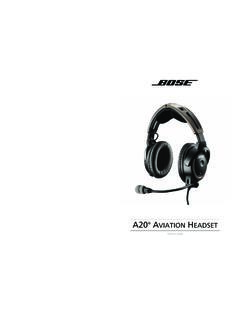
AVIATION HEADSET - Bose
products.bose.comIf your headset is aircraft powered, connect the headset to the aircraft power sources only as described in “Connecting the headset to the aircraft” on page 11. The headset will not operate properly if used with any battery source other than the Bose A20 Aviation Headset control module.

Bose A20 Aviation Headset Quick Reference Guide
assets.bose.comBluetooth indicator will flash purple. This will only happen the first time you turn on the headset. 2. Locate the Bluetooth menu on your device and make sure the Bluetooth feature is ON. Select Bose A20 from the Bluetooth device list. Bose A20 …

GSP 670 Gaming Headset with low latency connection and ...
assets.sennheiser.comAug 30, 2019 · the headset complies with the Bluetooth 5.0 standard. Bluetooth de vices need to support the “hands free profile” (hFP), the “headset profile” (hsP) or the “advanced audio distribution profile” (A2DP). the headset can save up to eight paired devices. If you pair the headset with a ninth device, the first

HS70 BLUETOOTH - corsair.com
www.corsair.comBLUETOOTH MODE PAIRING Make sure headset is off. To enable pairing, press and hold the MFB until the Bluetooth status LED blinks red and blue. When the headset is paired, the MFB LED will blink blue. Select the headset on your mobile device from the Bluetooth device list. To power on Bluetooth mode, press and hold the MFB for 3-5 seconds.
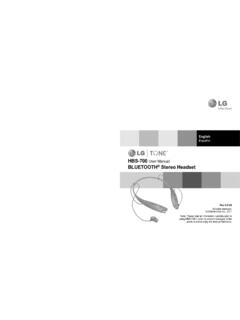
HBS-700 User Manual BLUETOOTH Stereo Headset - LG …
www.lg.comThe LG Tone (HBS-700) is a light weight wireless headset that uses Bluetooth® technology. This product can be used as an audio accessory for devices supporting either the A2DP or Hands-Free Bluetooth® Profi le. Introduction 3 - Included in the package 3 Description of parts 4 How to use 4 - Wearing 4 - Charging 5 - Low battery 5

Getting started with Première utilisation ... - Logitech
www.logitech.comWireless Headset H800. 4. Sélectionnez l’onglet Entrée. 5. Sélectionnez le casque Logitech Wireless Headset H800. 6. Fermez la fenêtre. 7. Redémarrez l’application multimédia. English Connecting to a Bluetooth® device 1. Power on the wireless headset. 2. Slide the Device Selection switch on the right ear cup to the Bluetooth (middle ...

Gold wireless headset - PlayStation
www.playstation.comThe headset may need up to 3.5 hours to charge fully. 2 Insert the wireless adaptor in the USB port. 3 Slide the power switch to position “1” or “2”. Using the headset with a PlayStation®4 system This headset is compatible with PS4™ system software version 5.00 or later. More than one headset can be used with a PS4™ system.
Bluetooth headset - Plantronics
www.poly.comBluetooth headset User Guide. Contents Headset overview 3 Be safe 3 USB Bluetooth adapter 4 Charge case overview 5 Charge case to PC or USB wall charger 5 Charge your Headset 6 Check Battery Level 6 Low battery warnings 7 Use charge case 8 Fit 9 9 9 Connect and pair 10 Connect to PC 10

Bluetooth Headset - Plantronics
www.poly.comheadset behavior through advanced settings and options. Pair USB adapter again Typically, your USB adapter is pre-paired to your headset. In the event that your adapter is disconnected or bought separately, you will need to pair the adapter to your headset. 1. Insert the high-fidelity Bluetooth USB adapter into your laptop or computer and wait for