Example: bachelor of science
AVIATION HEADSET - Bose
If your headset is aircraft powered, connect the headset to the aircraft power sources only as described in “Connecting the headset to the aircraft” on page 11. The headset will not operate properly if used with any battery source other than the Bose A20 Aviation Headset control module.
Tags:
Information
Domain:
Source:
Link to this page:
Documents from same domain
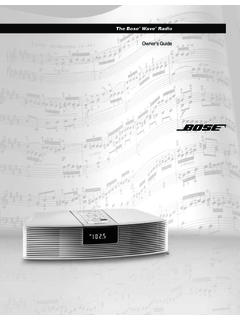
The Bose Wave Radio
products.bose.comThe Wave® radio’s 9 volt battery maintains the memory and backup alarm system for up to three days during a power failure, or while the radio is unplugged. Operating without this
5IJT 1%' JODMVEFT CPUI UIF &OHMJTI BOE UIF 'SFODI …
products.bose.comOwner’s Guide 00.SoundDock_CoverA.fm Page 1 Friday, June 1, 2007 4:18 PM ... triangle alerts the user to the presence of uninsulated, dangerous voltage within the system enclosure that may be of sufficient ... • Make sure your iPod is removed and the dock on the front is closed.
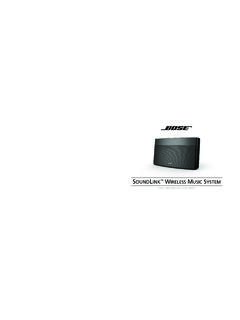
SOUNDLINK WIRELESS MUSIC SYSTEM - Bose Corporation
products.bose.comSoundLink and the distinctive design of the SoundLink system are trade- Please keep your sales receipt with this owner’s guide. marks of Bose Corporation in the U.S. and other countries. PharosOG.book Page iv Thursday, May 21, 2009 10:09 AM
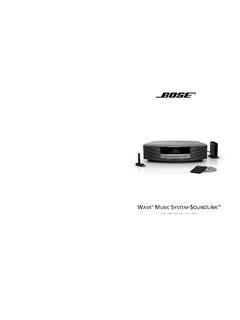
WAVE MUSIC SYSTEM SOUNDLINK - Bose Corporation
products.bose.com©2009 Bose Corporation, The Mountain, ... 00_SoundLink_book.book Page ii Tuesday, July 7, 2009 9:58 AM. iii English TAB 2 TAB 3 8 B A 6T B A 4T B A T TAB 5 TAB 7 IMPORTANT SAFETY INSTRUCTIONS 1. Read these instructions – for all components before using this product. 2. Keep these instructions – for future reference.
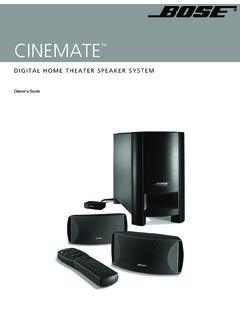
CINEMATE - Bose Worldwide
products.bose.comThe lightning flash with arrowhead symbol within an equilateral triangle alerts the user to the presence of ... universal infrared (IR) remote control ... input connections for the CineMate TM speaker system. The remote control commands allow you to turn the speakers on, change the volume, and mute or turn off the speaker system. ...
The Bose Wave Radio
products.bose.comThe Bose® Wave® radio is carefully engineered to provide sound quality far beyond other radios. This guide will help you set up and operate your radio properly. ... AM antenna • One (1) AM antenna clip • One (1) peel-and-stick tape • One (1) remote control • One (1) lithium battery AA batteries Lithium battery
The Bose Wave Radio
products.bose.com6 Setting Up Installing the battery The Wave® radio’s 9 volt battery maintains the memory and backup alarm system for up to three days during a power failure, or while the radio is unplugged. Operating without this battery leaves the memory unprotected, but will not harm the radio.
Bose 3•2•1 Advanced Remote Control
products.bose.com4 Preparing for Use English Installing remote control batteries 1. On the back of the remote, slide open the battery compartment (Figure 1). 2. Insert the two supplied AA (IEC-R6) 1.5V
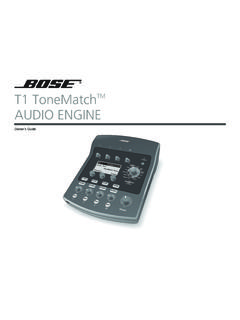
T1 ToneMatchTM AUDIO ENGINE - products.bose.com
products.bose.comii Svenska Nederlands Italiano Français Español Deutsch Dansk English QUICK PATH TO MAKING MUSIC To get sound right away 1. Remove your new T1 ToneMatch TM …
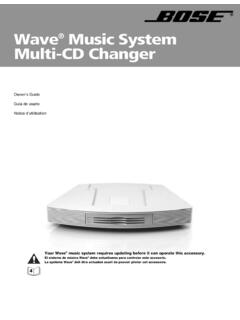
Wave Music System Multi-CD Changer - Bose
products.bose.com4 Français Español English Setup Updating your Wave® music system IMPORTANT! Your Wave® music system requires updating before it can operate the Multi-CD Changer. Be sure to use the Wave® music system UPDATE DISC supplied with your Multi-CD Changer before setting up and attempting to operate the Wave ® music system with the Multi-CD changer.
Related documents
Dragon Bluetooth Wireless Headset User Guide
supportcontent.nuance.comyour headset microphone may still be on and activated. To preserve the headset's bat-tery, you may want to power off your headset after you are done using Dragon. n If the Dragon Bluetooth Wireless Headset isn’t displayed in step 4, you may need to unplug and replug the USB Bluetooth adapter.

HS70 BLUETOOTH - corsair.com
www.corsair.comBLUETOOTH MODE PAIRING Make sure headset is off. To enable pairing, press and hold the MFB until the Bluetooth status LED blinks red and blue. When the headset is paired, the MFB LED will blink blue. Select the headset on your mobile device from the Bluetooth device list. To power on Bluetooth mode, press and hold the MFB for 3-5 seconds.

GSP 670 Gaming Headset with low latency connection and ...
assets.sennheiser.comAug 30, 2019 · the headset complies with the Bluetooth 5.0 standard. Bluetooth de vices need to support the “hands free profile” (hFP), the “headset profile” (hsP) or the “advanced audio distribution profile” (A2DP). the headset can save up to eight paired devices. If you pair the headset with a ninth device, the first

Bose A20 Aviation Headset Quick Reference Guide
assets.bose.comBluetooth indicator will flash purple. This will only happen the first time you turn on the headset. 2. Locate the Bluetooth menu on your device and make sure the Bluetooth feature is ON. Select Bose A20 from the Bluetooth device list. Bose A20 …
HBS-700 User Manual BLUETOOTH Stereo Headset - LG …
www.lg.comThe LG Tone (HBS-700) is a light weight wireless headset that uses Bluetooth® technology. This product can be used as an audio accessory for devices supporting either the A2DP or Hands-Free Bluetooth® Profi le. Introduction 3 - Included in the package 3 Description of parts 4 How to use 4 - Wearing 4 - Charging 5 - Low battery 5

Getting started with Première utilisation ... - Logitech
www.logitech.comWireless Headset H800. 4. Sélectionnez l’onglet Entrée. 5. Sélectionnez le casque Logitech Wireless Headset H800. 6. Fermez la fenêtre. 7. Redémarrez l’application multimédia. English Connecting to a Bluetooth® device 1. Power on the wireless headset. 2. Slide the Device Selection switch on the right ear cup to the Bluetooth (middle ...
Bluetooth headset - Plantronics
www.poly.comBluetooth headset User Guide. Contents Headset overview 3 Be safe 3 USB Bluetooth adapter 4 Charge case overview 5 Charge case to PC or USB wall charger 5 Charge your Headset 6 Check Battery Level 6 Low battery warnings 7 Use charge case 8 Fit 9 9 9 Connect and pair 10 Connect to PC 10

Bluetooth Headset - Plantronics
www.poly.comheadset behavior through advanced settings and options. Pair USB adapter again Typically, your USB adapter is pre-paired to your headset. In the event that your adapter is disconnected or bought separately, you will need to pair the adapter to your headset. 1. Insert the high-fidelity Bluetooth USB adapter into your laptop or computer and wait for

Gold wireless headset - PlayStation
www.playstation.comThe headset may need up to 3.5 hours to charge fully. 2 Insert the wireless adaptor in the USB port. 3 Slide the power switch to position “1” or “2”. Using the headset with a PlayStation®4 system This headset is compatible with PS4™ system software version 5.00 or later. More than one headset can be used with a PS4™ system.