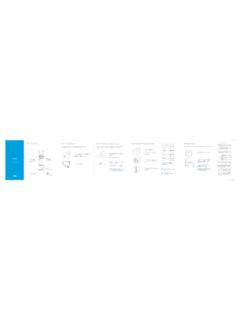
Start - URC Support
Program remote for Aim Anywhere or to control your TV or audio device. Pr ess an d h ol te S up bn ( t 3 seconds) until the Status LED changes from red to gr en. Press the CONTOUR button. Follow the on-screen instructions to enter the 3-digit code that appears. Once the code is correctly entered, your CONTOUR Remote is paired with the device. A B C
Download Start - URC Support

Information
Domain:
Source:
Link to this page:
Documents from same domain

B C D GUIDE TINGS 1 MENU 1 2 OK 4 5 6 7 8 9 0 …
www.urcsupport.comwww.urcsupport.com WWW.URCSUPPORT.COM MUG2025S-A05 ©Copyright Universal Electronics 2011 1 2 4 5 6 7 8 9 0 3 1Press and hold SETUP until 2 4 mode key blinks twice. Presione y mantenga

FCC Compliance Statement 1 2 Turn On Your …
www.urcsupport.comThis equipment has been tested and found to comply with the limits for a Class B digital device, pursuant to part 15 of the FCC rules. These limits are designed to provide

UNIVERSAL REMOTE CONTROL USER’S GUIDE
www.urcsupport.comUNIVERSAL REMOTE CONTROL USER’S GUIDE CONTROL REMOTO UNIVERSAL GUíA DEL USARIO M7820BP1.indd 1 3/13/2007 3:53:51 PM. TABLE OF CONTENTS ... manual to set up your unit, and then start enjoying your new remote control. 3 M7820BP1.indd 3 3/13/2007 3:53:51 PM. FEATURES AND FUNCTIONS
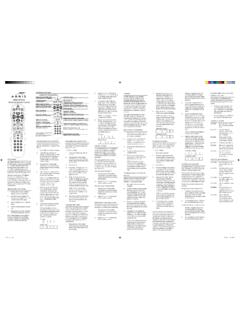
ArriS MP2000 Universal remote control
www.urcsupport.comPrOgrAMMing Device cOnTrOL Use the following instructions to pro-gram the remote for a Tv and/or Audio device. 1. Turn on the Tv you wish to control. 2. Locate the code for your Tv among the Manufacturer’s codes on the back of this user manual. Brands are listed in alphabeti-cal order with the most popular codes listed first. 3.

How to use your Ignite TV Voice Remote: Program & pair
www.urcsupport.comTo program or pair your Voice Remote to control AV receivers like HDMI compatible sound bars and your home theatre: 1. Press the A button on your Voice Remote. 2. Select Remote Setup. 3. Follow the on-screen instructions. Keep in mind, not all TV and audio devices can be paired Last updated: May 6, 2020

B C D GUIDE TINGS 1 MENU 1 2 OK 4 5 6 7 8 9 0 1427538609 …
www.urcsupport.comWWW.URCSUPPORT.COM MUG2025S-A05 ©Copyright Universal Electronics 2011 1 2 4 5 6 7 8 9 0 3 U 2 4 twice. Y WWW.URCSUPPORT.COM WWW.URCSUPPORT.COM
Related documents

OWNER’S MANUAL Magic Remote - LG Electronics
www.lg.comusing the Wheel button. (up/down/left/right) Press the up, down, left or right button to scroll the menu. If you press buttons while the pointer is in use, the pointer will disappear from the screen and Magic Remote will operate like a general remote control. To display the pointer on the screen again, shake Magic Remote to the left and right.
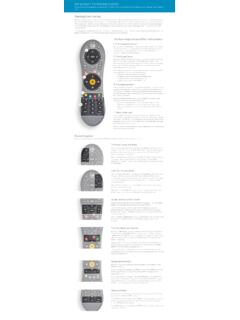
Using Your TiVo Remote Control
www.tivo.comAlso, the button at the top of the remote is the distinctively-shaped TiVo button. The bottom of the remote has a line of three buttons in a row. Feel for the large button in the shape of the TiVo logo and you’ll know you’re at the top. The TiVo button will take you to the TiVo TiVo Central – the starting point for the TiVo menu system.

KRONOS Remote Access Instructions v3 - UW Blogs Network
blogs.uw.edubutton. 3. You may confirm that you are connected by viewing an icon in your System Tray (right bottom corner) that looks like a golden colored lock. 4. If this icon does not appear in the system tray, click on the Start button that is displayed on the screen where it notates Client Application Sessions -Network Connect. 5.

Owner's Guide - Operation of Remote Control …
www.trane.comTEMP button TEMP Do not drop or throw the remote control; Do not let any liquid in the remote control. Note: Be Press sure that there are no obstructions between receiver and remote controller; Do not put the remote control directly in sunlight or any place where it is very hot. Each time you press this button, a mode is
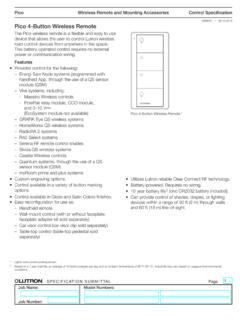
Pico 4-Button Wireless Remote Spec (369847)
www.lutron.comWireless Remote and Mounting Accessories SPECIFICATION SUBMITTAL Page Job Name: Job Number: Model Numbers: Pico Control Specification 369847j 1 09.19.2018 Pico 4-Button Wireless Remote The Pico wireless remote is a flexible and easy to use device that allows the user to control Lutron wireless load-control devices from anywhere in the space.
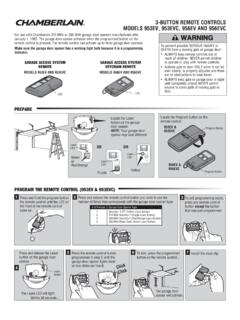
3-BUTTON REMOTE CONTROLS MODELS 953EV, 953EVC, …
pdf.lowes.combutton on the garage door opener. 3 To exit programming mode, press any remote control button except the button that was just programmed. Press the remote control button 7 Install the visor clip. programmed in step 2 until the garage door opener lights flash or two clicks are heard. To test, press the programmed button on the remote control ...
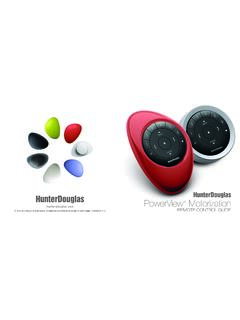
PowerView Remote Control Guide - Hunter Douglas
cdn.hunterdouglas.comPebble™ Remote and Surface Remote combine fashion with function for precise control of your Hunter Douglas window coverings. Artfully designed, PowerView remotes allow you to control natural light throughout your home with the press of a button. The following pages provide all the details on how to set up and operate both remote styles.
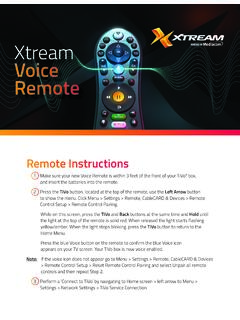
Xtream Voice Remote
mediacomcc.custhelp.comRemote Instructions 1 Make sure your new Voice Remote is within 3 feet of the front of your TiVo® box, and insert the batteries into the remote. 2 Press the TiVo button, located at the top of the remote, use the Left Arrow button to show the menu. Click Menu > Settings > Remote, CableCARD & Devices > Remote Control Setup > Remote Control Pairing.

Remote Control - DISH
www.dish.comYou will hear three beeps from the remote control, indicating it has paired with your DISH receiver AUX input SAT TV 4 Press the SAT button on the side of the remote control 3 Open the front panel of your DISH receiver, and press the SYS INFO button SYS INFO 2 Replace the back cover 54.0 PULL 1 Remove the back cover by pushing the latch

) All Off function key Channel Up and Down Recall key ...
www.kmart.com.auHold the remote in a straight line in front of your TV at a distance less than 1 meter.\r2\) Press and hold the TV device mode button and the power button on the remote control until the red light indicator lights up constantly.\r3\) Press the power button. \r4\) The TV device mode button will blink continuously in red, meaning that the remote ...