Transcription of DirecTV, Dish, Comcast, Verizon FIOS and AT&T remotes are ...
1 Alternative Adjustment Guide For Some remote ControlsIssued by Large Cable and Satellite , dish , Comcast, Verizon FIOS and AT&T remotes are described. If you have one the remote controls described in this sheet,the directions provided overcome the following issues:1) Your TV remote does not work properly after using the ZVOX Audio Teach Your ZVOX to Learn the remote ) You TV does not allow you to turn off its internal speakers.(866) 367-9869 | ZVOX Audio system learn your remote feature does not work with DirecTV remotes in our standard manner. The following instructions should be used to configure a DirecTV remote RC65 and many other DirecTV remotes :Configure the ZVOX Audio speaker:On the front panel of the ZVOX Audio speaker:a) Press and hold down both the Mute/Power button and the Volume Up button until you see PS on the ) Release the ) Press and release the Volume Up button until you see PS-5 ( PS-3 for Panasonic TV)d) Wait until the PS-5 or PS-3 display , configure the DirecTV remote :a) Move the slider button at the top of the DirecTV remote over to the AV1 ) Press and hold the MUTE and SELECT buttons until the light above AV1 blinks ) Enter 11480 (10812 for Panasonic TV).
2 The AV1 light will blink ) Press and hold the MUTE and SELECT buttons until the light above AV1 blinks ) Enter 993 and then press ) Move the slider button to the left, back to the DirecTV DirecTV remote now powers your TV on/off, while the volume control will control your ZVOX. DirecTV remotes RC23, RC32:Configure the ZVOX Audio speaker:On the front panel of the ZVOX Audio speaker:a) Press and hold down both the Mute/Power button and the Volume Up button until you see PS on the ) Release the ) Press and release the Volume Up button until you see PS-5 ( PS-3 for Panasonic TV)d) Wait until the PS-5 or PS-3 display , configure the DirecTV remote :a) Move the slider button at the top of the DirecTV remote over to the AV1 ) Press and hold the MUTE and SELECT buttons until the light above AV1 blinks ) Enter 10250 (10812 for Panasonic TV). The AV1 light will blink ) Press and hold the MUTE and SELECT buttons until the light above AV1 blinks ) Enter 993 and then press ) Move the slider button to the left, back to the DirecTV DirecTV remote now powers your TV on/off, while the volume control will control your network remote IR or IR:These instructions describe how to configure your dish network remote to control the volume from your ZVOX Audio system and not from your following instructions apply to any TV brand except Panasonic.
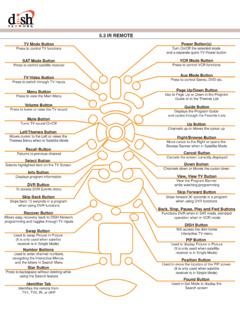
3 If you have a Panasonic TV, use the alternate instructions ANY TV BRAND EXCEPT PANASONIC:Part 1: Configure the ZVOX system1. Power on your ZVOX On the ZVOX system front panel, press and hold down both MUTE and VOLUME UP until PS-0 appears on the display (about 5-6 seconds). Release the PS-0 display will continue flashing for about 5 While PS-0 is flashing, repeatedly press VOLUME UP until it reads PS-5 . Wait for the display to stop 2: Configure your dish network remoteProgram code to the AUX button1. On the dish network remote control , press and hold the AUX button until all the other mode buttons light up, and then release the AUX button. The AUX button Enter 0-5-1-2 then press the pound key (#).The AUX key will blink three the volume buttons to the ZVOX1. Press and hold the AUX mode button until all mode buttons are lit, then release it. The AUX mode button will Press the POUND (#) button, press the plus (+) side ofthe VOLUME button, press the 0 number button, press the POUND (#) button.
4 The AUX mode button flashes three Press the SAT mode button then Press the plus (+) and minus (-) sides of the VOLUME button down simultaneously and release them. You have just completed the programming. Now, when you press VOLUME +, VOLUME -, or MUTE, the volume of the ZVOX system is controlled regardless of whether the dish network remote is in the SAT mode or TV IR above, IR belowComcast Custom DVR 3-Device Universal remote ControlThese instructions describe how to configure your Comcast cable remote to control the volume from your ZVOX Audio system and not from your following instructions apply to any TV brand except Panasonic. If you have a Panasonic TV, use the alternate instructions ANY TV BRAND EXCEPT PANASONIC:Part 1: Configure the ZVOX system1. Power on your ZVOX On the ZVOX system front panel, press and hold down both MUTE and VOLUME UP until PS-0 appears on the display (about 5-6 seconds). Release the PS-0 display will continue flashing for about 5 While PS-0 is flashing, repeatedly press VOLUME UP until it reads PS-5.
5 Wait for the display to stop 2: Configure your Comcast remoteActivate the AUX function1. On the Comcast remote control , press AUX once. Then press and hold SETUP until the AUX key blinks twice, then release Enter 1-0-0-4-7. The AUX key will blink ZVOX code to the Aux button1. Press AUX once, then press and hold Setup until the AUX key blinks twice, then release Enter 1-0-2-5-0. The AUX key will blink the volume buttons to the ZVOX1. Press AUX once. Then, press and hold Setup until the AUX key blinks twice, then release Enter 9 - 9 - 3 (the AUX key blinks twice) and thenpress AUX once. The AUX key will blink twice. 3. Press the CABLE button once. You have just completed the programming. Now, when you press VOL+, VOL-, or Mute, the volume of the ZVOX system is controlled regardless of whether the Comcast remote is in the TV mode or Cable DVR 3-Device Universal remote ControlThese instructions describe how to configure your Comcast cable remote to control the volume from your ZVOX Audio system and not from your following instructions apply to any TV brand except Panasonic.
6 If you have a Panasonic TV, use the alternate instructions ANY TV BRAND EXCEPT PANASONIC:Part 1: Configure the ZVOX system1. Power on your ZVOX On the ZVOX system front panel, press and hold down both MUTE and VOLUME UP until PS-0 appears on the display (about 5-6 seconds). Release the PS-0 display will continue flashing for about 5 While PS-0 is flashing, repeatedly press VOLUME UP until it reads PS-5 . Wait for the display to stop 2: Configure your Comcast remoteActivate the AUX function1. On the Comcast remote control , press AUX once. Then press and hold SETUP until the AUX key blinks twice, then release Enter 1-0-0-4-7. The AUX key will blink ZVOX code to the Aux button1. Press AUX once, then press and hold Setup until the AUX key blinks twice, then release Enter 1-0-2-5-0. The AUX key will blink the volume buttons to the ZVOX1. Press AUX once. Then, press and hold Setup until the AUX key blinks twice, then release Enter 9 - 9 - 3 (the AUX key blinks twice) and thenpress AUX once.
7 The AUX key will blink twice. 3. Press the CABLE button once. You have just completed the programming. Now, when you press VOL+, VOL-, or Mute, the volume of the ZVOX system is controlled regardless of whether the Comcast remote is in the TV mode or Cable for programming your 4-device FIOS remote to work with a ZVOX SoundBase system (RC1445302) Please note: This page describes the FIOS 4-device remote (with DVD, AUX, TV and STB buttons at the top). The newer, two -device FIOS remote (STB and TV on ly) cannot be configured to control a separate audio system. If you have a ZVOX Audio system and the 2-device FIOS remote , ZVOX Audio encourages you to replace the 2-device remote with a 4-device FIOS remote . As of July 2013, there are a number of sources for this remote control (search for FIOS 4-device remote on the internet). This remote is typically under $20. These instructions describe how to configure your Verizon FIOS remote to control the volume from your ZVOX Audio system.
8 The main text instructions are for any TV brand, except Panasonic. The alternate instructions for Panasonic TVs are in [brackets]. Part 1: Configure the ZVOX system 1. Power on your ZVOX system. 2. On the ZVOX system front panel, press and hold down both MUTE and VOLUME UP until PS-0 appears on the display (about 5-6 seconds). Release the buttons. The PS-0 display will continue flashing for about 5 seconds. 3. While PS-0 is flashing, repeatedly press VOLUME UP until it reads PS-5 [ PS-1 for Panasonic TVs]. Wait for the display to stop flashing. Part 2: Configure your FiOS remote Assign ZVOX code to the Aux button 1. Press and hold the AUX key. 2. While holding down the AUX key, press the OK key. 3. Re lease both keys simultaneously. The Device Keys will blink twice. 5. E nter 3 - 7 - 3 - 6 [ 1-7-8-5 for Panasonic TVs ]. The AUX key will blink 3 times. Lock the volume buttons to the ZVOX 1. Press and hold the STB key. 2. While holding down the STB key, press OK.
9 3. Re lease both keys simultaneously. The Device Keys will blink twice. 4. Press 9 - 5 - 5. The STB key will blink twice. 5. Press AUX. The AUX key will blink 3 times to indicate success in programming. 6. Press the STB key once. Note: To return to controlling the volume via the TV, press TV in step 5.. You have just completed the programming. Now, when you press VOL+, VOL-, or Mute, the volume of the ZVOX system is controlled regardless of whether the FIOS remote is in the TV, DVD or STB mode. AT&T U-verse S10-S2 remote control : These instructions describe how to configure your AT&T U-verse remote to control the volume from your ZVOX Audio system and not from your TV. These instructions apply to ZBase 580, ZBase 555 and ZVOX V-Series systems The following instructions apply to any 1: Configure your AT&T remoteAssign code to the AUX button1. On the AT&T remote control , press AUX once. 2. Press and hold AUX, then press and hold theOK key then release both keys simultaneously.
10 All the mode keys should flash twice. 3. Enter 6-0-1-0. -The AUX key will light up for 2 the volume buttons to the ZVOX1. Press and hold AT&T key, then press and hold theOK key then release both keys simultaneously. All the mode keys should flash twice. 2. Enter AT&T key will flash Press AUX. The AUX key will light up for 2 2: Configure your ZVOX systemLocate the instruction sheet entitled "Your Current TV remote Can control Your ZVOX System" 1. Follow the instructions on that page for putting the ZVOX system into its learning Using the AT&T remote , program the volume up, volume down, mute and power keys as shown on the page. You have just completed the programming. The volume of the ZVOX system is now controlled by the AT&T remote no matter which control mode (AT&T, TV or DVD) is set on the AT&T to configure your AT&T U-Verse SILVER remote to control the volume output of a recent ZVOX Audio system (V220, V320, V420, 555 and 580) Overview: You set the AUX device of the U-Verse remote control to a brand the ZVOX can learn.