Transcription of Computer Essentials Quick Reference - ECDL Malta
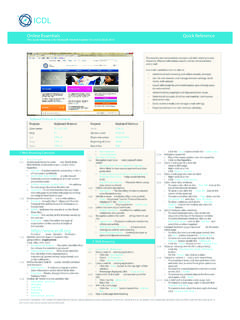
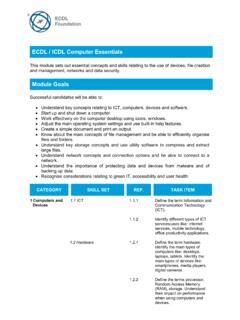
1 Computer Essentials Quick ReferenceThis Quick Reference is for understanding the main concepts of ICT and using the Computer and managing files on Windows 7 This module sets out essential concepts and skills relating to the use of devices, file cr eation and management, networks and data candidates will be able to: Understand key concepts relating to ICT, computers, devices and software. Start up and shut down a Computer . Work e ectively on the Computer desktop using icons, windows. Adjust the main operating system settings and use built-in help features. Create a simple document and print an output. Know about the main concepts of file management and be able to efficiently or ganise files and folders. Understand key storage concepts and use utility software to compress and extract large files. Understand network concepts and connection options and be able to connect to a network. Understand the importance of protecting data and devices from malware and of backing up data.
2 Recognise considerations relating to green IT, accessibility and user Computers and ICT Define the term Information and Communication Technology (ICT). ICT - Using digital technology to access, store and process information into an organized and understandable Identify di erent types of ICT services and uses like: Internet services - Examples include online banking, online shopping, e-mail and data transfer Mobile technology - Examples include using the internet on smartphones, laptops Office productivity applications - Examples include word processing, spread sheets, presentation Define the term hardware. Hardware - Physical, tangible items that form part of a Computer Identify the main types of computers like: Types of ComputerDesktopA traditional stand-alone or networked Computer Laptop A small, portable Computer designed for mobile, flexible use Tablet A small, mobile, hand-held Computer that combines computing and Internet Identify the main types of devices like:Types of DevicesSmart PhoneUsed for phone calls, e-mail, Internet browsing, and working with mobile applicationsMedia PlayerUsed to download and play music and videosDigital CameraUsed to take photographs in digital Define the terms processor, Random Access Memory (RAM), storage.
3 Understand their impact on performance when using computers and devices. Pr ocessor - An important component for processing information RAM - Working temporary memory that loses its data when the Computer is shut down Storage - Internal or external devices that retain saved data. The type and speed of the processor, the amount of RAM used, and the amount of available storage space, can have an impact on the Computer s overall Identify the main types of integrated and external equipment like: PrintersDevices that print information on paper or other materials ScreensDevices that display text and graphics ScannersDevices that read images or text and convert the data into digital informationKeyboardsTyping devices used to issue commands and enter charactersMouse/TrackpadA pointing device used to select items and issue commandsWeb camera(webcam)A video camera used to capture a digital videoSpeakersDevices that produce sound waves audible to the human ear MicrophoneA device used to digitally capture soundDocking StationA device that connects a laptop Computer to other Identify common input/output ports like.
4 Universal Serial Bus (USB) - Typically used to connect storage and other devices High-Definition Multimedia Interface (HDMI) - Typically used to connect media Software and Define the term software and distinguish between the main types of software like: operating systems, applications. Know that software can be installed locally or available online. Software - Applications or programs that perform specific tasks, such as word processing or graphics editing Operating system - Controls the Computer , schedules tasks, manages storage, and handles communication with other devices. Applications software - Designed for specific tasks such as presentations or spreadsheets. Software can be installed on a specific Computer or device, on a network or accessed via the Define the term operating system and identify some common operating systems for computers and devices. Operating system - Software that schedules tasks, manages storage and handles communication with other devices Examples include Windows, Linux, Mac OS Identify common examples of applications like: Office productivity - Examples include word processing and spreadsheets Communications - Examples include e-mail and instant messaging Social networking - Examples include websites that allows users to connect and exchange status updates and comments Media - Examples include news applications and social media applications Design - Examples include photo-editing and desktop publishing Mobile applications - Examples include online storage applications and e-mail Define the term End-User License Agreement (EULA).
5 Recognise that software must be licensed before use. EULA - A legal agreement between the user of software and the software manufacturer Users should ensure all software used is fully licensed before Outline the types of software licenses: Pr oprietary - Software that must be bought before use Open source - Free software that makes its source code available Trial version - Software that can be used for a restricted time only and users will have to purchase to use further Shareware - Software that is distributed on a try-before-you-buy basis with limited functionality Fr eeware - Free copyrighted softwareKeyboard Shortcuts & CommandsOpen menuHelpCutCopyPasteUndoUp one screenDown one screenBeginning of a lineEnd of linePurposePurposeKeyboardShortcutKeyboa rdShortcutALT+LETTERF1 CTRL+XCTRL+CCTRL+VCTRL+ZPAGE UPPAGE DOWNHOMEEND 2012, ecdl Foundation. This Quick Reference may be used by candidates to assist in preparation for this ecdl module test.
6 ecdl Foundation does not warrant that use of this guide will ensure passing of the shots used with permission from ReferenceQuick Start Up, Shut Down Start a Computer and log on securely using a user name and password. Make sure that both the Computer and monitor are plugged into a power source. Turn on the Computer and the monitor. Enter a user name and password when requested. Press the Return Log off a Computer using an appropriate routine. Close any open files and applications. Click the Start button. Select the Shut Down arrow. Click Log Shut down a Computer using an appropriate routine. Close any open files and applications. Click the Start button. Click Shut Restart a Computer using an appropriate routine. Close any open files and applications. Click the Start button. Select the Shut Down arrow. Click Desktop and Icons Outline the purpose of the desktop and the task bar. Desktop - Displays icons for files, folders and applications Task bar- Shows active applications, files and folders and other Identify common icons like those representing: FILESFOLDERSAPPLICATIONSPRINTERSDRIVESSH ORTCUTS/ALIASESRECyCLE BIN/ Select and move icons.
7 On the desktop, click on an icon and drag and drop to a new Create a shortcut/alias. Select location to move shortcut to. Right-click and click Create Rename a shortcut/alias. Right-click on the shortcut icon. Click Rename. Enter new Move a shortcut/alias. Right-click on the shortcut icon. Click Cut. Select location to move shortcut to. Right-click and select Delete a shortcut/alias. Right-click on the shortcut icon. Click Delete. Click ye s to confirm Using Windows Identify the different parts of a window: 1. Title bar2. Menu 3. Toolbar/Ribbon4. Status bar5. Scroll bar. Open, collapse, expand, restore down, maximise, resize, move, close a window. To open a window, select the file or folder, right-click and select Open. To collapse a window, click the Minimise button in the upper right corner of the window. To expand a window, move the mouse to the edge of the Title bar and drag the window to increase the size.
8 To restore down a window, click the Restore Down button in the upper right corner of the window. To maximise a window, click the Maximise button in the upper right corner of the window. To resize a window, move the mouse over the Title bar and drag the window to size preferred. To move a window, move the mouse over the Title bar and drag the window to a new location. To close a window, click the Close button in the upper right corner of the Switch between open windows. Move the mouse over the application icons on the Task Bar so any open windows are displayed. Click the required window icons found on the Task Tools and Settings Use available help functions. Click the Start button. Click Help and Support. Enter the query into the Search Help search box. Press the Return View the Computer s basic system information: operating system name and version number, installed RAM. Click the Start button. Click Control Panel.
9 Click Change desktop configuration settings: date and time. Click the time shown on the right side of the Task Bar. Click Change Date and time settings. Click Change Date and time. Enter a date and time. Click Change desktop configuration settings: volume settings. Double-click the speaker button on the right side of the Task Bar. Adjust the volume as Change desktop configuration settings: background. Right-click on the desktop and click Personalize. Click a theme to change the desktop background. Click Change desktop configuration settings: resolution. Right-click on the desktop and click Screen resolution. Click the Resolution box. Click on the Resolution field arrow and drag the slider to specify a screen resolution. Click Change keyboard language. Click the Start button. Click Control Panel. Click Region and Language. Click on the Keyboards and Languages tab.
10 Click Change Keyboards. Click on the preferred keyboard language. Click Add keyboard language. Click the Start button. Click Control Panel. Click Region and Language. Click on the Keyboards and Languages tab. Click Change Keyboards. Click Add. Click on the expandable button next to the language required. Click on the expandable button next to the keyboard. Check the language checkbox option preferred. Click Remove keyboard language. Click the Start button. Click Control Panel. Click Region and Language. Click on the Keyboards and Languages tab. Click Change Keyboards. Select the keyboard language to remove. Click Remove Click Change default language. Click the Start button. Click Control Panel. Click Region and Language. Click on the Keyboards and Languages tab. Click Change Keyboards.