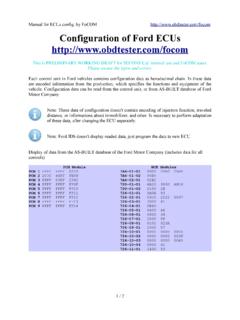
Transcription of FoCOM - auto-diagnostics.info
1 FoCOM . User manual Copyright 2004 2015 SECONS , All rights reserved. Version 2016-08-25. FoCOM user manual SECONS is not connected with Ford Motor Company in any way. Please read carefully this user manual before using the FoCOM application. Before using the software please read license agreement. Ford, Lincoln, Mercury are registered trademarks of Ford Motor Company or other owners. Mazda is registered trademark of Mazda Motor Company or other owners. Jaguar, Aston Martin, Land Rover are registered trademarks of Ford Motor Company or other owners. All trademarks used in this documentation or programs or any other material are used nominatively for identification purposes only and may be property of their respective owners. 2 / 43. Table of Contents 1 Key 2 FoCOM software and driver Microsoft Windows operating Microsoft Windows 8 driver Interface busy issue [Microsoft Windows].
2 8. GNU/Linux Setting up 3 First Software 4 Diagnostic connectors used in Ford 5 6 Connecting to control Diagnostics of selected non-standard Communication Information about Ford control Ford ECU PATS Immobilizer (Passive Anti-Theft system )..17. Diagnostics of TCM and 7 Auto - 8 Special 9 Diagnostic Unrecognized Control Control Unit Read fault code Clear Fault Freeze Measured values (live data)..26. Graph Display Display Save to Actuators Key On Engine Off test (KOEO test)..27. Key On Engine Running test (KOER test)..27. Programming/Coding PATS (immobilizer) coding and ECU Diesel injector coding / pump Diesel DPF Odometer Reset Control unit CCF - Central PCM configuration in VID AS-BUILT ECU Programmable parameters (Configuration)..34. Hex Revert to Undo all Go 10 Control unit memory 11 Ford IDS and FoCOM Control unit Fault Measured values (Datalogger).
3 39. Actuator Programming Autoscan (Network test)..40. 12 Reporting bugs and improvement How to create Debug How to create ECU Unsupported control Problems with 13 Known FoCOM user manual 1 Introduction Thank you for purchasing the FoCOM diagnostic interface and software. FoCOM is professional tool for diagnostics of Ford vehicles. Please read carefully this User Manual before using the product. Additional technical information is available from If you have experience with original diagnostic tool Ford IDS, we recommend you to study chapter comparing both systems. We hope you'll find our products useful. In case you have any questions, problems or feedback please contact as at We're here to help! Key features FoCOM covers for wide range of ECUs and models Fully multiplexed all-in-one smart interface Wide range of communication protocols and buses covered incl.
4 J1850 PWM, ISO, CAN. Automatic ECU recognition Automatic vehicle scan ECU Identification Fault code (DTC) reading Fault code clearing Measured values / live data Live data recording Diagnostic protocol printing Actuator tests Commands / Coding Configuration ( Programmable parameters in dealer tool). The FoCOM system works with Ford vehicles. It works as well with Ford subsidiaries vehicles such as Mazda, Lincoln, Mercury, Jaguar, but without guarantee of 100% functionality. The rule of thumb is: tasks related to fault code memory and identification are reliable everywhere, but measured values and other functions may not be fully supported. 5 / 43. FoCOM user manual 2 FoCOM software and driver installation Microsoft Windows operating system 1. Insert FoCOM installation CD to your CD-ROM drive 2.
5 Run installation file 3. Choose language for the installer 4. Choose your destination folder for the FoCOM and click on Install button and after successful installation click on Close button. FoCOM drivers are automatically updated during the FoCOM installation. When prompted to install unsigned drivers, click on Install this driver software anyway (Microsoft Windows 7). or Continue Anyway (Microsoft Windows XP. ). Microsoft Windows will automatically install drivers when you plug-in the FoCOM to USB. port. Driver installation isn't required for operation on GNU/Linux system . 6 / 43. FoCOM user manual Microsoft Windows 8 driver installation In case of problem with installing drivers on Windows 8 64-bit, please follow these steps: 1. Press Windows Key + R. 2. In the window that appears, type: /r /o /f /t 00.
6 3. Press "OK" button 4. The system will restart to a "Choose an option" screen 5. Select "Troubleshoot" from "Choose an option" screen 6. Select "Advanced options" from "Troubleshoot" screen 7. Select "Startup Settings" from "Advanced options" screen 8. Click "Restart" button 9. system will restart to another "Startup Settings" screen 10. Select "Disable Driver Signature Enforcement" (press number on keyboard for option shown on screen - F7 or 7). 11. Once the system starts, install the diagnostic interface drivers as you would on Windows 7. Windows Vista & 7 required signed all .sys files (we use shipped by Microsoft with valid digital signature). Final version of Windows 8 requires also signed .inf file (which is not in our case). The above procedure helps to override unsigned.
7 Inf file. Once driver is installed, the program will work properly. 7 / 43. FoCOM user manual Interface busy issue [Microsoft Windows]. In case you receive error Interface busy while testing your interface, please make sure: 1. You're not running any modem, mobile phone, or printer monitoring application that blocks COM ports from being used by other applications. 2. You're not running Hella Gutmann software on the same PC. Process called . prevents SECONS diagnostic applications from properly accessing the diagnostic interface. You may temporarily resolve this problem by running Windows Task Manager , right- clicking on process in Processes tab and selecting End process . 3. Software modem drivers do not block COM ports. 4. You have selected correct COM port (use Device manager button to find port number under Ports (COM & LPT) group.)
8 GNU/Linux system Our diagnostic application are tested to work under Linux. The applications can be run under Linux, BSD or Apple OS/X on Intel x86 using Wine environment. The installer and applications perform fully automated installation under these operating system . Requirements Linux with USB support (or FreeBSD). USB CDC Driver Wine Recent Debian Linux or Ubuntu meet the above requirements. Setting up devices Driver installation isn't required for operation on GNU/Linux system . Diagnostic applications require access to /dev/ttyACMx devices from Wine environment. This can be set-up very easily using these commands: ln -s /dev/ttyACM0 ~/.wine/dosdevices/com5. ln -s /dev/ttyACM1 ~/.wine/dosdevices/com6. ln -s /dev/ttyACM2 ~/.wine/dosdevices/com7. ln -s /dev/ttyACM3 ~/.wine/dosdevices/com8.
9 Diagnostic interface should be then visible from the FoCOM diagnostic application. Installation Programs can be installed by launching file using wine, wine You can download the latest version of FoCOM from 8 / 43. FoCOM user manual 3 First steps 1. Connect the FoCOM interface to your computer. 2. Connect the FoCOM interface to OBD-II connector in the vehicle. You can use picture gallery for find it, available from main menu OBD-II Connector Location button. 3. Set-up FoCOM application Select Settings from FoCOM main menu and configure interface port. After clicking on Refresh button, software should find port to which FoCOM interface is connected. Choose this port. Then click on Test Interface to make sure everything is OK. The software should display Serial number and licenses (partially hidden on screenshot on the right side).
10 4. Save settings and return to main menu. 5. Turn ON the ignition, but don't start the engine. 6. Select control unit by clicking on Select Control Unit button. 7. Choose diagnostic platform 8. In a new window, choose desired control unit. 9 / 43. FoCOM user manual 9. If the control unit was recognized, you can use diagnostic functions now. In other case, you must select correct type of control unit. (chapter Unrecognized Control Unit). Software updates Software updates in diagnostic version are available for free. You can download them from When downloading, type a serial number of your interface as user name. Password leave blank. The serial number can be found in settings of FoCOM after performing test interface, or on silver label of the interface. We recommend you to maintain software up-to-data, because updates provides support for new ECUs and fix various FoCOM .