Transcription of Getting Started with your data - cega.berkeley.edu
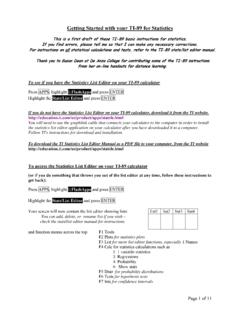
1 Getting Started with your dataUsing StataOutline of Session1)Beginning (Opening Program and Data)2)Exploring the Data3)Modifying the Dataset4)Keeping Good Records5)Helpful HintsOutline of Session1)Beginning (Opening program & data)2)Exploring the Data3)Modifying the Dataset4)Keeping Good Records5)Helpful HintsBeginning:Opening STATAO ption 1: Start Programs Stata Option 2:Double-click on STATA Icon on your DesktopBeginning:STATA Windows Variables Lists the variables that are in your data set Command Where we will tell STATA what to do by typing commands Review Lists all the commands that you have already used. Allows us to easily repeat command by clicking on the right one Results Where all the output from our commands will appear Beginning:Opening STATA Data Set Memory Command: set mem [NUMBER]m is mb set mem 20m/ set mem 30m/ set mem 50m/ set mem 100m Know the file location Use the use command for data already in STATA format Option 1: Full directory information use c:/ Option 2: Two-step process cd c:/XXXXX use Note: Clear the data you are currently using firstOutline of Session1)Beginning (Opening Program and Data)2)Exploring the Data3)Modifying the Dataset4)Keeping Good Records5)Helpful HintsExploring the Data:Looking at the Data browse command Type browse in the command window STATA Matrix.
2 Column holds the variable Information we collect on respondents Row holds the observation Information on a given person who participated. Cell of a particular variable for a particular observation is a value When no information is recorded on a particular observation for a particular variable, it is called a missing value Exploring the Data: Getting to Know the Variables describe command Overview of the dataset: The number of observations in the dataset Number of variables in the dataset The amount of memory the dataset is using and how much memory you still have to work with Basic information about the variables in our dataset codebookcommand More detailed overview of the variables Variable name, label and type Some basic descriptive statistics for variableExploring the Data:Variable Types Variable Types Numeric Stata reads as number Different types.
3 Byte, int, long, float, double (different # s of decimal points stored) String Stata reads as text String types are str1, str2, str3, (indicates # spots available for a variable s value) Words can never be in numeric format but numbers can be in string format Some commands are for numeric variables, some only for string, other for both Commands in today s session work mostly with numeric or with both string and numericExploring the Data:Variable Labels and Value Labels Variable labels give a brief description of the variable Value labels puts word labels on category variables province codes each province with a numeric value 1 for North 2 for South 3 for East 4 for West We can read province names in output even though variable values are numeric Exploring the Data:Tabulating Values Gives count of times each value appears in data for specified variable(s) 1 variable specified: tab VARIABLE Also gives % of observations that take on that value ( % of observations that are male vs.)
4 Female, % from each province) 2 variables specified: tab VAR1 VAR2 tab province sex VAR1 appears as row, VAR2 appears as column No option specified: gives only # observations in a table cell tells how many observations have both Can include options to see: % of obs with each value combination of VAR1 & VAR2 tab province sex, cell % of obs with each VAR1 value for each VAR2 column separately tab province sex, col % of obs with each VAR2 value VAR2 for each VAR1 row separately tab province sex, row Options go after the command and before a comma Can eliminate the variable count and include only percentages by adding nofreq at the end tab province sex, row nofreqDescriptive Statistics and Graphs:Summary Statistics Tables summarize (or sum) Returns basic summary statistics (# non-missing observations and mean, sd, min & max of values) How to use: sum VAR1 VAR2 (all the variables you want) When to use tab vs.
5 Sum? General guidelines: tab: category variables (sex, province) & variables that take on few values (# times hospitalized last year) sum: continuous variables for which mean, sd, etc. make sense ( income) Sometimes variables can be tabulated or summarized ( age, household size)Descriptive Statistics and Graphs:Tabstat Produces table of statistics you choose for as many variables as you d like Often produces nicer tables for presentation than sum Can also return summary stats by sub-groups in one table How to Use: Specify variables and stats you want in table tabstat VAR1 VAR2 .. , s(mean sd .. ) Other statistics are also possible (type help tabstatto see them) Note: if you choose nothing, default is mean only For stats by sub-group, add by(SUBGROUP)in option section (after command and after comma) to see mean & sd of income by province tabstat income , s(mean sd) by(province)Descriptive Statistics and Graphs:Exporting Tables to Excel, etc.
6 Copy & Paste Method Paste into Word for informal tables Copy Table & Paste Method Past into Excel for formal, formatted tablesREMINDER: Copy only the table and not other output to maintain formatting!Outline of Session1)Beginning (Opening Program and Data)2)Exploring the Data3)Modifying the Dataset4)Keeping Good Records5)Helpful HintsModifying & Managing Data:Some STATA Grammar Basic STATA Command Structure has the following parts 1 Sometimes: by qualifying clause Depends on command 2 Command 3 Variables to which the command will be applied Sometimes just one, sometimes more (depends on command & your goals) 4 Sometimes: specify more information for the command Examples in the next slide 5 Sometimes: qualifying if clause When you want command applied only to certain observations (rows) 6 Options Extra specifications Always at the end and always after a comma Putting the pieces together (optional pieces in italics):[1 By].
7 [2 Command] [3 Var] [4 Specify] [5 If], [6 Options]Modifying & Managing Data: if clause[1 By] : [2 command] [3 Var] [4 Specify] [5 If], [6 Options] Comes after you have told STATA what you want to do Tells STATA for which observations you want to apply your command Do something (specified in [3] and [4])] if such and such is true (specified in [5]) Common if Expressions: >, >=, <, <=, ==, != or ~= Note: STATA reads missing values as infinity, so be careful when using > and >=! For more than one restriction use & (and) if age>10 & age<=20 For multiple possibilities use | (or) if year==2004 | year==2005 Note: Previous commands (browse, describe, codebook) can be done for only some observations ( kids under 10) using if commandModifying & Managing Data: by clause[1 By] : [2 command] [3 Var] [4 Specify] [5 If], [6 Options] Performs commands by sub-groups (specified by a variable) Examples: Mean income by province Other sub-group possibilities: by year, by hhid, by age group, etc.
8 Sometimes comes at the beginning (before the command in [1]), sometimes at the end as an option (in [6]) At the beginning: by xxx, sort: .. At the end .. , by(xxx)Modifying & Managing Data:Some Basic Commands drop Drops the variables or observations specified keep Keeps only variables or observations specified (drops all others) Generate (gen) & extended generate (egen) Both generate new variables You will need to specify a function for piece [4] of the command Some functions work with gen, some with egen replace Replaces values for existing variables Works the same as the gen command rename Changes the name of a variable Note: all commands (and most variable names) are lower case[1 By] : [2 Command] [3 Var] [4 Specify] [5 If], [6 Options]Modifying & Managing Data:Using gen & replace [1 By] : [2 command] [3 Var] [4 Specify] [5 If], [6 Options] Examples of gen command.
9 Gen ones = 1 (column of ones) gen GENVAR = var1 + var2 (adds var1 & var2) Functions that work with gen tend to be more basic functions gen age10=1 if age==10 gen over10=1 if age>10 & age!=. STATA reads missing values as infinity, so be careful when using > and >=! Reminder: variable names can t start with numbers! Examples of replace command: replace age=. if age==9999 questionnaire non-response replace over10=0 if age<=10 Modifying & Managing Data:Using egen [1 By] : [2 command] [3 Var] [4 Specify] [5 If], [6 Options] Often uses more sophisticated functions statistical functions like mean, sd, etc. egenexamples: egen mean_VAR=mean(VAR) egen mean_VAR_over10=mean(VAR) if over10==1 by over10, sort: egen agrgrpmean_VAR=mean(VAR) egen agrgrpmean_VAR=mean(VAR), by(over10)Modifying & Managing Data:Renaming andLabeling Variables[1 By] : [2 command] [3 Var] [4 Specify] [5 If], [6 Options] Renaming Variables rename command changes the variable name To Use: rename [current variable name] [new variable name] Example: rename over10 eleven_plus Labeling Variables Variable labels describe the variable you created Good idea to do this so that you remember later and so others understand your dataset!
10 To Use: label var [variable] [short description of the variable] Example: label over10 =1 if child is older than 10 Modifying & Managing Data:Labeling Values Value labels puts word labels on category variables Example: no=0 and yes=1 in dataset We can read Yes & No in output even though variable values are 0 or 1 To make value labels Step One: Define the label label def [label name] [value1] [label for value1] value2 [label for value2] Remember: Value always comes first and labels always go in quotes Ex: label def yn 0 No 1 Yes Step Two: Apply the value label to that variable label val [variable you are labeling] [label you want to apply] Ex: label val has_tinroof yn Note: the same label can be used for multiple observations! Managing & Modifying Data:Dropping & Keeping Observations Drop/ Keep Commands Both used in the same way but with opposite functions drop deletes observations (rows) or variables (columns) that you tell it to keep keep gets rid of everything EXCEPT the observations (rows) or variables (columns) that you tell it to keep Dropping & Keeping variables Specify the variables you want to drop or keep drop age_months Drops the variable age_months keep province hhid VARS.