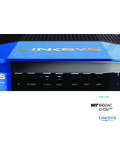
Transcription of Linksys E1000 User Guide
1 Linksys E1000 Wireless-N RouterUser GuideLinksys E1000 Table of ContentsiiWireless-N RouterContentsChapter 1: Product Overview 1 Top .. 1 Back .. 1 Horizontal Placement .. 1 Wall-Mounting Placement .. 2 Chapter 2: Cisco Connect 3 Installation .. 3 Main Menu .. 4 Computers and Other Devices .. 6 Parental Controls .. 8 guest access ..10 Router Settings ..10 How to Exit Cisco Connect ..12 How to access Cisco Connect ..12 Chapter 3: Advanced Configuration 13 How to access the Browser-Based Utility.
2 13 Setup > Basic Setup ..13 Setup > DDNS ..17 Setup > MAC Address Clone ..18 Setup > Advanced Routing ..19 Wireless > Basic Wireless Settings ..19 Manual Setup ..20 Wireless > Wireless Security ..21 Wireless > Wireless MAC Filter ..23 Wireless > Advanced Wireless Settings ..24 Security > Firewall ..25 Security > VPN Passthrough ..25 access Restrictions > Internet access ..26 Applications and Gaming > Port Range Forwarding ..28 Applications & Gaming > Port Range Triggering ..28 Applications and Gaming > DMZ.
3 29 Applications and Gaming > QoS ..29 Administration > Management ..32 Administration > Log ..33 Administration > Diagnostics ..33 Administration > Factory Defaults ..34 Administration > Firmware Upgrade ..34 Status > Router ..35 Status > Local Network ..35 Status > Wireless Network ..36 Linksys E1000 Table of ContentsiiiWireless-N RouterAppendix A: Troubleshooting 37 Appendix B: Specifications 38 Appendix C: Warranty Information 39 LIMITED WARRANTY ..39 Appendix D: Regulatory Information 41 FCC Statement.
4 41 FCC Radiation Exposure Statement ..41 Safety Notices ..41 Industry Canada Statement ..41 Avis d Industrie Canada ..41 Wireless Disclaimer ..42 Avis de non-responsabilit concernant les appareils sans fil ..42 User Information for Consumer Products Covered by EU Directive 2002/96/EC on Waste Electric and Electronic Equipment (WEEE) ..42 Appendix E: Software End User License Agreement 43 Cisco Products ..43 Software Licenses ..43 Linksys E1000 Chapter 1: Product Overview1 Wireless-N RouterChapter 1: Product OverviewThank you for choosing the Linksys E1000 Wireless-N Router.
5 The Router lets you access the Internet via a wireless connection or through one of its four switched ports . You can also use the Router to share resources such as computers, printers and files . A variety of security features help to protect your data and your privacy while you are online . Security features include Wi-Fi Protected access 2 (WPA2) security, which encrypts data on your wireless network; a Stateful Packet Inspection (SPI) firewall to help block unauthorized access to your Router; and Network Address Translation (NAT) technology, which enhances network protection by allowing your computers to share Internet access through a single, public Internet IP address.
6 (IP stands for Internet Protocol .)Setup and use of the Router is easy using Cisco Connect, the software that is installed when you run the included CD . Advanced configuration of the Router is available through the provided browser-based utility .Top1, 2, 3, 4 (Blue) These numbered LEDs, corresponding with the numbered ports on the Router s back panel, serve two purposes . The LED is continuously lit when the Router is connected to a device through that port . It flashes to indicate network activity over that port.
7 Wi-Fi Protected Setup Button If you have client devices, such as wireless adapters, that support Wi-Fi Protected Setup, then you can use the Wi-Fi Protected Setup button to automatically configure wireless security for your wireless network .To use Wi-Fi Protected Setup, refer to Wi-Fi Protected Setup, page 20 .Wireless (Blue) The Wireless LED lights up when the wireless feature is enabled . It flashes when the Router sends or receives data over the wireless network .Internet (Blue) The Internet LED lights up when there is a connection made through the Internet port.
8 It flashes to indicate network activity over the Internet port . Power (Blue) The Power LED lights up when the Router is powered on . When the Router goes through its self-diagnostic mode during every boot-up, the LED flashes . When the diagnostic is complete, the LED is continuously lit .BackInternetEthernet4321 ResetPower12 VDCI nternet Using an Ethernet cable (also called a network or Internet cable), the Internet port connects the Router to your Internet connection, which is typically a cable or Digital Subscriber Line (DSL) modem.
9 4, 3, 2, 1 Using Ethernet cables, these Ethernet ports (4, 3, 2, 1) connect the Router to computers and other Ethernet network devices on your wired network . Reset The Reset button is located on the right side of the product label . There are two ways to reset the Router to its factory defaults . Either press and hold the Reset Button for approximately five seconds, or restore the defaults from the Administration > Factory Defaults screen in the Router s browser-based utility (refer to Administration > Factory Defaults, page 34).
10 Power The Power port connects to the included power adapter .Horizontal PlacementThe Router has four rubber feet on its bottom panel . Place the Router on a level surface near an electrical outlet . Linksys E1000 Chapter 1: Product Overview2 Wireless-N RouterWall-Mounting PlacementThe Router has two wall-mount slots on its bottom panel . The distance between the slots is 152 mm . Two screws are needed to mount the Router .Suggested Mounting Hardware2 .5-3 .0 mm4-5 mm1-1 .5 mmNOTE: Cisco is not responsible for damages incurred by unsecured wall-mounting hardware.