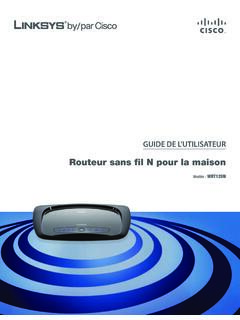
Transcription of Linksys E3000 User Guide
1 Linksys E3000 High Performance Wireless-N RouterUser GuideLinksys E3000 Table of ContentsiHigh Performance Wireless-N RouterContentsChapter 1: Product Overview 1 Top .. 1 Back .. 1 Chapter 2: Cisco Connect 3 Installation .. 3 Main Menu .. 4 Computers and Other Devices .. 6 Parental Controls .. 8 Guest Access ..10 Router Settings ..10 How to Exit Cisco Connect ..12 How to Access Cisco Connect ..12 Chapter 3: Advanced Configuration 13 How to Access the Browser-Based Utility ..13 Setup > Basic Setup ..13 Setup > DDNS ..17 Setup > MAC Address Clone ..18 Setup > Advanced Routing ..18 Wireless > Basic Wireless Settings ..19 Wireless > Wireless Security ..22 Wireless > Wireless MAC Filter ..24 Wireless > Advanced Wireless Settings ..24 Security > Firewall ..26 Security > VPN Passthrough ..26 Storage > Disk ..27 Storage > Media Server ..29 Storage > FTP Server ..30 Storage > Administration.
2 31 Access Restrictions > Internet Access Policy ..32 Applications and Gaming > Single Port Forwarding ..34 Applications and Gaming > Port Range Forwarding ..34 Applications & Gaming > Port Range Triggering ..35 Applications and Gaming > DMZ ..35 Applications and Gaming > QoS ..36 Administration > Management ..38 Administration > Log ..39 Administration > Diagnostics ..39 Administration > Factory Defaults ..40 Administration > Firmware Upgrade ..40 Linksys E3000 Table of ContentsiiHigh Performance Wireless-N RouterStatus > Router ..41 Status > Local Network ..41 Status > Wireless Network ..42 Appendix A: Troubleshooting 43 Appendix B: How to Install and Access USB Storage 45 Overview ..45 Windows 7 ..45 Windows Vista ..47 Windows XP ..49 Mac OS X ..52 Advanced Configuration (Advanced Users Only) ..55 Appendix C: Specifications 57 Appendix D: Warranty Information 58 Limited Warranty.
3 58 Appendix E: Regulatory Information 60 FCC Statement ..60 FCC Radiation Exposure Statement ..60 Safety Notices ..60 Industry Canada Statement ..60 Restrictions in the 5 GHz Band ..60 Avis d Industrie Canada ..61 Restrictions dans la bande 5 GHz ..61 Wireless Disclaimer ..61 Avis de non-responsabilit concernant les appareils sans fil ..61 user Information for Consumer Products Covered by EU Directive 2002/96/EC on Waste Electric and Electronic Equipment (WEEE) ..62 Appendix F: Software End user License Agreement 63 Cisco Products: ..63 Software Licenses: ..63 Linksys E3000 Chapter 1: Product Overview1 High Performance Wireless-N RouterChapter 1: Product OverviewThank you for choosing the Linksys E3000 High Performance Wireless-N Router . The Router lets you access the Internet via a wireless connection or through one of its four switched Gigabit Ethernet ports . With the built-in Storage Link, you can easily add gigabytes of storage space onto your network using USB 2.
4 0 hard drives, or plug in a USB flash disk to access your portable data files . The E3000 s built-in media server streams music, video and photos from an attached storage device to any UPnP-compatible media adapter or player . A variety of security features help to protect your data and your privacy while you are online . Security features include Wi-Fi Protected Access 2 (WPA2) security which provides encryption for data on your wireless network, a Stateful Packet Inspection (SPI) firewall to block unwanted access to your Router, and Network Address Translation (NAT) technology to protect and allow your entire network to access the Internet using a single Internet IP address . Setup and use of the Router is easy using Cisco Connect, the software that is installed when you run the included CD . Advanced configuration of the Router is available through the provided browser-based utility.
5 For more wireless bandwidth, the Router can create two simultaneous yet separate Wireless-N networks, one using the 5 GHz band and one using the 2 .4 GHz band . For example, use the Wireless-N 2 .4 GHz network to surf, e-mail, and print while keeping the less crowded, Wireless-N 5 GHz network free for time-sensitive traffic like music, gaming, and high-definition video . For more information, refer to Simultaneous Networks, page 19 .The Guest Access features allows you to provide Internet access to guests visiting your home without granting them access to your local network .Top1, 2, 3, 4 (Green/Blue) These numbered LEDs, corresponding with the numbered ports on the Router s back panel, serve two purposes . The LED is continuously lit when the Router is connected to a device through that port . It flashes to indicate network activity over that port . The LED lights up green when the port is connected to a gigabit port or blue when the port is connected to a 10/100 port.
6 Wi-Fi Protected Setup Button If you have client devices, such as wireless adapters, that support Wi-Fi Protected Setup, then you can use the Wi-Fi Protected Setup button to automatically configure wireless security for your wireless network(s) .To use Wi-Fi Protected Setup, refer to Wi-Fi Protected Setup, page 21 .Wireless (Blue) The Wireless LED lights up when the wireless feature is enabled . It flashes when the Router sends or receives data over the network .Internet (Green/Blue) The Internet LED lights up when there is a connection made through the Internet port . It flashes to indicate network activity over the Internet port . The LED lights up green when the port is connected to a gigabit port or blue when the port is connected to a 10/100 port . USB (Blue) The USB LED lights up when a USB device is attached . It flashes when data is being sent to or received from this device.
7 Power (Blue) The Power LED lights up when the Router is powered on . When the Router goes through its self-diagnostic mode during every boot-up, the LED flashes . When the diagnostic is complete, the LED is continuously lit .BackResetInternetEthernet4321 Power12 VDCUSBUSB Port The USB port connects to a USB storage device . Internet The Internet port is where you connect your cable or DSL Internet connection . 4, 3, 2, 1 Using Ethernet (network) cables, these Ethernet ports connect the Router to computers on your wired network and other Ethernet network devices . Reset There are two ways to reset the Router to its factory defaults . Either press and hold the Reset Button for approximately five seconds, or restore the defaults from the Administration > Factory Defaults screen in the Router s browser-based utility (refer to Administration > Factory Defaults, page 40) .Power Switch Press the I end to power on the Router.
8 Press the O end to power off the Router .Power The Power port is where you connect the power adapter . Linksys E3000 Chapter 1: Product Overview2 High Performance Wireless-N RouterHorizontal PlacementThe Router has four rubber feet on its bottom panel . Place the Router on a level surface near an electrical outlet .Horizontal PlacementWall-Mounting PlacementThe Router has two wall-mount slots on its bottom panel . The distance between the slots is 175 .56 mm . Two screws are needed to mount the Router .Suggested Mounting Hardware2 .5-3 .0 mm4-5 mm1-1 .5 mmNOTE: Cisco is not responsible for damages incurred by unsecured wall-mounting hardware . Follow these instructions:1 . Determine where you want to mount the Router . Make sure that the wall you use is smooth, flat, dry, and sturdy . Also make sure the location is within reach of an electrical outlet .2 . Drill two holes into the wall.
9 Make sure the holes are 175 mm apart .3 . Insert a screw into each hole and leave 3 mm of its head exposed .4 . Position the Router so the wall-mount slots line up with the two screws .5 . Place the wall-mount slots over the screws and slide the Router down until the screws fit snugly into the wall-mount slots .175 mmWall-Mounting TemplatePrint this page at 100% size . Cut along the dotted line, and place on the wall to drill precise spacing . Linksys E3000 Chapter 2: Cisco Connect3 High Performance Wireless-N RouterChapter 2: Cisco ConnectDuring installation, the setup software installs Cisco Connect on your computer . Cisco Connect offers options to connect additional computers or devices to the Router and allows you to change the Router s settings .InstallationTo install the Router:1 . Insert the CD into your CD-ROM drive .Insert CD2 . Click Set up your Linksys Router .DVD/CD-RW Drive (E:) LinksysRouter SetupAutoPlayAlways do this for software and games:Install or run programGeneral optionsSet up your Linksys RouterPublished by Cisco Consumer Products LLCSet AutoPlay defaults in Control PanelOpen folder to view filesusing Windows ExplorerSpeed up my systemusing Windows ReadyBoostDVD/CD-RW Drive (E:) LinksysRouter SetupAlways do this for software and games:Install or run programGeneral optionsSet up your Linksys RouterPublished by Cisco Consumer Products LLCSet AutoPlay defaults in Control PanelOpen folder to view filesusing Windows ExplorerSpeed up my systemusing Windows ReadyBoostSet Up Your Linksys RouterIf you do not see this, access setup on the CD directly.
10 To do so, perform the following steps for your specific operating system:Windows 7a . Go to Start > Computer .b . Double-click on your CD-ROM drive .Windows Vistac . Go to Start > Computer .d . Double-click on your CD-ROM drive .Windows XPa . Go to Start > My Computer and select your CD-ROM drive .b . Double-click .Mac OS Xa . Double-click on the CD on your desktop .b . Double-click Setup .3 . Read the Software End user License Agreement . To accept the agreement and continue with the installation, click Next .License Agreement4 . The connection steps are displayed .Connection Overviewa . Plug the power cord into the Power port on the back of the Router .ResetInternetEthernet4321 Power12 VDCUSBC onnect to Power Portb . Plug the power adapter into an electrical outlet .ResetInternetEthernet4321 Power12 VDCUSBC onnect to Electrical OutletLinksys E3000 Chapter 2: Cisco Connect4 High Performance Wireless-N Routerc.