Example: biology
Logitech® G933 Artemis Spectrum™
1. Set switch to Wireless Off mode for passive audio mode, or set to Wireless On mode for active audio mode with additional features (see “Wireless On/ Off” section). 2. Connect the headset to the mobile device via the 3.5mm cable. 3. 3.5mm inline controls can be used to adjust audio. Mic select • Select “microphone” position
Tags:
Information
Domain:
Source:
Link to this page:
Documents from same domain
On - logitech.com
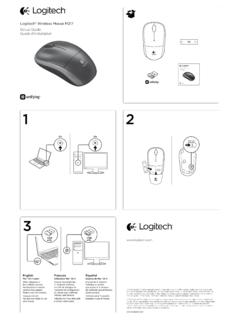
www.logitech.com1 2 Logitech® Wireless Mouse M217 Setup Guide Guide d’installation English Mac® OS X Users: When plugging in the Unifying receiver, the Keyboard Assistant
Activities Want to know more? - Logitech
www.logitech.comLogitech Gaming Software - Help Center file:///E|/Help/en_US/front_page.htm[4/28/2014 8:07:32 PM] Activities... Want to know more? Create a new profile Getting started
圧倒される 超・高解像度 - logitech.com
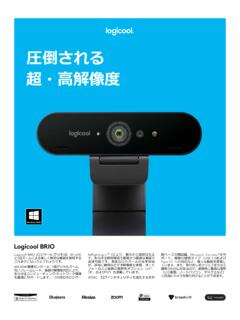
www.logitech.comLogicool BRIO Ultra HD 4K画像センサー 4K(Ultra HD)@ 30 fps、1080p(フルHD)@ 30/ 60 fps および 720p(HD)@ 30/60/90 fpsを含めた複 数の解像度をサポートし、お使いのアプリケーションや
SMALL GROUPS. BIG POTENTIAL. - Logitech
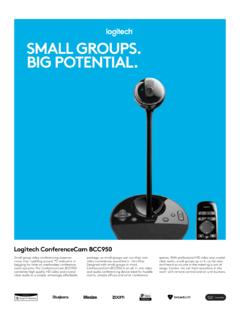
www.logitech.comSmall group video conferencing deserves more than huddling around PC webcams or begging for time on overbooked conference room systems. The ConferenceCam BCC950
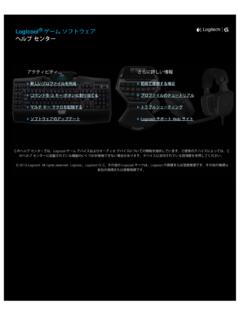
Logicool ゲーム ソフトウェア - logitech.com
www.logitech.com快適な作業および安全性 file:///E¦/Help/ja_JP/comfort_and_safety.htm[4/26/2014 9:19:02 PM] 快適な作業および安全性 ここでは快適な作業 ...
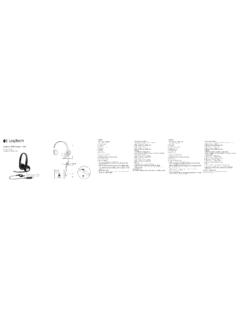
Logitech® USB Headset H390
www.logitech.comEnglish Know your product 1. USB Headset H390 2. Microphone boom 3. Microphone 4. Volume controls (+/–) 5. Mute button 6. Mute light 7. USB connector
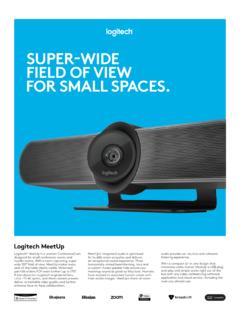
SUPER-WIDE FIELD OF VIEW FOR SMALL SPACES.
www.logitech.comMeetUp’s integrated audio is optimized for huddle room acoustics and delivers an exceptional sound experience. Three horizontally-aimed beamforming mics and
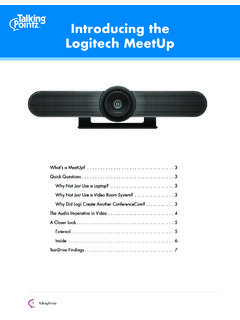
Introducing the Logitech MeetUp
www.logitech.com3 TalkingPointz July 21, 2017 What’s a MeetUp? Logitech currently offers three small room conferencing products in its ConferenceCam lineup .
Setup Guide Guide d’installation Logitech® HD …
www.logitech.com4 English English 5 Getting started with Logitech® HD Pro Webcam C920 Thank you for buying your c920! Use this guide to set up and begin using your Logitech webcam.
Logitech Addresses and Phone Numbers
www.logitech.comLogitech ® G 27 Racing Wheel © 2013 Logitech. All rights reserved. Logitech, the Logitech logo, and other Logitech marks are owned by Logitech …
Related documents

AT&T U-verse Wireless TV Receiver self-installation guide
www.att.comSet up the Wireless TV Receiver. The next step is to connect your Wireless TV Receiver to your TV. A. Connect the Wireless TV Receiver to your TV with an HDMI cable (not included). You may also use . Component or Coaxial cables. B. Power up your TV. Select the connection type you used in step 2A. For instance, if you used an HDMI . cable ...

DIRECTV WIRELESS VIDEO BRIDGE GEN2 - AT&T
www.att.comProduct Manual—Wireless Video Bridge Gen2 I. OVERVIEW A. WIRELESS VIDEO BRIDGE The Wireless Video Bridge Gen2 (WVB2) is a second-generation Wireless Video Bridge. It is a direct replacement of the WVB Gen1 and has enhanced networking features. The WVB2 provides the ability to stream DIRECTV programming from a Genie server to the Genie Mini ...

User Guide - The Sharper Image
cdn4.sharperimage.comFor optimum performance, the TV Wireless Headphones must be fully charged before the first use. This can take 5 hours. CONNECTING YOUR TV 1. The TV Wireless Headphones can be connected to the TV three different ways: Headphone Jack — Use the included 3.5mm audio cable. Plug one end into the TV headphone jack.

Instructions for use - Oticon
www.oticon.comThe TV Adapter is intended as a wireless transmitter of sound from a TV or from other electronic audio devices to hearing aids. The TV Adapter is intended to be used by children (> 36 months) and adults together with their hearing solution.

Installation instructions - Verizon: Wireless, Internet ...
www.verizon.comon the Fios TV remote. Then turn on your TV and tune to channel 3 using the remote control that came with your TV. • To complete activation, call 1.855.372.2181 and provide the activation code found on your Verizon customer receipt. CableCARD Get hooked up Read through any instructions for your CableCARD-ready device and complete any set up.

Wireless Desktop Mouse User Manual Product Features
www.verbatim.com2. Connect wireless mouse receiver to USB port 3. Ensure batteries are installed in the mouse and mouse power is turned on (See instructions below). 4. Hold mouse close to the receiver 5. Click the ID button at the end of the receiver once, (See …

BAR 48
d2um2qdswy1tb0.cloudfront.netThe BAR 48 is designed to quickly connect to your TV. Simply plug in the included HDMI cable or an optical cable to seriously upgrade your TV sound, using your TV’s remote to control it. SLIM PROFILE DESIGN The BAR 48 is crafted from high-quality wood materials, just like legendary Klipsch speakers.

Using TV Adapter 3 - Oticon
www.oticon.comP1 P2 TV Adjust the volume by pressing up or down briefly. Repeat the brief press for further adjustments. Connect the TV Adapter 3.0 box to your television See the Instructions for Use booklet that comes with the TV adapter. Four methods are available to support a wide variety of connection needs. Using TV Adapter 3.0 1 2 3 4