Transcription of Select a Database Loading method below for …
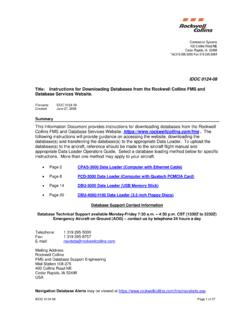
1 2009 Rockwell Collins, Inc. All rights reserved October 22, 2009 1 Instructions for downloading Databases from the Rockwell Collins FMS and Database Services Website Select a Database Loading method below for specific instructions. More than 1 method may apply. CPAS-3000 data Loader - (Computer with Ethernet Cable) page 2 PCD-3000 data Loader - (Computer with Quatech PCMCIA Card) page 10 DBU-5000 data Loader - (USB Memory Stick) page 17 DBU-4000/4100 data Loader - ( inch Floppy Diskettes) page 24 Database Support Contact Information Database Technical Support available Monday-Friday 7:30 4:30 CST (UTC-6) Emergency Aircraft on Ground (AOG) contact us 24 hours a day Telephone: 1 319 295-5000 Fax: 1 319 295-8757 E-mail.
2 Rockwell Collins FMS and Database Support Engineering Mail Station 106-124 400 Collins Road NE Cedar Rapids, IA 52498 USA navigation Database Alerts Building trust every day. Rockwell Collins delivers smart communication and aviation electronic solutions to customers worldwide. Backed by a global network of service and support, we stand committed to putting technology and practical innovation to work for you whenever and wherever you need us. In this way, working together, we build trust. Every day. 2009 Rockwell Collins, Inc. All rights reserved October 22, 2009 2 CPAS-3000 data Loader (Computer with Ethernet Cable) Rockwell Collins FMS and Database Services web site ( ) 1. Login with FMS Database Service user name and password.
3 (Not the same as Rockwell Collins customer portal) 2009 Rockwell Collins, Inc. All rights reserved October 22, 2009 3 2. The Database (s) eligible to download will be displayed. Databases used with the CPAS-3000 data Loader will have a USB extension on the name. Select the Database you want to download. 3. A dialog window will appear while the file is being prepared for download followed shortly by the File Download-Security Warning window. Click the Run button. 2009 Rockwell Collins, Inc. All rights reserved October 22, 2009 4 4. The file will begin downloading . 5. Press the Run button when the file is finished downloading ,. 6. Next press the OK button 2009 Rockwell Collins, Inc.
4 All rights reserved October 22, 2009 5 7. Ensure the USB memory stick is in the computer. Choose correct drive letter and directory location on your USB memory stick. The USB memory stick may be set up with folders as indicated below to organize different databases. Click here (page 30) for recommendations to manage your USB memory stick folders. View Operator Bulletin #0073-08 for USB Media recommendations. 8. Press Unzip to send the navigation Database files to the USB stick. 2009 Rockwell Collins, Inc. All rights reserved October 22, 2009 6 9. The data will start unzipping. 10. Press OK 11. Press Close to end the unzipping process. 12. Remove the USB memory stick from the Internet download computer.
5 Note: Steps 1-12 may be performed on any computer. Steps 13-20 must be performed on the aircraft Loading computer with CPAS-3000 installed. 13. Insert the USB stick in the CPAS-3000 computer. 14. Press the Launch Pad icon located on the desktop. CPAS-3000 2009 Rockwell Collins, Inc. All rights reserved October 22, 2009 7 15. Press Manage data /Software button. 16. Press the Import button. 17. Press the down triangle and Select the USB drive letter (usually E : on a laptop). 2009 Rockwell Collins, Inc. All rights reserved October 22, 2009 8 18. Select the drive for the Database to be imported and press OK. 19. Select the Database and press OK 20. Press Close when the import is done.
6 2009 Rockwell Collins, Inc. All rights reserved October 22, 2009 9 The data imported to CPAS-3000 will be displayed now. When all desired databases are listed on this page, you may proceed to the aircraft for uploading. Refer to the CPAS-3000 data Loader operator s guide and the appropriate aircraft flight manuals for uploading instructions. End- Return to top 2009 Rockwell Collins, Inc. All rights reserved October 22, 2009 10 PCD-3000 data Loader (Computer with Quatech PCMCIA Card) Rockwell Collins FMS and Database Services web site ( ) 1. Login with your FMS Database Service user name and password. (Not the same as Rockwell Collins customer portal) 2009 Rockwell Collins, Inc.
7 All rights reserved October 22, 2009 11 2. The Database (s) eligible to download will be displayed. Databases used with the PCD-3000 data Loader will have a USB extension on the name. Select the Database you want to download. ` 3. A dialog window will appear while the file is being prepared for download followed shortly by the File Download-Security Warning window. Click the Run button. 2009 Rockwell Collins, Inc. All rights reserved October 22, 2009 12 4. The file will begin downloading . 5. When the file is finished downloading , press the Run button. 6. Next press the OK button 2009 Rockwell Collins, Inc. All rights reserved October 22, 2009 13 7. Ensure the USB memory stick is in the computer.
8 Choose the drive letter corresponding to the USB memory stick. The data will need to be unzipped to the root directory of the USB memory stick. NOTE: The USB memory may only hold one Database at a time. Other databases should be removed at this time. 8. Press Unzip to send the navigation Database files to the USB stick. 2009 Rockwell Collins, Inc. All rights reserved October 22, 2009 14 9. The data will start unzipping. 10. Press OK 11. Press Close to end the unzipping process. 12. Insert the USB stick in the PCD computer. Note: Steps 1-12 may be performed on any computer. Steps 13-18 must be performed on the aircraft Loading computer with PCD-3000 installed.
9 13. Press the PCD-3000 icon located on the desktop. 2009 Rockwell Collins, Inc. All rights reserved October 22, 2009 15 14. Press Copy Database to Hard Drive button 15. Select the USB memory stick and press OK. Note: The number of databases that may be copied to the laptop is limited. When the maximum number of a particular type of databases exist on the laptop, one of those databases must be removed before a new one can be copied to the laptop. 16. When the Database is finished coping press OK 2009 Rockwell Collins, Inc. All rights reserved October 22, 2009 16 17. The data imported to PCD-3000 will be displayed now. 18. Erase the USB memory stick in preparation for importing the next Database When all desired databases are listed on this page, you may proceed to the aircraft for uploading.
10 Refer to the PCD-3000 data Loader operator s guide and the appropriate aircraft flight manuals for uploading instructions. End- Return to top 2009 Rockwell Collins, Inc. All rights reserved October 22, 2009 17 DBU-5000 data Loader (USB Memory Stick) Rockwell Collins FMS and Database Services web site ( ) 1. Login with your FMS Database Service user name and password. (Not the same as Rockwell Collins customer portal) 2009 Rockwell Collins, Inc. All rights reserved October 22, 2009 18 2. The Database (s) eligible to download will be displayed. Databases used with the DBU-5000 data Loader will have a USB extension on the name. Select the Database you want to download. ` 3.