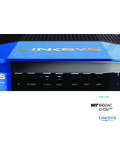
Transcription of Wireless-G Broadband Router - Linksys
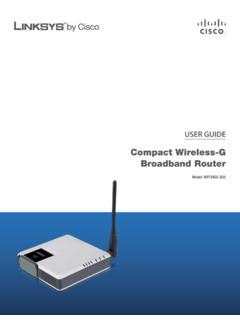
1 USER GUIDE. Wireless-G Broadband Router Model: WRT54GL. About This Guide About This Guide Icon Descriptions While reading through the User Guide you may see various icons that call attention to specific items. Below is a description of these icons: NOTE: This check mark indicates that there is a note of interest and is something that you should pay special attention to while using the product. WARNING: This exclamation point indicates that there is a caution or warning and it is something that could damage your property or product. WEB: This globe icon indicates a noteworthy website address or e-mail address. Online Resources Website addresses in this document are listed without http:// in front of the address because most current web browsers do not require it.
2 If you use an older web browser, you may have to add http:// in front of the web address. Resource Website WRT54GL User Guide WRT54GL. Linksys User Guide Linksys International Glossary Network Security Copyright and Trademarks Linksys is a registered trademark or trademark of Cisco Systems, Inc. and/. or its affiliates in the and certain other countries. Copyright 2008. Cisco Systems, Inc. All rights reserved. Other brands and product names are trademarks or registered trademarks of their respective holders. Wireless-G Broadband Router i Table of Contents Chapter 1: Product Overview 3. Front Panel .. 3. Back Panel.
3 3. Chapter 2: wireless Security Checklist 4. General Network Security Guidelines .. 4. Additional Security Tips .. 4. Chapter 3: Advanced Configuration 5. Setup > Basic Setup .. 5. Setup > DDNS .. 8. Setup > MAC Address Clone .. 9. Setup > Advanced Routing .. 10. wireless > Basic wireless Settings .. 10. wireless > wireless Security .. 11. wireless > wireless MAC Filter .. 13. wireless > Advanced wireless Settings .. 14. Security > Firewall .. 15. Security > VPN Passthrough .. 15. Access Restrictions > Internet Access .. 16. Applications and Gaming > Port Range Forward .. 17. Applications & Gaming > Port Triggering.
4 17. Applications and Gaming > DMZ .. 18. Applications and Gaming > QoS .. 18. Administration > Management .. 19. Administration > Log .. 20. Administration > Diagnostics .. 20. Administration > Factory Defaults .. 20. Administration > Firmware Upgrade .. 21. Administration > Config Management .. 21. Status > Router .. 21. Status > Local Network ..22. Status > wireless .. 22. Appendix A: Troubleshooting 23. Appendix B: Specifications 24. Appendix C: Warranty Information 25. Limited Warranty .. 25. Appendix D: Regulatory Information 27. FCC Statement .. 27. FCC Radiation Exposure Statement .. 27. Safety Notices.
5 27. Industry Canada Statement .. 27. Wireless-G Broadband Router i Table of Contents Avis d'Industrie Canada .. 28. wireless Disclaimer .. 28. Avis de non-responsabilit concernant les appareils sans fil .. 28. User Information for Consumer Products Covered by EU Directive 2002/96/EC on Waste Electric and Electronic Equipment (WEEE) .. 29. Appendix E: Software License Agreement 33. Software in Linksys Products .. 33. Software Licenses .. 33. Wireless-G Broadband Router ii Chapter 1 Product Overview Chapter 1: Power (Green) The Power LED lights up and will stay on while the Router is powered Product Overview on.
6 When the Router goes through its self- diagnostic mode during every boot-up, this Thank you for choosing the Linksys Wireless-G Broadband LED will flash. When the diagnostic is complete, Router . The Router lets you access the Internet via a the LED will be solidly lit. wireless connection, broadcast at up to 54 Mbps, or DMZ (Green) The DMZ LED indicates when through one of its four switched ports. You can also use the DMZ function is being used. This LED will the Router to share resources such as computers, printers remain lit as long as DMZ is enabled. and files. A variety of security features help to protect WLAN (Green) The WLAN LED lights up when your data and your privacy while online.
7 Security features the wireless feature is enabled. If the LED is include WPA2 security, a Stateful Packet Inspection (SPI) flashing, the Router is actively sending or firewall and NAT technology. Configuring the Router is receiving data over the network. easy using the provided browser-based utility. 1, 2, 3, 4 (Green) These numbered LEDs, corresponding with the numbered ports on the Front Panel Router 's back panel, serve two purposes. If the LED is continuously lit, the Router is successfully connected to a device through that port. A. flashing LED indicates network activity over that port. Internet (Green) The Internet LED lights up when there is a connection made through the Internet port.
8 A flashing LED indicates network SecureEasySetup (Orange/White) The Cisco activity over the Internet port. logo is the Router 's SecureEasySetup button. It lights up and will stay orange when the Router Back Panel is powered on. The color orange indicates that the Router is not using the SecureEasySetup feature, while the color white indicates that the Router is using the SecureEasySetup feature. When the Router enters SecureEasySetup mode, the Cisco logo will turn white and start flashing. After the Router has generated the SSID and WPA Personal key, the Cisco logo will stop flashing and stay white. To clear the SSID and WPA Personal key, press and hold down the Cisco logo for five seconds.
9 Reset There are two ways to reset the Router 's The Cisco logo will flash slowly as the Router factory defaults. Either press and hold the Reset resets itself. The Cisco logo will turn orange to Button for approximately five seconds, or restore indicate a successful reset. the defaults from Administration > Factory Defaults in the Router 's web-based utility. NOTE: SecureEasySetup is a feature that makes Internet The Internet port is where you will it easy to set up your wireless network. If you connect your cable or DSL Internet connection. have SecureEasySetup devices, run the Router 's Setup Wizard CD-ROM and follow the on- 1, 2, 3, 4 These Ethernet ports (1, 2, 3, 4) connect screen instructions to use SecureEasySetup.
10 The Router to PCs on your wired network and other Ethernet network devices. Power The Power port is where you will connect the power adapter. Wireless-G Broadband Router 3. Chapter 2 wireless Security Checklist Chapter 2: 4. Enable encryption wireless Security Checklist Encryption protects data transmitted over a wireless wireless networks are convenient and easy to install, so network. Wi-Fi Protected Access (WPA/WPA2) and Wired homes with high-speed Internet access are adopting them Equivalency Privacy (WEP) offer different levels of security at a rapid pace. Because wireless networking operates by for wireless communication.