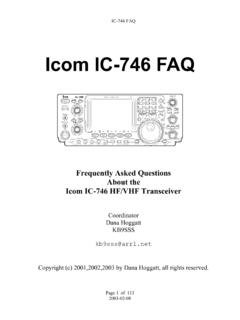
Transcription of Yaesu FT-991A Digital Setup
1 Yaesu FT-991A Digital Setup By Dave Mosteller KC3 JNW December 27, 2017 Use this document at your own risk. If you find that I missed something, please let me know. This document will go through the Setup of the FT991A, FLDIGI and WSJT-X, as well as associated programs that make the Digital modes run efficiently. Use these instructions at your own risk. These are the settings I use for Digital modes as of this date. Firmware and software change over time, so these settings could be different if you have new versions of the software or firmware. You should try to keep up with software versions and radio firmware that can be downloaded for the Yaesu site.
2 Firmware Update Because webpages change over time: Do a google search for Yaesu ft991A manual . Make sure you are on the FT-991A page. There should be two tabs Description and Files . Go to the Files tab. Download the FT-001A All Current Firmware .. This is a ZIP file that contains the Firmware Upgrade Manual (Read carefully before proceeding with update) and the Firmware to be installed. The instructions are a bit confusing but if you follow precisely you should have no problems. There can be up to four different firmware upgrades, depending on your current firmware version. COM Port Drivers External modems are not needed with the FT-991A .
3 It has its own internal modem/sound card. It is recommended to purchase the RT Systems cable and software. Download the FT-991A / SCU-17 USB Driver Installation Manual and the FT-991A / SCU-17 USB Driver (Virtual COM Port Driver). Read the manual before continuing. Be sure to install the drivers before connecting the cable which is a standard USB cable. This will install two com port drivers. Connect the USB cable between the computer and the radio. Now open the device manager and look at the com ports that are installed. Make note of the enhanced port. This is the port that we will be using to control the radio from the computer.
4 RT Systems Software There are two programs with the RT Systems software: FT-991A Programmer and FT-991A Menu Editor. You can use the FT-991A Programmer to Setup frequency memories. Frequencies can be downloaded from for free and then uploaded to the radio. These will be mostly UHF/VHF frequencies. Remember to save the file in case you need to reset your radio. FT-991A Menu Editor can be used to save your FT-991A radio menus. Setup your menus on the radio and download the menus from the radio and save the file. I would also go through the menus and write down the menu number, menu description and the changed menu item.
5 All changed menu items are in white letters. Digital Software Setup The next two sections will cover two Digital software programs WSJT-X and FLDIGI. There are several other software programs needed to make these programs work efficiently. These programs will be covered in their respective sections. It is important that you use time syncing software, so your pc time is very accurate. (Covered Below) WSJT-X Digital Mode Software Software to Download Below are the programs I use. Versions can change frequently and should be kept up to date. Some programs can be substituted with other programs. NetTime For time syncing.
6 Download from WSJT-X Digital mode software JTAlert Display state, countries, etc needed HamApps Callsign Database TQSL Amateur Send Log to LOTW Amateur Contact Log Log Contacts easy for LOTW All programs are free with the exception of Amateur Contact Log. You can purchase all of their programs for around $60. Well worth the price. Most local hams use this software and can be networked during contests. Radio Setup Press MENU( Setup ) button 28 GPS/232C Select RS232C 29 232C Rate 38400bps 31 CAT Rate 38400bps 32 CAT TOT 100msec 59 CW Freq Display Direct Freq 62 Data Mode Others 64 Other Disp (SSB) 1500Hz 65 Other Shift (SSB) 1500Hz 66 Data Lcut Freq OFF 68 Data Hcut Freq OFF 71 Data PTT Select RTS 72 Data Port Select USB 74 FM MIC Select MIC 77 FM Pkt Port Select USB 106 SSB Mic Select MIC 115 SCP Display Mode Water Fall 141 Tuner Select External (If using External Tuner) Press F(M-LIST) button WIDTH 3000 (This setting doesn t always hold, so check first thing if software waterfall doesn t look right.)
7 Meter ALC The ALC Meter should read zero when transmitting. Use DT Gain and Multi Knob to adjust Mode - Always use DATA USB (if you have trouble getting the tones on freq check the mode) Always check these three things first if you have any problems. Software Installs 1. Install NetTime This software will keep your PC time accurate. If pc time is off by more than a couple of seconds, you will not be able to make contacts. 2. Install WSJT-X - This is the software where you will make contacts. You should have already installed the USB cable and drivers. Your USB cable should be connected, and radio turned on to Setup this software.
8 Below are screen shots for the radio Setup . Enter call sign and grid location. Check boxes should look like diagram below. The COM port below should be the enhanced com port from installing the drivers. After the Screen below is Setup you can test by pressing the Test CAT and Test PTT The Input and Output in the screen below should be the USB Audio CODEC ports. Prompt me to log QSO After you send 73 a screen will prompt you to log the QSO. Enable PSK Reporter Spotting You can use to display helpful information about your signal and others on your band. 3. Install Amateur Contact Log - This is the contact log used by many local hams.
9 It is not free but well worth the money. It can also be networked for contesting or field day. Go to the Settings Tab and click on Setup then enter the Common Fields information. There are other settings that you will want to change once you start using. 4. Install TQSL This program makes uploading logs to LOTW very easy. You must create a certificate for LOTW validation. Check out the following link that will walk you through creating the certificate and TQSL Setup . 5. Below are screen shots from TQSL. There may be other settings that you will want to change for displaying call signs already contacted as well as how to display states and countries contacted.
10 When running, the screens for JTAlert and WSJT-X should look like the screens below. If they don t look like the screens below check the WIDTH and make sure you are running DATA-USB as the mode on the radio. If it looks like it is transmitting but not showing power going to the antenna check the ALC.