Printer User’s Manual
Printer Parts This section contains information only on the printer component of the HP Photosmart 420 series GoGo Photo Studio. For information on the camera, see the Camera User's Manual. Front View (Closed) 1 Control panel: Control the basic functions of the printer from here. 2 Camera dock cover: Open this to dock the camera on the printer.
Download Printer User’s Manual

Information
Domain:
Source:
Link to this page:
Documents from same domain
HP Pavilion PC User™s Guide - HP® Official Site
h10032.www1.hp.com2 HP Pavilion PC User’s Guide Putting Your Computer Together For step-by-step instructions on putting your computer together, refer to the Welcome Poster that came in your computer box.
Quick Start Guide - HP
h10032.www1.hp.comHP Web Sites. Quick Start Guide Filename: ma2usqs.doc Title: HP-Print2k.dot Template: HP-Print2K.dot Author: jiml Last Saved By: WASSER, Inc. ® ® Start. ...
HP 9250C Digital Sender - HP® Official Site
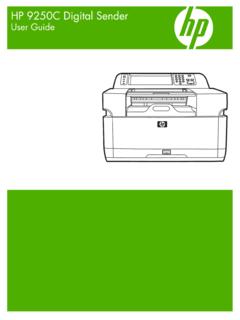
h10032.www1.hp.comDevice information The HP 9250C Digital Sender connects directly to your network converts black-and-white and color documents, drawings, and photographs into an electronic form and then distributes them directly to
Technical Reference Guide HP Compaq dc7800 …
h10032.www1.hp.comTechnical Reference Guide HP Compaq dc7800 Series Business Desktop Computers ... deal with the system board and the power supply assembly.
Reference Guide - HP
h10032.www1.hp.comReference Guide A–1 A Troubleshooting This section provides three methods for resolving issues you may encounter when using your docking station. Use the methods
HP Pavilion 15 Notebook PC - HP® Official Site
h10032.www1.hp.com1 Product description Category Description Computer models equipped with an AMD processor Computer models equipped with an Intel processor Product Name HP Pavilion 15 Notebook PC √√
HP MINI User Guide
h10032.www1.hp.comSafety warning notice WARNING! To reduce the possibility of heat-related injuries or of overheating the device, do not place the device directly on …

User Guide - HP
h10032.www1.hp.comproprietor and used by Hewlett-Packard Company under license. Google, ... bound by the terms of the HP End User License ... see the printed Quick Start guide included ...
Manuel de l'utilisateur de l'ordinateur portable HP
h10032.www1.hp.comAvis d'avertissement sur la sécurité AVERTISSEMENT ! Pour éviter tout risque de blessure liée à la chaleur ou tout risque de surchauffe de l'ordinateur, ne le posez pas directement sur vos genoux et n'obstruez pas les ouvertures d'aération.

Manuel de l'utilisateur - HP® Official Site
h10032.www1.hp.comL'ordinateur et l'adaptateur secteur sont conformes aux limites de température de surface accessible à l'utilisateur, définies par la norme internationale sur la …
Related documents
PC42t Desktop Printer User Guide - Honeywellaidc.com
country.honeywellaidc.comHoneywell International Inc. (“HII”) reserves the right to make changes in specifications and other information contained in this document without prior notice, and the reader should in all ... viii PC42t Desktop Printer User Guide Warning: Moving parts are exposed when the cover is open. Make sure the cover is closed before you operate the ...
Xerox® B210 Printer
download.support.xerox.comXerox® B210 Printer User Guide 7 7 Troubleshooting Troubleshooting Overview ...
User's Guide - XP-15000
files.support.epson.com3 Contents XP-15000 User's Guide..... 11

Artisan 1430 User's Guide - files.support.epson.com
files.support.epson.comPrinter Parts - Control Panel Buttons and Lights 1 The WiFi light 2 The power light 3 The power button 4 The Wi-Fi button 5 The network status button 6 The paper/cancel button and light 7 The ink button and light Parent topic: Printer Parts Locations Related references Printer Light Status The Power Off Timer
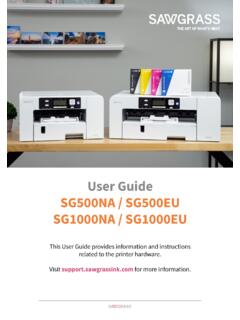
Table of Contents | i
www.sawgrassink.comDuring printing, do not subject the printer to external shock such as that caused by tapping paper on it. Sawgrass always recommends keeping the printer powered on. This will allow the printer to run automatic maintenance utilities for optimal performance. Up to 10 kg (22.1 lb.) of evenly spread weight can be placed on the printer.
THERMAL PRINTER TSP650II SERIES - Star Micronics
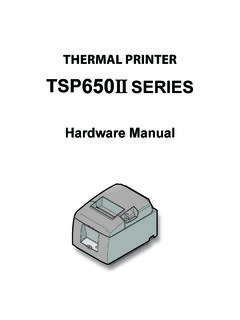
www.starmicronics.com2. Parts Identification and Nomenclature Control panel Features lamps that indicate printer status and a button for operating the printer. Printer cover Open to replace paper. Do not open while printing. Power switch Turns the printer on and off. Connects to peripheral devices such as cash drawers. Do not connect this to a tel-ephone line.
ZEBRA LP/TLP 2824 PLUS PRINTER SPECIFICATIONS
www.zebra.comZEBRA LP/TLP 2824 PLUS PRINTER SPECIFICATIONS Specifications are provided for reference and are based on printer tests using Zebra brand ribbons and labels. Results may vary in actual application settings or when using other than recommended Zebra supplies. Zebra recommends always qualifying any application with thorough testing. Standard Features