Example: stock market
THERMAL PRINTER TSP650II SERIES - Star Micronics
2. Parts Identification and Nomenclature Control panel Features lamps that indicate printer status and a button for operating the printer. Printer cover Open to replace paper. Do not open while printing. Power switch Turns the printer on and off. Connects to peripheral devices such as cash drawers. Do not connect this to a tel-ephone line.
Tags:
Information
Domain:
Source:
Link to this page:
Documents from same domain
Line Thermal Printer ESC/POS Mode Command …
www.starmicronics.comESC/POS Command Specifications Line Thermal Printer ESC/POS® Mode Command Specifications Revision 2.40 Star Micronics Co., Ltd. Special Products Division
Star Line Mode Command Specifications
www.starmicronics.comLine Thermal Printer. STAR Line Mode. Command . Specifications. Rev 1.12. Star Micronics Co., Ltd. Special Products Division
Line Thermal Printer STAR Line Mode Command …
www.starmicronics.comSTAR Line Mode Command Specifications 1 Table of Contents 1. INTERFACE CONFIGURATION.....1-1
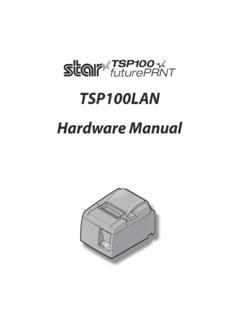
TSP100LAN Hardware Manual - …
www.starmicronics.com– 2 – 1-2. Choosing a place for the printer Before actually unpacking the printer, you should take a few minutes to think about where you plan to use it.
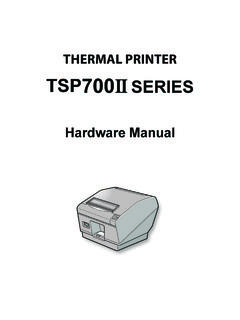
THERMAL PRINTER TSP700II SERIES - Star Micronics
www.starmicronics.comFederal Communications Commission Radio Frequency Interference Statement This device complies with Part 15 of FCC Rules and …
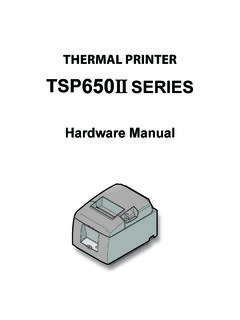
THERMAL PRINTER TSP650II SERIES - Star Micronics
www.starmicronics.com- 5 - RS-232C interface cable USB cable Cable hook 4 cm (maximum) 3-2-2. RS-232C Interface Cable (1) Make sure that the AC adapter’s power …
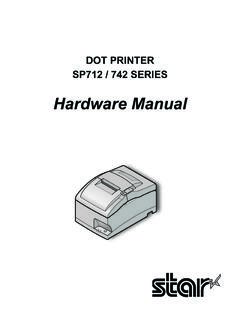
SP712 / 742 Series Hardware Manual - Star Micronics
www.starmicronics.comCaution Symbol This symbol is placed near the print head to indicate that it may be hot. Never touch the print head immediately after the printer has been used.
THERMAL PRINTER TSP700II SERIES - Star Micronics
www.starmicronics.com1-1. Unpacking After unpacking the unit, check that all the necessary accessories are included in the package. * Accessories vary depending on the …
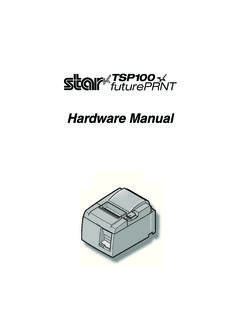
Hardware Manual TSP100 - starmicronics.com
www.starmicronics.comFederal Communications Commission Radio Frequency Interference Statement This equipment has been tested and found to comply with the limits for a Class A digital device, pursuant to Part 15

Swift Support, the latest programming language …
www.starmicronics.comSwift Contents of the package: 1. Support, the latest programming language for iOS 2. New API Support (e.g. The program can be shortened from 200 lines to 5
Related documents
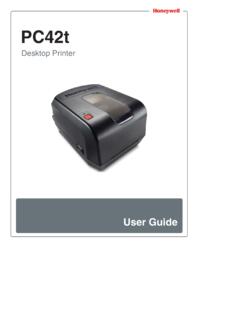
PC42t Desktop Printer User Guide - Honeywellaidc.com
country.honeywellaidc.comHoneywell International Inc. (“HII”) reserves the right to make changes in specifications and other information contained in this document without prior notice, and the reader should in all ... viii PC42t Desktop Printer User Guide Warning: Moving parts are exposed when the cover is open. Make sure the cover is closed before you operate the ...
ZEBRA LP/TLP 2824 PLUS PRINTER SPECIFICATIONS
www.zebra.comZEBRA LP/TLP 2824 PLUS PRINTER SPECIFICATIONS Specifications are provided for reference and are based on printer tests using Zebra brand ribbons and labels. Results may vary in actual application settings or when using other than recommended Zebra supplies. Zebra recommends always qualifying any application with thorough testing. Standard Features

Artisan 1430 User's Guide - files.support.epson.com
files.support.epson.comPrinter Parts - Control Panel Buttons and Lights 1 The WiFi light 2 The power light 3 The power button 4 The Wi-Fi button 5 The network status button 6 The paper/cancel button and light 7 The ink button and light Parent topic: Printer Parts Locations Related references Printer Light Status The Power Off Timer

Printer User’s Manual
h10032.www1.hp.comPrinter Parts This section contains information only on the printer component of the HP Photosmart 420 series GoGo Photo Studio. For information on the camera, see the Camera User's Manual. Front View (Closed) 1 Control panel: Control the basic functions of the printer from here. 2 Camera dock cover: Open this to dock the camera on the printer.
Table of Contents | i
www.sawgrassink.comDuring printing, do not subject the printer to external shock such as that caused by tapping paper on it. Sawgrass always recommends keeping the printer powered on. This will allow the printer to run automatic maintenance utilities for optimal performance. Up to 10 kg (22.1 lb.) of evenly spread weight can be placed on the printer.
Xerox® B210 Printer
download.support.xerox.comXerox® B210 Printer User Guide 7 7 Troubleshooting Troubleshooting Overview ...

User's Guide - XP-15000
files.support.epson.com3 Contents XP-15000 User's Guide..... 11