Transcription of ADVANCED USER’S GUIDE - Brother
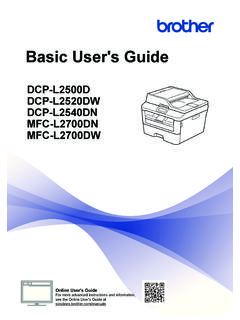
1 ADVANCED . user 'S GUIDE . MFC-7360N. MFC-7460DN. MFC-7860DW. Not all models are available in all countries. Version 0. USA/CAN. user 's Guides and where do I find it? Which manual? What's in it? Where is it? Safety and Legal Read this GUIDE first. Please read the Printed / In the Box Safety Instructions before you set up your machine. See this GUIDE for trademarks and legal limitations. Quick Setup GUIDE Follow the instructions for setting up your machine and installing the drivers and software for the operating system and connection type you are using. Basic user 's GUIDE Learn the basic Fax, Copy and Scan operations and how to replace consumables. See troubleshooting tips. ADVANCED user 's GUIDE Learn more ADVANCED operations: Fax, PDF file /. Copy, security features, printing reports Documentation CD-ROM /.
2 And performing routine maintenance. In the Box Software user 's GUIDE Follow these instructions for Printing, Scanning, Network Scanning, Remote Setup, PC-Fax and using the Brother ControlCenter utility. Network Glossary This GUIDE provides basic information about ADVANCED network features of Brother machines along with explanations about general networking and common terms. Network user 's GUIDE This GUIDE provides useful information of wired and wireless network settings and security settings using the Brother machine. You can also find supported protocol information for your machine and detailed troubleshooting tips. i Table of Contents 1 General Setup 1. Memory Storage .. 1. Volume settings .. 1. Ring 1. Beeper volume .. 1. Speaker 2. Automatic daylight savings time.
3 2. Ecology features .. 3. Toner Save .. 3. Sleep Mode .. 3. Deep Sleep 3. Toner Settings .. 4. Toner Setting (Continue Mode) .. 4. Receiving faxes in Continue Mode .. 4. Toner End in Continue 4. LCD Contrast .. 5. Dial Prefix .. 5. Setting up the prefix number .. 5. Changing the prefix number .. 6. Mode 6. 2 Security features 7. 7. TX Lock (MFC-7360N and MFC-7460DN) .. 7. Secure Function Lock (MFC-7860DW) .. 8. Setting 11. Restricting dialing .. 13. 3 Sending a fax 14. Additional sending 14. Sending faxes using multiple settings .. 14. Contrast .. 14. Changing Fax Resolution .. 15. Additional sending 15. Sending a fax manually .. 15. Sending a fax at the end of a conversation .. 15. Dual access .. 16. 16. Real Time 17. Overseas Mode .. 18. Delayed Fax.
4 18. Delayed batch transmission .. 18. Checking and canceling waiting 18. Electronic cover page .. 19. Polling 20. Polled 20. ii 4 Receiving a fax 22. Remote Fax Fax Paging ..23. Fax Storage ..23. PC-Fax Receive ..23. Changing Remote Fax Options ..24. Remote retrieval ..25. Remote fax Additional receiving Printing a reduced incoming fax ..28. Duplex (2-sided) printing for Fax mode (MFC-7460DN and MFC-7860DW) ..28. Setting the Fax Receive Stamp ..28. Receiving a fax at the end of a Setting the Print Density ..29. Printing a fax from the memory ..29. Receiving faxes into memory when the paper tray is empty ..29. Polling Polling receive ..30. Stop polling ..30. 5 Dialing and storing numbers 31. Telephone line services ..31. Tone or Pulse (Canada only).
5 31. For Fax/Tel mode Caller Special line considerations ..32. Additional dialing Dialing access codes and credit card numbers ..34. Additional ways to store Setting up Groups for Broadcasting ..34. Options for Setting Up Groups ..36. Changing Group numbers ..38. Deleting Group numbers ..40. 6 Printing reports 41. Fax Transmission verification Fax Journal ..41. Reports ..42. How to print a report ..42. iii 7 Making copies 43. Copy settings .. 43. Stop 43. Enlarging or reducing the image copied .. 43. Using the Options key .. 45. Improving copy 46. Sorting copies using the ADF .. 46. Adjusting Contrast and Brightness .. 46. Making N in 1 copies (page layout) .. 47. 2 in 1 ID 49. Duplex Copying (1-sided to 2-sided). (MFC-7460DN and MFC-7860DW) .. 50.
6 Duplex Copy (long edge flip) .. 50. ADVANCED Duplex Copy (short edge flip) .. 50. A Routine maintenance 51. Cleaning the machine .. 51. Cleaning the outside of the machine .. 51. Cleaning the 52. Cleaning the corona 53. Cleaning the drum unit .. 55. Cleaning the paper pick-up 59. Checking the machine .. 61. Checking the Page 61. Checking the remaining life of parts .. 61. Packing and shipping the machine .. 61. B Glossary 63. C Index 67. iv v 1 General Setup 1. 1. Memory Storage 1 Volume settings 1. Your menu settings are stored permanently, and in the event of a power failure will not be Ring volume 1. lost. Temporary settings (for example, Contrast, Overseas Mode) will be lost. You can choose a ring volume level from a range of settings, from High to Off.
7 (For MFC-7860DW) While in Fax mode press or to adjust During a power failure the machine will retain the volume level. The LCD will show the the date and time and programmed fax timer current setting, and each key press will jobs (for example, Delayed Fax) for change the volume to the next level. The approximately 60 hours. Other fax jobs in the machine will keep the new setting until you machine's memory will not be lost. change it. (For MFC-7360N and MFC-7460DN) You can also change the ring volume through During a power failure the machine will retain the menu: the date and time for approximately 2 hours. The fax jobs in the machine's memory will be a Press Menu, 1, 3, 1. lost. Volume b Press a or b to choose Off, Low, Med or High. Press OK. c Press Stop/Exit.
8 Beeper volume 1. When the beeper is on, the machine will beep when you press a key, make a mistake, or after you send or receive a fax. You can choose a range of volume levels, from High to Off. a Press Menu, 1, 3, 2. Volume b Press a or b to choose Off, Low, Med or High. Press OK. c Press Stop/Exit. 1. Chapter 1. Speaker volume 1. Automatic daylight You can choose a range of speaker volume savings time 1. levels, from High to Off. You can set the machine to change a Press Menu, 1, 3, 3. automatically for Daylight Savings Time. It Volume will set itself forward one hour in the Spring, and back one hour in the Fall. b Press a or b to choose Off, Low, Med or a Press Menu, 0, 2, 2. High. Date&Time Press OK. Daylight c Press Stop/Exit. b Press a or b to choose On or Off.
9 You can also adjust the speaker volume with Press OK. the control panel keys. c Press Stop/Exit. a Press (FAX). b Press Hook. c Press or . This setting will stay until you change it again. d Press Hook. 2. General Setup Ecology features 1. Deep Sleep mode 1. If the machine is in Sleep mode and does not 1. Toner Save 1. receive any jobs for a certain length of time, the machine will automatically enter Deep You can save toner using this feature. When Sleep mode, and the LCD will show Deep you set Toner Save to On, print appears Sleep. Deep Sleep mode uses less power lighter. The default setting is Off. than Sleep mode. The machine will wake up and start warming up when the machine a Press Menu, 1, 4, 1. receives computer data or when you press a Ecology key on the control panel.
10 Save (For MFC-7860DW). b Press a or b to choose On or Off. If a wireless network is enabled, the machine Press OK. does not enter Deep Sleep mode. To disable the wireless network, see chapter 3 in the c Press Stop/Exit. Network user 's GUIDE . Note We do not recommend Toner Save for printing Photo or Gray Scale images. Sleep Mode 1. The Sleep Mode Setting can reduce power consumption. When the machine is in Sleep Mode (Power Save mode) it acts as though it were turned off. Receiving data or starting an operation wakes up the machine from Sleep mode to Ready mode. You can choose how long the machine must be idle before it goes into sleep mode. When the machine receives a fax, computer data or makes a copy, the timer will be reset. The default setting is 3 minutes.