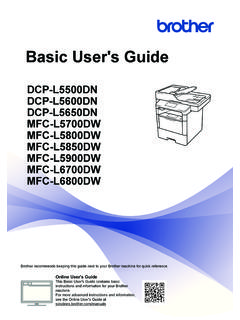
Transcription of Basic User’s Guide - Brother
1 Basic user s GuideMFC-9140 CDNMFC-9330 CDWMFC-9340 CDW Not all models are available in all 0 ARL/ASA/NZIf you need to contact customer serviceComplete the following information for future reference:Model Number:MFC-9140 CDN / MFC-9330 CDW / MFC-9340 CDW(Circle your model number)Serial Number:1 Date of Purchase: Place of Purchase: 1 The serial number is on the back of the unit. Retain this user s Guide with your sales receipt as a permanent record of your purchase, in the event of theft, fire or warranty your product on-line at 2012 Brother Industries, Ltd.
2 All rights s Guides and where do I find them?Which Guide ?What s in it?Where is it?Product Safety GuideRead this Guide first. Read the Safety Instructions before you set up your machine. See this Guide for trademarks and legal / In the BoxQuick Setup GuideFollow the instructions for setting up your machine and installing the drivers and software for the operating system and connection type you are / In the BoxBasic user 's GuideLearn the Basic Fax, Copy, Scan and Direct Print operations and how to replace consumables. See troubleshooting / In the BoxAdvanced user 's GuideLearn more advanced operations: Fax, Copy, security features, printing reports and performing routine file / CD-ROM / In the BoxSoftware user 's GuideFollow these instructions for Printing, Scanning, Network Scanning, Remote Setup, PC-Fax, and using the Brother ControlCenter file / CD-ROM / In the BoxNetwork user 's GuideThis Guide provides useful information about wired and wireless network settings and security settings using the Brother machine.
3 You can also find supported protocol information for your machine and detailed troubleshooting file / CD-ROM / In the BoxWi-Fi Direct Guide (MFC-9330 CDW and MFC-9340 CDW)This Guide provides details on how to configure and use your Brother machine for wireless printing directly from a mobile device supporting the Wi-Fi Direct file / Brother Solutions Center1 Google Cloud Print GuideThis Guide provides details on how to configure your Brother machine to a Google account and use Google Cloud Print services for printing over the file / Brother Solutions Center1 Mobile Print/Scan Guide for Brother iPrint&ScanThis Guide provides useful information about printing from your mobile device and scanning from your Brother machine to your mobile device when connected on a Wi-Fi file / Brother
4 Solutions Center1 Web Connect GuideThis Guide provides details about how to configure and use your Brother machine to scan, load and view images and files on certain websites that provide these file / Brother Solutions Center1ii1 Visit us at GuideThis Guide provides information for using AirPrint to print from OS X , and your iPhone, iPod touch, iPad, or other iOS device to your Brother machine without installing a printer file / Brother Solutions Center1 Which Guide ?What s in it?Where is it?iiiTable of Contents( Basic user s Guide )1 General information1 Using the documentation .. 1 Symbols and conventions used in the documentation.
5 1 Accessing Brother Utilities (Windows 8).. 2 Accessing the Advanced user s Guide , Software user s Guide and Network user s 3 Viewing Documentation .. 3 How to access the user s Guides for Advanced Features .. 5 Accessing Brother Support (Windows ).. 6 Accessing Brother Support (Macintosh) .. 6 Control panel overview .. 8 Touchscreen 10 Setting the Ready screen .. 13 Basic Operations .. 14 Shortcut Settings .. 15 Adding Copy Shortcuts ..15 Adding Fax Shortcuts ..15 Adding Scan Shortcuts ..16 Adding Web Connect Shortcuts ..18 Changing Shortcuts ..19 Editing Shortcut 19 Deleting Shortcuts ..19 Recalling 19 Volume settings.
6 20 Ring volume ..20 Speaker 202 Loading paper21 Loading paper and print media .. 21 Loading paper in the paper 21 Loading paper in the manual feed slot ..23 Unscannable and unprintable 27 Paper 28 Paper Size ..28 Paper Type .. 28 Acceptable paper and other print 29 Type and size of paper ..29 Handling and using special paper .. 313 Loading documents34 How to load documents ..34 Using the automatic document feeder (ADF) .. 34 Using the scanner glass ..35iv4 Sending a fax36 How to send a fax ..36 Stop Letter size documents from the scanner glass ..37 Cancelling a fax in Verification a fax39 Receive modes ..39 Choosing the receive mode.
7 39 Using receive modes ..41 Fax Only ..41 ..41 External TAD ..41 Receive Mode settings ..42 Ring Delay ..42F/T Ring Time (Fax/Tel mode only) ..42 Fax Detect ..43 Fax Preview (Black and White only) ..44 How to preview a received off Fax PC-FAX47 How to use Receive (For Windows only) ..47PC-FAX Send ..487 Telephone and external devices49 Telephone line services ..49Do you have Voice Mail? ..49 Telephone Service for Ring ..49 Telephone Service for New Zealand ..51 FaxAbility ..51 Telephone Service for Some Ringing (For Singapore and Hong Kong)..53 Connecting an external TAD .. an outgoing message (OGM) ..55 Multi-line connections (PABX).
8 56 External and extension an external or extension telephone ..56 Operation from external or extension Fax/Tel mode a non- Brother cordless external handset ..57 Using Remote Codes ..57v8 Dialling and storing numbers60 How to 60 Manual 60 Dialing from the Address Book ..60 Fax or Pulse (not available in New Zealand).. 61 Storing numbers .. 61 Storing a pause .. 61 Storing Address Book 61 Changing Address Book names or numbers ..629 Making copies64 How to 64 Stop 64 Copy preset 64 Copy 6510 Printing data from a USB Flash memory drive or digital camera supporting mass storage (For MFC-9330 CDW and MFC-9340 CDW)66 Creating a PRN file for direct printing.
9 66 Printing data directly from the USB Flash memory drive or digital camera supporting mass storage ..67 Changing the default settings for direct print ..6811 How to print from a computer69 Printing a 6912 How to scan to a computer70 Before a document as a PDF file using ControlCenter4 (Windows ) .. 71 How to scan a document as a PDF file using the Touchscreen .. 73viARoutine maintenance75 Replacing the consumable items ..75 Replacing the toner the drum units ..87 Replacing the belt unit ..94 Replacing the waste toner box ..97 Cleaning and Checking the machine ..103 Cleaning the outside of the machine ..104 Cleaning the LED the scanner glass.
10 106 Cleaning the corona wires ..107 Cleaning the drum unit ..110 Cleaning the paper pick-up rollers ..116 Calibration ..117 Auto Registration ..118 Frequency (Colour Correction) ..119 BTroubleshooting120 Identifying your problem ..120 Error and maintenance messages ..122 Transferring your faxes or Fax Journal report ..130 Document Jams ..132 Document is jammed in the top of the ADF unit ..132 Document is jammed under the document cover ..132 Removing small documents jammed in the is jammed at the output tray ..133 Paper is jammed in the manual feed slot ..134 Paper is jammed in the paper is jammed at the output paper tray.