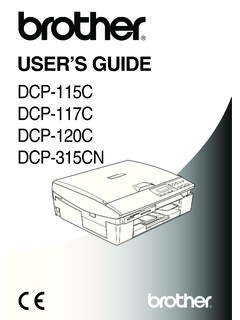
Transcription of Brother Laser Printer USER’S GUIDE
1 user S GUIDEB rother Laser PrinterHL-2140 HL-2150N HL-2170W For visually-impaired usersYou can read this manual with Screen Reader text-to-speech must set up the hardware and install the driver before you can use the use the Quick Setup GUIDE to set up the Printer . You can find a printed copy in the read this user s GUIDE thoroughly before you use the Printer . Keep the CD-ROM in a convenient place so you can use it quickly if you need visit us at where you can get product support, the latest driver updates and utilities, and answers to frequently asked questions (FAQs) and technical : Not all models are available in all DUSAiUsing this guideSymbols used in this guideWe use the following icons throughout this user s GUIDE : Warnings tell you what to do to prevent possible personal injury. Electrical Hazard icons alert you to a possible electrical shock. Hot Surface icons warn you not to touch machine parts that are hot.
2 Cautions specify procedures you must follow or avoid to prevent possible damage to the Printer or other objects. Improper Setup icons alert you to devices and operations that are not compatible with the Printer . Notes tell you how you should respond to a situation that may arise or give tips about how the operation works with other precautionsTo use the Printer safelyPlease keep these instructions for later reference and read them before attempting any maintenance. If you DO NOT follow these safety instructions, there is a possibility of a fire, electrical shock, burn or There are high voltage electrodes inside the Printer . Before you clean the inside of the Printer , make sure that you have turned off the power switch and unplugged the Printer from the AC power outlet. DO NOT handle the plug with wet hands. Doing this might cause an electrical shock. Always make sure the plug is fully inserted. DO NOT use a vacuum cleaner to clean up scattered toner.
3 Doing this might cause the toner dust to ignite inside the vacuum cleaner, potentially starting a fire. Carefully clean the toner dust with a dry, lint-free cloth and dispose of it according to local regulations. DO NOT use flammable substances, any type of spray or an organic solvent/liquids containsalcohol or ammonia to clean the inside or outside of the machine. Refer to Cleaningon page 73 for how to clean the machine. iii After you have just used the Printer , some internal parts of the Printer will be extremely hot. When you open the front or back cover (back output tray) of the Printer , DO NOT touch the shaded parts shown in the illustration. Plastic bags are used in the packaging of your machine and drum unit. To avoid danger of suffocation, keep these bags away from babies and children. Cleaning the outside of the Printer : Make sure that you have unplugged the Printer from the AC power outlet. Use neutral detergents.
4 Cleaning with volatile liquids such as thinner or benzine will damage the outside surface of the Printer . DO NOT use cleaning materials that contain ammonia. CAUTION Lightning and power surges can damage this product! We recommend that you use a quality surge protection device on the AC power line, or unplug the cords during a lightning storm. NoteDO NOT remove or damage the caution labels located on or around the fuser. Inside the Printer (Front View) Inside the Printer (Back View)ivTrademarksThe Brother logo is a registered trademark of Brother Industries, Ltd. Apple, the Apple Logo, Macintosh and TrueType are registered trademarks of Apple Inc. in the United States and other Packard is a registered trademark and HP LaserJet 6P, 6L, 5P, 5L, 4, 4L 4P, III, IIIP, II, and IIP are trademarks of Hewlett-Packard Vista is either a registered trademark or a trademark of Microsoft Corporation in the United States and other , Windows and Windows Server are registered trademarks of Microsoft Corporation in the United States and/or other STAR is a registered is a registered trade mark of SuSE Linux HAT is a registered trade mark of Red Hat.
5 Is a registered trade mark of Mandrake Soft , Intel Xeon and Pentium are trademarks or registered trademarks of Intel , AMD Athlon, AMD Opteron and combinations thereof, are trademarks of Advanced Micro Devices, and all Java-based trademarks and logos are trademarks or registered trademarks of Sun Microsystems, Inc. in the United States and other company whose software title is mentioned in this manual has a Software License Agreement specific to its proprietary other terms and brand and product names mentioned in this user s GUIDE are registered trademarks of their respective companies. Compilation and Publication NoticeUnder the supervision of Brother Industries Ltd., this manual has been compiled and published, covering the latest product s descriptions and specifications. The contents of this manual and the specifications of this product are subject to change without notice. Brother reserves the right to make changes without notice in the specifications and materials contained herein and shall not be responsible for any damages (including consequential) caused by reliance on the materials presented, including but not limited to typographical and other errors relating to the publication.
6 2007 Brother Industries of the PrinterIf for any reason you must ship your Printer , carefully package the Printer to avoid any damage during transit. We recommend that you save and use the original packaging. The Printer should also be adequately insured with the of Contents1 About this Printer1 What is in the box? ..1 Interface cable ..1 Front view ..2 Back view ..3 Positioning the Printer ..4 Power supply ..4 Environment ..42 Printing Methods5 About paper ..5 Type and size of paper ..5 Recommended paper ..6 Unprintable area ..8 Printing on plain paper and transparencies ..9 Printing on thick paper, labels and envelopes ..17 Duplex for printing on both sides of the paper ..22 Printing on both sides of the paper (manual duplex printing) ..223 Driver and Software26 Printer driver ..26 Features in the Printer driver (for Windows ) ..29 Features in the Printer driver (for Macintosh ) ..39 Uninstalling the Printer driver.
7 45 Printer driver for Windows and Windows Vista and Windows Server 2003 ..45 Printer driver for Macintosh ..45 Software ..46 Software for network models (HL-2150N / HL-2170W only) ..46 Automatic interface selection (HL-2150N / HL-2170W only) ..47 Remote Printer Console ..474 Control Panel48 LEDs (Light Emitting Diodes)..48 Service call indications ..53Go button ..55 Print a test page ..56 Print a Printer Settings Fonts (HL-2150N / HL-2170W only)..58 Network default settings (HL-2150N / HL-2170W only)..595 Routine Maintenance60 Replacing the consumable cartridge ..61 Drum unit ..68 Cleaning ..73 Cleaning the outside of the the inside of the the corona your problem ..79 Error messages in the Status Monitor ..80 Error message printout ..82 Paper handling ..83 Paper jams and how to clear them ..85 Improving the print print problems ..97 Network problems (HL-2150N / HL-2170W only) ..98 Other problems ..98 For Macintosh with USB.
8 98 AAppendix99 Printer ..99 Controller ..100 Software ..101 Control panel ..101 Paper handling ..101 Media specifications .. / requirements ..103 Important information for choosing your and character sets (HL-2150N / HL-2170W only)..107 How to use Web Based Management (web browser) ..107 Symbol and character sets reference for bar code control commands(HL-2150N / HL-2170W only) ..110 Print bar codes or expanded (for Europe and Other Countries)117 Brother numbers ..117 Important information: regulations ..118 Radio interference (220 to 240 volt model only)..118 IEC 60825-1 specification (220 to 240 volt model only) ..118 Internal Laser radiation ..119 IMPORTANT - for your safety ..120EC Declaration of Conformity ..121viiCAppendix (for USA and Canada)122 Brother numbers ..122 Important information: regulations ..125 Federal Communications Commission (FCC) Declaration of Conformity (USA only) ..125 Industry Canada Compliance Statement (Canada only).
9 125 International ENERGY STAR Compliance Statement ..126 Laser notices ..127 Laser safety (110 to 120 volt model only)..127 FDA regulations (110 to 120 volt model only) ..127 Internal Laser radiation ..127 IMPORTANT - for your safety ..128 DIndex129111 What is in the box?1 When you unpack the Printer , make sure that you have all of the following cable1 The interface cable is not a standard accessory. Purchase the appropriate cable for the interface you are using. USB cablePlease make sure you use a USB interface cable that is no longer than 6 feet (2 meters).DO NOT connect the interface cable at this time. Connecting the interface cable is done during the Printer driver installation you use a USB cable, make sure you connect it to the USB port of your computer and not to a USB port on a keyboard or non-powered USB party USB ports are not supported for Macintosh . Network cable (HL-2150N / HL-2170W only)Use a straight-through Category5 (or greater) twisted-pair cable for 10 BASE-T or 100 BASE-TX Fast Ethernet this Printer1 Printer Quick Setup GUIDE CD-ROM Drum unit and starter toner cartridge assembly AC power cordAbout this Printer21 Front view1 1 Face-down output tray support flap 2 (support flap 2)12 Face-down output tray support flap 1 (support flap 1)3 Control panel24 Manual feed paper guide5 Manual feed slot6 Manual feed slot cover7 Paper tray8 Front cover9 Power switch10 Ventilation hole11 Face-down output tray1 For details about the support flap 2, see page details about the control panel, see Chapter this Printer31 Back view1 1 Back cover (back output tray)2 AC power connector3 HL-2150N / HL-2170W: Network status LEDs (Light Emitting Diodes)4 HL-2150N / HL-2170W: 10/100 BASE-TX port5 HL-2170W.
10 Wireless setup button6 USB interface connector123654 About this Printer41 Positioning the printer1 Read the following before you use the Printer . Power supply1 Use the Printer within the recommended power power cord, including extensions, should be no longer than 5 meters ( feet).Do not share the same power circuit with other high-powered appliances, such as an air conditioner, copier, shredder and so on. If you cannot avoid using the Printer with these appliances, we recommend that you use a voltage transformer or a high-frequency noise filter. Use a voltage regulator if the power source is not stable. Environment1 Put your Printer on a flat, stable surface such as a desk that is free of vibration and shocks. Put the Printer near an AC power outlet, so that it can be easily unplugged from the AC power outlet if there is an emergency. Only use the Printer within the following ranges of temperature and humidity:Temperature: 10 C to C (50 F to F)Humidity: 20% to 80% (without condensation) Use the Printer in a well-ventilated room.