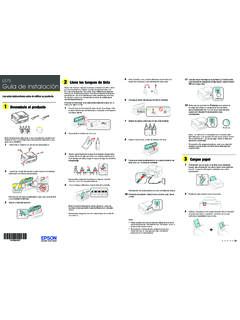
Transcription of C88+ Quick Guide
1 epson Stylus C88+ Quick Guide 2 ContentsIntroduction .. 3 loading Paper .. 4 Basic Printing.. 6 Printing in Windows .. 6 Printing with Macintosh OS X .. 9 Using Special Papers .. 13 Printing Photos .. 15 Printing Photos in Windows .. 15 Printing Photos with Macintosh OS X .. 19 Replacing Ink Cartridges.. 23 Purchasing Ink Cartridges .. 23 Ink Cartridge Precautions .. 24 Removing and Installing Ink Cartridges .. 25 Solving Problems .. 29 Checking the Printer s Lights .. 29 Problems and Solutions .. 30 Where To Get Help .. 32 Requirements and Notices.. 34 Windows System Requirements .. 34 Macintosh System Requirements .. 34 Important Safety Instructions .. 35 FCC Compliance Statement .. 37 Declaration of Conformity .. 38 epson America, Inc. Limited Warranty .. 39 Introduction3 IntroductionThe epson Stylus C88+ printer is the ideal desktop printer for business and home use. With its exceptional speed and print resolutions, it is practical for everyday tasks, yet capable of delivering superior photo printing.
2 Your printer features epson s exclusive DURAB rite Ultra pigment inks. These Quick -drying inks are resistant to water, fading, and smudging on plain and photo paper so your prints stand the test of time. Because the ink particles remain near the surface and don t bleed through, they re ideal for double-sided prints. Note: The light resistance of prints is rated up to 100 years on specialty papers, and 70 years on plain paper. The light resistance rating is based on accelerated testing of prints on epson special media, displayed indoors, under glass. Actual print stability will vary according to media, printed image, display conditions, light intensity, humidity, and other atmospheric conditions. epson does not guarantee the longevity of prints. For maximum print life, display all prints under glass or lamination or properly store you have set up your epson Stylus C88+ as described on the Start Here sheet, use these instructions to: Load paper Print from Windows or on a Macintosh Replace ink cartridges Solve simple problemsFor more information about your printer, see the on-screen User s Guide .
3 An icon for the manual was automatically placed on your desktop when you installed the follow these guidelines as you read the instructions:Warning: Warnings must be followed carefully to avoid bodily : Cautions must be observed to avoid damage to your : Notes contain important information about your : Tips contain hints for better copying, scanning, and PaperLoading PaperThe type of paper you choose affects the way your printout looks, so be sure to select the correct paper for your job. If you are just printing a rough draft, plain paper is fine. For best results, however, you ll want to use one of epson s special ink jet papers designed for your printer. For example, your photos will look great printed on epson Premium Glossy Photo Paper. See page 13 for more these steps to load paper in your printer:1. Open the output tray and pull out its Squeeze the left edge Guide and slide it to the Paper53. Insert the paper, printable side up, against the right edge Guide .
4 Then slide the left edge Guide against the paper (but not too tightly).Note: You can load up to 100 sheets of plain paper and up to 20 sheets of most types of photo paper. (See the on-screen User s Guide for specific paper capacity guidelines.)Follow these guidelines when loading paper: Don t load paper above the arrow on the left edge Guide . Load the printable side face-up. It s often brighter or whiter than theother side. Always load the short edge first, even when printing in landscape mode. Load letterhead or preprinted paper into the printer top edge first. If you experience paper feeding problems, try loading fewer sheets. If you re using special paper, check the package for special loading paper4 x 6-inch or 5 x 7-inch paper6 Basic PrintingBasic PrintingFollow the instructions in this section for basic printing of your documents. For Windows, see below. For Macintosh OS X, see page 9. If you are printing photographs, also see page 15 for more information about printing in Windows1.
5 Open the File menu and select Print. You see a Print window like this one:2. Make sure epson Stylus C88 Series is Click the Properties or Preferences button. (If you see a Setup, Printer, or Options button, click it. Then click Properties or Preferences on thenext screen.)Click here to open your printer softwareSelect epson Stylus C88 SeriesPrinting in Windows7 You see the basic print settings window:4. Select from these Quality Option settings: Draft: For rough drafts with reduced print quality Text: For text-only documents with higher text quality Text & Image: For documents with text and images with higher quality Photo: For photos and graphics with good quality and speed Best Photo: For photos or graphics with high print quality5. Select the correct paper Type and Size settings for the paper you loaded in the printer. See Selecting the Correct Paper Type on page Select Portrait or Landscape for the Orientation the type of document you re printingSelect your paper TypeSelect your paper SizeSelect your document or image orientationClick here for more options8 Basic Printing7.
6 For more printing options, click the Advanced button. Then select the following settings as : For more information about advanced settings, or instructions on saving them as a group so you can reuse them later, click ? or Help. 8. If you want to change the layout settings, click the Page Layout tab and select settings as Click OK to save your settings, then click OK or Print to start a color management method(To choose No Color Adjustment, click ICM first)Click here to select Photo RPM for the best print quality on certain paper typesSelect Print Options as necessarySelect Paper & Quality Options as necessaryClick here if you want to see this Advanced screen each time you access your print settingsPrinting with Macintosh OS X9 During printing, this window appears to show the progress of your print job. You can use the buttons to cancel, pause, or resume printing. You can also see the ink cartridge : You can also cancel printing by pressing the paper button on your with Macintosh OS XFollow the steps below for basic printing of your Macintosh OS X documents.
7 Before you begin, make sure you added your printer to the Print Center as described on the Start Here Open the File menu and select Page Setup. You see the Page Setup window:Cancel printingPause or resume printingCheck ink cartridge statusSelect Stylus C88 Select your Paper SizeSelect your document or image orientation10 Basic Printing2. Select Stylus C88 in the Format for pop-up Select your Paper Size. For borderless printing, choose a paper size with the Sheet Feeder-Borderless Select portrait or landscape for the Click Open the File menu and select Print. You see a window like this one:7. Select Stylus C88 in the Printer pop-up Select Print Settings from the pop-up Select the following Print Settings as necessary:Select Print SettingsSelect Stylus C88 Select your Media Type (see page 14)Select Color or Black inkSelect higher quality or faster printing (if available)Select Automatic modePrinting with Macintosh OS X11 Depending on your settings, you can choose these other options from the pop-up menu: Copies & Pages: Select the number of copies you want, or a page range.
8 Layout: Select page layout options. Output Options: Save your print job as a PDF file. Scheduler: Schedule your print job to print at a later time. Paper Handling: Select page printing options, such as Reverse print order. ColorSync or Color Management: Select ColorSync or adjust the color controls, change the gamma setting, or turn off color adjustments in the printer software. Expansion: Reduce or enlarge the image size for borderless printing. Summary: View a list of all your Click the Advanced button to change these settings:Note: For more information on advanced settings, or instructions on saving them as a group so you can reuse them later, click ?.11. Click Photo RPM for the best print quality on certain paper types12 Basic Printing12. To monitor the progress of your print job, click the printer icon when it appears in the dock on the bottom of your desktop. If you re using OS X, click the Print Center icon instead, then double-click Stylus C88 in the Printer List window.
9 You see a screen like this:Tip: You can also cancel printing by pressing the paper button on your When you re finished, close the printer window or Print printingResume printingPause printingSelect the print jobUsing Special Papers13 Using Special PapersYou can use the following special epson papers in your epson Stylus C88+.You can purchase genuine epson ink and paper from an epson authorized reseller. To find the nearest reseller, call 800-GO- epson (800-463-7766). Or you can purchase online at ( sales) or (Canadian sales).Paper nameSizePart numberEpson Ultra Premium Glossy Photo Paper Borderless 4 6 inchesS041934 Letter ( 11 inches)S041935 epson Premium Bright White PaperLetter ( 11 inches)S041586 epson Premium Glossy Photo PaperBorderless 4 6 inchesS041808S041727 Borderless 5 7 inchesS041464 Borderless 8 10 inchesS041465 Letter ( 11 inches)S041286S041667 epson Premium Semigloss Photo PaperLetter ( 11 inches)S041331 epson Glossy Photo PaperBorderless 4 6 inchesS041809 Letter ( 11 inches)S041141S041649S041272S041271 epson Matte Paper HeavyweightBorderless 8 10 inchesS041467 Letter ( 11 inches)S041257 epson Double-Sided Matte PaperLetter ( 11 inches)S041568 epson Photo Quality Ink Jet PaperLetter ( x 11 inches)S041062 Legal ( x 14 inches)S041067A4 ( x inches)S04106114 Basic PrintingSelecting the Correct Paper TypeBe sure to select the correct Type or Media Type setting in your printer software.
10 For this paperSelect this settingPlain paper epson Premium Bright White PaperPlain Paper/Bright White PaperEpson Ultra Premium Glossy Photo Paper Ultra Premium Glossy Photo PaperEpson Premium Glossy Photo PaperPremium Glossy Photo PaperEpson Premium Semigloss Photo PaperPremium Semigloss Photo PaperEpson Glossy Photo PaperGlossy Photo PaperEpson Matte Paper HeavyweightEpson Double-Sided Matte PaperEpson Photo Quality Ink Jet PaperMatte Paper - HeavyweightEnvelopesEnvelopePrinting Photos15 Printing Photos You can print beautiful snapshots and enlargements with or without white borders. With proper care, photographs from your epson Stylus C88+ will last for many years. For best results, always use epson papers. (See Using Special Papers on page 13 for more information.)As with traditional photos, epson recommends proper care that will minimize color changes and lengthen display life: Frame prints under glass or in a protective plastic sleeve to protect them from atmospheric contaminants like humidity, smoke, and high levels of ozone.