Transcription of DOCKING STATION WITH POWER - cdn.targus.com
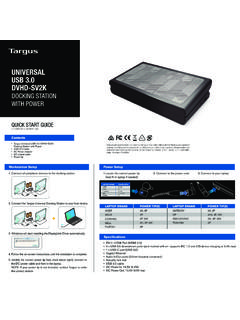
1 UNIVERSAL USB DV4K DOCKING STATIONWITH POWERQUICK start GUIDE410-3570-001A / DOCK177 USZW orkstation Setup POWER Setup 1. Connect all peripheral devices to the DOCKING Connect the Targus Universal DOCKING STATION to your host device. 3. Windows will start installing the DisplayLink Driver Follow the on-screen instructions until the installation is Identify the correct POWER tip (see chart above right), connect to the DC POWER cable and then to the laptop. NOTE: If your POWER tip is not included, contact Targus to order the correct version.+Features and specifications are subject to change without notice. Microsoft and Windows are registered trademarks of Microsoft Corporation in the United States and/or other countries.
2 All trademarks and registered trademarks are the property of their respective owners. 2017 Targus, 1211 North Miller Street, Anaheim, CA 92806 Contents Targus Universal USB DV4K DOCKING STATION with POWER USB Cable AC POWER adapter DC output cable POWER tipSpecifications 2 x DisplayPort (DP++; ) / HDMI Port (HDMI ) 4 x USB downstream ports (port marked with supports BC and iOS device charging at max) 1 x USB-C port (USB ) Gigabit Ethernet Audio In/Out ports ( headset connector) Security lock slot USB cable DC POWER In: , DC POWER Out: 90W maxACER3A, 3P3P3P, 3W3H, 3P, 3W3P3A, 3P3H2, 3P, 3W3I2, 3P, 3X93 PLAPTOP BRANDPOWER TIP(S)LAPTOP BRANDPOWER TIP(S)ASUSCOMPAQDELLFUJITSUGATEWAYHPIBM/ LENOVOTOSHIBA3 AACER3A, 3P3P3P, 3W3H, 3P, 3W3 PLAPTOP BRANDPOWER TIP(S) the correct POWER tip (test fit in laptop if needed)2.
3 Connect to the POWER cord3. Connect to your laptopDocking STATION DiagramWindows SetupTo ensure the best Windows performance, please be sure to update your host PC Display Adaptor and USB Drivers. These updates are often available from your IT department or from the PC manufacturer if you have Administrator rights to download and install drivers for your to your Targus Universal DOCKING STATION DisplayLink Manager. The DisplayLink Manager software, if not already installed, can be downloaded from a Windows Update server or from It is represented by the icon in the Windows Task Tray and allows you to easily connect additional monitors to your laptop or desktop via the Targus DOCKING STATION .
4 Using the Windows Control Panel Display Screen Resolution window, the connected monitors can be configured to either mirror your main screen, or extend the Windows desktop allowing visibility of more applications at the same time. The DisplayLink USB Graphics devices can also be configured to be the main DisplayLink Manager allows full configuration of all additional USB displays, including: Support for addition USB Displays in Windows 7, 8, , 10 and later Resolution up to 4096 x 2160 for Displayport or HDMI Display orientation and location modification Layout of displaysDisplayLink software also provides drivers for Sound and Ethernet built-in.
5 These can also be selected in the Windows Control SetupThree Year WarrantyRegulatory ComplianceFCC Statement (Tested to Comply)Upon installation of the DisplayLink software for OS-X available at , Macbook users can use the System Preferences for Displays to adjust the external monitors. OS-X allows configuration of all additional USB displays, including: Support for additional USB Displays in OS-X or later Resolution up to 4096 x 2160 for Displayport or HDMI Display orientation and location modification Layout of displaysDisplayLink software also provides drivers for Sound and Ethernet SetupInstall the DisplayLink Desktop application for Android and later from the Google Play Store.
6 Enable USB Debugging/Host mode on your Android Targus warrants to the original purchaser that its products are free from defects in materials and workmanship for three years. This warranty is limited to defects, materials and workmanship. 2. The benefits to the consumer given by the warranty are in addition to other rights and remedies of the consumer under law in relation to the goods to which the warranty relates. 3. The warranty is given by (i) Targus Australia, (ii) Targus Australia s business address is: Suite 2, Level 8, 5 Rider Boulevard, Rhodes NSW 2138 Australia, (iii) Targus Australia s telephone number is 1800 641 645, Email: (iv) To make a warranty claim for goods purchased in New Zealand, the telephone number is: 0800 633 222, or the goods may be returned to the supplier in New Zealand.
7 4. What the purchaser must do to entitle the purchaser to claim warranty:- (i) The purchaser must call the telephone number for Australia or New Zealand set out above, (ii) The purchaser must provide the purchaser s name, daytime contact number, business hours delivery address, the Targus model number on the product, date and place of purchase with receipt for purchase if required, and describe the fault condition. 5. What Targus must do:- (i) Targus will provide the purchaser with store return information or a return authorisation so that the purchaser may return the product for warranty inspection, (ii) If after inspection Targus finds the product is defective in materials or workmanship, Targus shall replace (or repair) the defective product at the discretion of Targus and ship the product from Targus warehouse at its expense within three business days (Monday to Friday excluding public holidays) of receiving the returned goods.
8 If the product is no longer available Targus reserves the right to replace with the nearest corresponding product of no lesser quality, (iii) Targus will bear the cost of return delivery to the purchaser regardless of the inspection test result. The purchaser must bear the cost of the delivery to Targus. There is no charge for inspection. 6. Our goods come with guarantees that cannot be excluded under the Australian Consumer Law. You are entitled to a replacement or refund for a major failure and for compensation for any other reasonable foreseeable loss or damage. You are also entitled to have the goods repaired or replaced if the goods fail to be of acceptable quality and the failure does not amount to a major failure.
9 7. Please note: (i) Features and specifications of all Targus products are subject to change without notification, (ii) In some instances: Goods presented for repair may be replaced by refurbished goods of the same type rather than being repaired. Refurbished parts may be used to repair the goods, (iii) If goods accepted for repair retain user-generated data: During the process of repair some or all of your stored data may be lost. Please ensure that you have saved this data elsewhere prior to device complies with Part 15 of the FCC Rules. Operation is subject to the following two conditions: (1) This device may not cause harmful interference, and (2) This device must accept any interference received, including interference that may cause undesired RequirementsHardware USB Port (USB recommended)Operating System (any of the following) Microsoft Windows 7, Windows 8, Windows , or Windows 10 (32/64-bit) Mac OS X or later Android or later (* with Host Mode enabled, with support limitations applies, refer to HYPERLINK " " for details) Chromebooks (*selected device only, refer to HYPERLINK " " for device compatibility) Ubuntu LTS and LTS on x86 platform (*refer to HYPERLINK " " for compatibility and limitations)
10 This equipment has been tested and found to comply with the limits of a Class B digital device, pursuant to Part 15 of the FCC Rules. These limits are designed to provide reasonable protection against harmful interference in a residential installation. This equipment generates, uses, and can radiate radio frequency energy and if not installed and used in accordance with the instructions, may cause harmful interference to radio communications. However, there is no guarantee that interference will not occur in a particular installation. If this equipment does cause harmful interference to radio or television reception, which can be determined by turning the equipment off and on, the user is encouraged to try to correct the interference by one or more of the following measures.