Transcription of Quick Start Guide - Targus
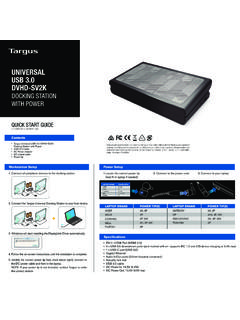
1 USB-C DUAL VIDEO 4K docking station with power DELIVERYQUICK Start GUIDE410-3652-001B / DOCK180 USZW orkstation Setup docking station Diagram1. Connect all peripheral devices to the docking station2. Connect the Targus Universal docking station to your host device. 3. If your host device does not connect via USB-C, use the included USB-C to USB-A adapter as shown below.+Features and specifications are subject to change without notice. Microsoft and Windows are registered trademarks of Microsoft Corporation in the United States and/or other countries. All trademarks and registered trademarks are the property of their respective owners. 2017 Targus , 1211 North Miller Street, Anaheim, CA 92806 Contents Targus USB-C Dual Video 4K docking station with power Delivery (60W) USB-C Cable AC power adapter USB-C to USB-A adapterSpecifications 2 x DisplayPort (DP++; ) / HDMI Port (HDMI ) 4 x USB downstream ports (port marked with supports BC and iOS device charging at max) 1 x USB-C upstream port with supporting power Delivery Profile 4 (up to 60W max.)
2 Charging) 1 x USB-C downstream port (USB , data transfer only) Gigabit Ethernet Audio In/Out ports ( headset connector) Security lock slot USB-C cable LED power Indicator power ON/OFF button , 120W power adapterGigabit EthernetDP++HDMIDP++HDMIP owerON/OFFP ower InUSB toLaptop PortLock SlotAudioHeadset ConnectorUSB-C PortUSB Port(supports charging)Attach to DOCK180 Attach to PCWindows SetupTo ensure the best Windows performance, please be sure to update your host PC Display Adaptor and USB Drivers. These updates are often available from your IT department or from the PC manufacturer if you have Administrator rights to download and install drivers for your to your Targus Universal docking station DisplayLink Manager.
3 The DisplayLink Manager software, if not already installed, can be downloaded from a Windows Update server or from It is represented by the icon in the Windows Task Tray and allows you to easily connect additional monitors to your laptop or desktop via the Targus docking station . Using the Windows Control Panel Display Screen Resolution window, the connected monitors can be configured to either mirror your main screen, or extend the Windows desktop allowing visibility of more applications at the same time. The DisplayLink USB Graphics devices can also be configured to be the main DisplayLink Manager allows full configuration of all additional USB displays, including: Support for addition USB Displays in Windows 7, 8, , 10 and later Resolution up to 4096 x 2160 for Displayport or HDMI Display orientation and location modification Layout of displaysDisplayLink software also provides drivers for Sound and Ethernet built-in.
4 These can also be selected in the Windows Control SetupUpon installation of the DisplayLink software for OS-X available at , Macbook users can use the System Preferences for Displays to adjust the external monitors. OS-X allows configuration of all additional USB displays, including: Support for additional USB Displays in OS-X or later Resolution up to 4096 x 2160 for Displayport or HDMI Display orientation and location modification Layout of displaysDisplayLink software also provides drivers for Sound and Ethernet SetupInstall the DisplayLink Desktop application for Android and later from the Google Play Store. Enable USB Debugging/Host mode on your Android RequirementsHardware Thunderbolt 3 or USB-C port Charging support requires host computer support power Delivery charging (up to 60W max)Operating System (any of the following) Microsoft Windows 7, Windows 8, Windows , or Windows 10 (32/64-bit) Mac OS X or later Android or later Chromebooks Ubuntu LTS and LTS on x86 platformVisit for a list of the latest compatible operating systemsThree Year WarrantyDeclaration of ConformityRegulatory ComplianceProduct RegistrationFCC Statement (Tested to Comply) Targus recommends that you register your Targus accessory shortly after purchasing it.
5 Go to: You will need to provide your full name, email address, country of residence and product pride ourselves on the quality of our products. For complete warranty details and a list of our worldwide offices, please visit Targus product warranty does not cover any device or product that is not manufactured by Targus (including, but not limited to, laptops, smartphones, devices, or any other product that may be used in connection with the Targus product). Australian customers: For complete warranty details see warranty statement is a registered trademark of Targus International LLC in the and in certain other countries. Microsoft, Windows, and Windows Vista are registered trademarks or trademarks of Microsoft Corporation in the United States and/or other countries.
6 Broadcom and the Broadcom logo are trademarks of Broadcom Corp. Bluetooth and the Bluetooth logos are trademarks owned by Bluetooth SIG, Inc., and licensed to Broadcom Corp. All logos and registered trademarks are the property of their respective owners. 2017 Targus , 1211 North Miller Street, Anaheim, CA 92806. All rights reserved. AUSTRALIAN AND NEW ZEALAND CONSUMERS ONLYT hank you for your purchase. Targus warrants to the original purchaser that its products are free from defects in materials and workmanship, during the specified warranty period, and lasts as long as the original purchaser owns the product. The warranty period is stated on the packaging or in the documentation provided with this Targus product. Targus Limited Product Warranty excludes damage caused by accident, neglect, abuse, misuse, improper care, normal wear and tear, ownership transfer, or alteration.
7 The limited warranty also excludes any product that is not manufactured by Targus (including, without limitation, laptops, smartphones, devices, tablets, or any other non- Targus item) that is used in connection with the Targus product. In the event that the Targus product has a defect in materials or workmanship Targus will, after receiving a warranty claim and inspecting the product, at its discretion, do one of the following: repair, replace, or refund with the same or a similar product (or part) of no lesser quality and ship it to the original purchaser at Targus expense. As part of this inspection, proof of purchase will be required. There is no charge for inspection. To make a warranty claim, please contact Targus Australia or New Zealand (see details below), or return the product to the place of purchase.
8 The original purchaser must bear the cost of the delivery to Targus . Under Australian and/or New Zealand Consumer Laws, in addition to any warranty Targus gives, our products come with guarantees that cannot be excluded. You are entitled to a replacement or refund for a major failure and compensation for any other reasonably foreseeable loss or damage. You are entitled to have the products repaired or replaced if they fail to be of acceptable quality and the failure does not amount to a major failure. For any warranty question, contact Targus Australia Pty. Ltd. (i) by mail at Suite 2, Level 8, 5 Rider Boulevard, Rhodes NSW 2138, by phone AUS 1800 641 645 or NZ 0800 633 222 or by Email: For additional information, check out our website at This device complies with Part 15 of the FCC Rules.
9 Operation is subject to the following two conditions: (1) This device may not cause harmful interference, and (2) This device must accept any interference received, including interference that may cause undesired device complies with Part 15 of the FCC Rules. Operation is subject to the following two conditions: This device may not cause harmful interference, and This device must accept any interference received, including interference that may cause undesired operation. Warning: Changes or modifications not expressly approved by the party responsible for compliance could void the user s authority to operate the equipment. NOTE: This equipment has been tested and found to comply with the limits for a Class B digital device, pursuant to Part 15 of the FCC Rules.
10 These limits are designed to provide reasonable protection against harmful interference in a residential installation. This equipment generates, uses, and can radiate radio frequency energy and, if not installed and used in accordance with the instructions, may cause harmful interference to radio communications. However, there is no guarantee that interference will not occur in a particular installation. If this equipment does cause harmful interference to radio or television reception, which can be determined by turning the equipment off and on, the user is encouraged to try to correct the interference by one or more of the following measures: . Reorient or relocate the receiving antenna.. Increase the separation between the equipment and receiver.