Transcription of e--Filing Filing - Hasil
1 Ee-- Filing Filing PART I: INTRODUCTION OF e- Filing 2010 PART I: INTRODUCTION OF e- Filing 2010 PART II: e-Filing2010 PART III : REGISTRATION OF DIGITAL CERTIFICATEPART IV : LOGIN, FILL IN & SEND e-FORMPART V : RETRIEVE AND PRINT ACKNOWLEDGEMENTRECEIPT PART VI : CHANGE OF PASSWORD AND CHALLENGE PHRASEPART IPART IINTRODUCTION OF e-Filing2010 3e-Filing2010 Responsibility Of TaxpayersResponsibility Of TaxpayersTaxpayers are required to declare, calculate their own tax ,submit the income Tax Return Form (ITRF) and pay the taxDeadline Of ITRF Submission 30 April -Individual who receive income from other than business source 30 Jun -Individual who receive income from business source30 Jun -Individual who receive income from business sourceTax Payment On orbefore deadline of ITRF submission 4e-Filinge-FilingThis service enables individuals , companies,employers, and others to fill, sign digitally.
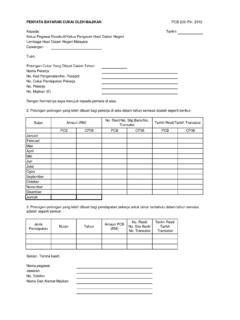
2 AndsubmitITRF onlineviatheinternet 5 Types of ITRF /form Can Be Submitted Via e-FilingTypes of ITRF /form Can Be Submitted Via e-FilingForm e-BE - individuals with Non-Business income Form e-B - individuals with Business IncomeForm e-M -Non-Resident Individual Form e-E -EmployerForm e-P -PartnershipForm e-C -CompanyForm e-R -Statement of Revised 108 BalanceForm e-R -Statement of Revised 108 BalanceForm e-CP204 -Company/Cooperation/Trust Tax Estimated Form 6 Advantangesofe-FilingGuarantee of safe data securityAble to retrieve at anywhere and anytimeFaster and easierNo more mail lossAccurate tax calculationFaster tax refund 7 Faster tax refundSecurity Features of e- Filing : Secure Secure Socket Layer (SSL Socket Layer (SSL)) Public Public Key Infrastructure (PKI Key Infrastructure (PKI))ConfidentialityAuthenticationInteg rity 8 IntegrityNon-repudiation PART IIee-- Filing 2010 Filing 2010 ITF FOR YEAR OF ASSESSMENT 2009:ITF FOR YEAR OF ASSESSMENT 2009:PART II 9 ITF FOR YEAR OF ASSESSMENT 2009:ITF FOR YEAR OF ASSESSMENT 2009:ee--Be 2009 Be 2009 Enchancementof e- Filing 2010:Easier information display 10 Year 2010 Year 2009 Enchancementof e- Filing 2010: 11 income , Preceding Year income , EPF Contribution and Zakat payment (via salary deduction) information are automatically displayed*Started with information from ONLY selected employer Requirements of e- Filing :Reference No.
3 And PIN III and aboveInternet lineMicrosoft Windows 2000 (Latest Service Pack)Microsoft Windows XP (Latest Service Pack) andRequirements of e- Filing :Microsoft Windows XP (Latest Service Pack) andInternet Explorer and above/ Mozilla Firefox 5/ Opera 9/ Safari 124 Easy Steps of e- Filing :4 Easy Steps of e- Filing :Get your PIN No. and register it Get your PIN No. and register it for Digital Certificate for Digital Certificate Login Online Form (eLogin Online Form (e--Form). Form). Complete the return correctlyComplete the return correctly 13 Sign the return digitally and Sign the return digitally and submitsubmitSuccessfulSuccessful-- AcknowledgementAcknowledgementreceipt /Print or Savereceipt /Print or SaveHow To Use e- Filing ?Need to obtain a PIN No. to register theDigital Certificate (Digital Signature) beforecompleting the e-FormHow To Use e- Filing ?
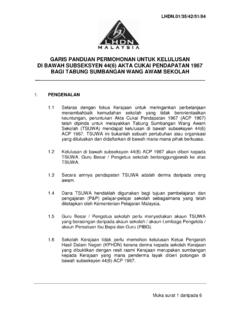
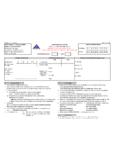
4 14 Where To Obtain Your Pin :Where To Obtain Your Pin :Contact LHDNM Customer Service Cente: 1-300-88-3010or 603-4289 3500 (from outside Malaysia)Visit the nearest LHDNM Counter/OfficeVia letter, fax or email to the nearestLHDNM Office with thefollowing requirements:i) Tax Reference Number 15ii) Latest Addressiii) Copy of Identification Card(front and back)iv) Telephone NumberKindly send the application to e- Filing PIN CertificateVerifies identity of taxpayer or Digital SignatoryDigital Certificate valid for 3 years from thedate ofregistration 17If you have already registered the certificate or used e- Filing before, just enter your password to login into IIIPART IIIREGISTRATION OF DIGITAL CERTIFICATE 18OF DIGITAL CERTIFICATEC ategory ofe- Filing User1. New User (First Time User) Need to register Digital Certificate to obtain digital signature2.
5 Users with valid Digital Certificates (within 3 years) Login e-Form3. Users with invalid Digital Certificates (more than 3 years) Need to renew digital certificate via system (need not re-register) login e-Form 19 Please 20 LHDNM Website LHDNM Website : : easy steps to register Digital CertificateRegistration of Digital Certificate3 easy steps to register Digital Certificate 21 Click on icon First Time Login Step 1 Registration of Digital CertificateStep 1 22 Enter the PIN No, NRIC No. and click on icon Registration of Digital CertificateStep 2 Complete the registration form Enter the password Important: Ensure all the fields are completed 23 Click onImportant : Items which are marked * are mandatory and need to becompletedRegistration of Digital CertificateStep 3 24 Verification of taxpayer particulars(Name, NRIC No and Tax Reference No )If agree, click on icon or disagree click onRegistration of Digital Certificate 25 Your Digital certificate application is being of Digital Certificate 26 Your Digital Certificate was successfully registeredYou can now Login into e-FormExample of Digital CertificatePART IVPART IVLOGIN, FILL & SEND e-FORM 28e-FORM Login 29 Klikikon login e-Borang e-FORM LoginPlease select e-Form based on your source of incomeexample.
6 E-Be form(Without Business income )Click on to login e-Be form 30 Click on to login e-Be forme-FORM Login 31 Enter your NRIC No. and PasswordClick on e-FORM LoginTaxpayers who had e-Filed before and Digital Certificate Taxpayers who had e-Filed before and Digital Certificate has expired(owned for 3 years), Need to obtain a new Digital Certificate via the system (online) Login e-Form 32 Login e-FormLogin e-FORMR enewal of expired Digital Certificate:Click on setuju or tidaksetuju tidaksetuju Click on button to proceed to the next page 33e-FORM Login 34 Your Digital certificate application is being Login 35 Your Digital Certificate was successfully registeredYou can now Login into e-Forme-FORM Login 36 Digital Certificate renewede-Be Form is divided into 7 items:Fill e-Forme-Be Form is divided into 7 items:1.
7 Particulars of Individual2. Particulars of Husband/Wife3. Statutory income and Total Income4. income of Preceding Years Not Declared5. Deduction Claim6. Rebate Claim / Tax Deduction / Tax SummaryImportant:Please usebuttonupon completion of all particulars for each section and click the to view the previous page 37 Fill e-FormItem 1 Particulars of IndividualPlease ensure all particulars are accurate and correctItems which are marked * are mandatory and need to be completed. Please ensure all the particulars are completed before you click the 38completed before you click thebuttonItem 1 Particulars of Husband/WifeFill e-FormItem 1 Particulars of Husband/Wife 39 Complete a husband/wife or wives particularsFill e-FormFill in your income : Employment, Dividend, Rental etc. The income amount to be rounded to the nearest RinggitFill in your Monthly Tax Deduction Item 3 -Statutory income and Total IncomeFill in your Monthly Tax Deduction Please ensure all the particulars are completed before you click thebutton 40 Fill e-FormItem 3 -Statutory income and Total IncomeItem 3 -Statutory income and Total income 41 Click on HK3 if income from dividend is following screen will be displayedEnter the particulars related to dividend incomeFill e-FormItem 3 -Statutory income and Total IncomeItem 3 -Statutory income and Total income 42 Click on Click Here if want to claim donation and gifts deductionItem 4 - income of Preceding Years Not DeclaredFill e-FormItem 4 - income of Preceding Years Not Declared 43 Fill in only if Preceding year income has not been declared including PCB and EPF contribution
8 For that particular yearFill e-FormItem 5 Deduction ClaimDeductable items that can be claimedby individual taxpayerKindly fill the amount in the appropriate column. 44column. Fill e-FormItem 5 Deduction ClaimDeductable items that can be claimedby individual taxpayerKindly fill the amount in the appropriate column 45 Fill e-FormItem 6 - Rebate Claim / Tax Deduction /Tax ReliefExample: zakatand fitrahpayment, tax relief and etcFill in the related column 46 Click on buttonFill e-FormSummary of tax will be displayed automatically based on the income ,relief& tax rebate details claimedby the tax payerItem 7 - Tax SummaryEnsure the particulars are correct and accurateClickbutton 47 Fill e-FormImportant!!!!!Need to sign digitally beforesubmitting e-Form onlineClickbuttonto submit e-Form 48 Click button to view previous pages Click button to print e-FormSend e-FORMD eclaration and tax summary will be displayedIf agreed, click button to submit e-FormIf disagreed 49 Send e-FormThe above screen will be displayed 50 Enter the NRIC the Password Click onbutton to send e-Form or,Click on button to cancel the submission of e-FormSend e-FormPlease wait until the acknowledgement is displayedIf successful you can also.
9 Click e-Bayaranbutton to pay the balance of tax payable Click button to save and print the Acknowledgement ReceiptSend e-Form 51and print the Acknowledgement ReceiptClickbutton to save and print e-FormClick button to exitPART VPART VRETRIEVE AND PRINTACKNOWLEDGEMENTACKNOWLEDGEMENTRECEI PT Retrieve And Print Acknowledgement ReceiptPlease visit the main page of e-FilingClick Print Form Acknowledgement to retrieve Acknowledgement Receipt(YA 2009 & 2008)Please select the type of e-Form(BE,B,C,R and others) 53 Enter the NRIC No. and PasswordClick button to retrieve the receipt Click button to initiate the process againPART VIPART VICHANGE THE PASSWORD,THE CHALLENGE PHRASE 54 THE CHALLENGE PHRASEC hange The PasswordChange The PasswordPlease visit the main page of e-FilingClick on Change Password to change the passwordEnter the existing passwordEnter the new password andconfirm 55confirm Click button to proceedClick button to initiate the process againChange the Challenge PhraseChange the Challenge PhrasePlease visit the main page of e-FilingClick on icon Challenge Phrase Change to change the Challenge PhraseEnter the passwordSelect the new Challenge Phrase Enter the answer and confirmed itClick button to proceed 56 Click button to proceedClick button to initiate the process againIf you have problem with your If you have problem with your Visit the nearest LHDNM s office1-300-88-3010 If you have problem
10 With your If you have problem with your ee-- Filing password, Challenge Filing password, Challenge Phrase, kindlyPhrase, kindlyContact LHDNM Customer Service 1-300-88-3010 or603-4289-3500 (outside Malaysia) 57 THANK 58