Transcription of Guide supplement for “Getting Started With LabVIEW”
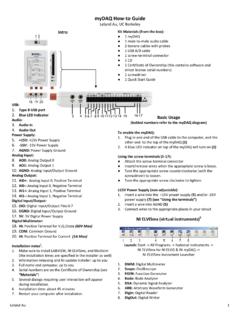
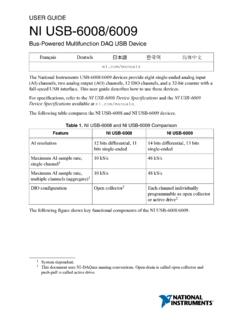
1 Lab Guide supplement for getting Started with LabVIEW Ideally you ll complete the first three exercises fairly efficiently, with no or little difficulty (40 mins., 40 mins, 30 mins.) a little less than 2 hours. That will leave Acquiring Data and Communicating with Instruments (another 30 minutes exercise). In this case, you ll make use of the PC s internal PCI 6014 multifunction DAQ card, and the break out card that attaches to it with a 68 pin ribbon cable. The pin out information for the card is shown here: Follow the getting Started with LabVIEW Guide , Part 4 on DAQ and instrument communication. Since we may not have sufficient separate setups for each student, please work together on a single setup. If you encounter an insurmountable barrier, and/or have extra time, please pursue other DAQ exercise as you see fit. For example, you can (a) digitize a sine wave from the function generator, (b) digitize the sync output on a different AI channel, and then digitize them simultaneously, two additional times, for two different phase settings.
2 As an additional example, you can develop a simple .vi which gives you control over the AO1 analog output voltage; use this to determine ( with the help of a hand held digital multimeter) how accurately the AO1 channel produces the following values: 100 mV, 50 mV, 5 mV, 100 V, V, +5 mV, +50 mV, +100 mV. , prepare a table showing the set value (controlled using your LabVIEW .vi s front panel) vs. the measured value (determined using your DMM). Precisely what you decide to use as a demonstration of the DAQ capabilities is less critical than trying to learn to use it, and documenting what you learn. Somethings you try may not work document what you ve done and include it all in your report. For this lab write up, please prepare a 2 3 page report describing in your own words (using relevant vocabulary learned from this lab) what LabVIEW is, what it can do, how you used it in these lab exercises, and how you would envision using it in your own research or to automate something in your life (dorm room, apartment, etc.)
3 You can include a couple of LabVIEW specific figures if you d like to be able to refer to them. Include an Introduction, the structure of a simple LabVIEW .vi (including front panel and block diagram), what you see as unique features of LV, and a fairly detailed description of your own invented application (planned, envisioned, but likely not actually implemented). Include a sketch/drawing of data flow and any relevant objects or instruments for your invented application. You can capture window screenshots by using the PrntScrn and/or Alt PrntScrn buttons on the keyboard and then pasting them into an image to transfer to your USB drive.