Transcription of MFC-L2710DW Reference Guide - Brother
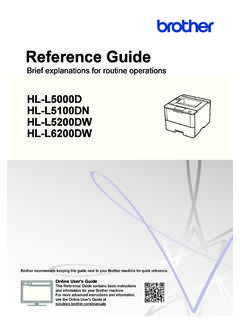
1 Reference GuideBrief explanations for routine operationsHL-L2390 DWDCP-L2550 DWHL-L2395 DWMFC-L2710 DWMFC-L2717 DWMFC-L2730 DWMFC-L2750 DWMFC-L2750 DWXL Brother recommends keeping this Guide next to your Brother machine for quick User's GuideFor more advanced instructions, information, andproduct specifications, see the Online User'sGuide at 's Guides and Where to Find ThemWhich Guide ?What's in It?Where Is It?Product Safety GuideRead this Guide first. Please read the SafetyInstructions before you set up your this Guide for trademarks and / In the boxQuick Setup GuideFollow the instructions for setting up yourmachine, and installing the Full Driver &Software Package for the operating systemand connection type you are / In the boxReference GuideLearn the basic Fax, Copy and Scanoperations and basic machine troubleshooting or on BrotherInstallation Disc / Inthe BoxOnline User's GuideThis Guide includes the additional contents ofthe Reference addition to information about the Print,Scan, Copy, Fax.
2 Mobile device functions, Brother ControlCenter operations andtroubleshooting, other useful information isincluded about using the machine on SolutionsCenter 1 Mobile Print/Scan Guidefor Brother iPrint&ScanThis Guide provides useful information aboutprinting from your mobile device, andscanning from your Brother machine to yourmobile device when connected to a Wi-Fi SolutionsCenter 11 Visit Online User's Guide Helps You Get the MostOut of Your MachineWe hope that you find this Guide helpful. To learn more about your machine's features, pleasetake a look at our Online User's Guide .
3 It offers:Quicker Navigation! Search box Navigation index in a separate panelComprehensive Format! Every topic in one guideSimplified Layout! Step-by-step instructions Feature summary at the top of the page12341. Search Box2. Navigation3. Summary4. Step-by-Step InstructionsTo View Online User's GuidesTo view the Online User's Guide and other available guides, visit (Windows)You can also access your machine's guides using Brother Utilities. The Brother Utilities tool isincluded in the standard installation and, when installed, you can find it either as a shortcut onyour desktop, or from the Windows Start or Problems?
4 Take a Look at our FAQs,Solutions, and Videos to your model's FAQs & Troubleshooting page on the Brother Solutions Center Provides several ways to search Displays related questions for more information Receives regular updates based on customer feedback 2019 Brother Industries, Ltd. All rights Panel OverviewRelated Models:HL-L2390DW/DCP-L2550DW/MFC-L2710D W/MFC-L2717 DWThe control panel may vary depending on your One Touch buttonsStore and recall up to eight fax and telephone access stored One Touch fax and telephone numbers 1-4, press the One Touch buttonassigned to that number.
5 To access stored One Touch fax and telephone numbers 5-8, pressand hold Shift as you press the Function buttonsRedial/PausePress to dial the last number you called. This button also inserts a pause whenprogramming quick dial numbers or when dialing a number Hook before dialing to ensure a fax machine answers, and then press the machine is in Fax/Tel (F/T) Mode and you pick up the handset of an externaltelephone during the F/T ring (pseudo double-rings), press Hook to Information4 WiFi (for wireless models)Press the WiFi button and launch the wireless installer on your computer.
6 Follow the on-screen instructions to set up a wireless connection between your machine and the WiFi light is on, your Brother machine is connected to a wireless access the WiFi light blinks, the wireless connection is down, or your machine is in theprocess of connecting to a wireless access (for certain models only)Press to change the Fax in 1 (ID) CopyPress to copy both sides of an identification card onto a single to copy on both sides of a sheet of to access temporary settings for faxing, scanning, or Liquid Crystal Display (LCD)Displays messages to help you set up and use the the machine is in Fax Mode, the LCD displays:baFax Only01/01 12:00 AMa.
7 Date & Timeb. Receive ModeWhen you press COPY, the LCD displays: defgc100% AutoStack Copies:01c. Type of copyd. Number of copiese. Qualityf. Contrastg. Copy ratio1 General Information54. Mode buttonsFAXP ress to switch the machine to FAX to switch the machine to SCAN to switch the machine to COPY Menu buttonsClearPress to delete entered data or cancel the current to access the Menu for programming your machine to store your machine or cPress to scroll back or forward through menu or b Press to scroll up or down through menus and options. Press to change the resolution in Fax to access speed dial Dial Pad Use to dial fax and telephone numbers.
8 Use as a keyboard to enter text or Power On/Off Turn on the machine by pressing . Turn off the machine by pressing and holding . The LCD displays [Shutting Down]and stays on for a few seconds before turning off. If you have an external telephone orTAD connected, it is always Stop/Exit Press to stop an operation. Press to exit from a Start Press to start sending faxes. Press to start copying. Press to start scanning Information7HL-L2390DW/DCP-L2550 DWMFC-L2690W1231. Power On/Off Turn on the machine by pressing . Turn off the machine by pressing and holding.
9 The LCD displays [Shutting Down]and stays on for a few seconds before turning Function buttonsCopy/Scan OptionsPress to access temporary settings for scanning or (for wireless models)Press the WiFi button and launch the wireless installer on your computer. Follow the on-screen instructions to set up a wireless connection between your machine and the WiFi light is on, your Brother machine is connected to a wireless access the WiFi light blinks, the wireless connection is down, or your machine is in theprocess of connecting to a wireless access to switch the machine to Scan in 1 (ID) CopyPress to copy both sides of an identification card onto a single Liquid Crystal Display (LCD)Displays messages to help you set up and use the the machine is in Ready Mode or COPY Mode, the LCD displays.
10 Bacde100% AutoStack Copies:01a. Type of copyb. Number of copiesc. Qualityd. Contraste. Copy ratioMFC-L2690W45 64. Menu buttonsMenuPress to access the Menu for programming your machine Press to delete entered data. Press to cancel the current to store your machine or bPress to scroll up or down through menus and Stop/Exit Press to stop an operation. Press to exit from a Start Press to start Information9 Press to start scanning Panel OverviewRelated Models:HL-L2395DW/MFC-L2730DW/MFC-L2750D W/MFC-L2750 DWXLThe control panel may vary depending on your Near Field Communication (NFC) (HL-L2395DW/MFC-L2750DW/MFC-L2750 DWXL)If your Android device supports the NFC feature, you can print from your device or scandocuments to your device by touching it to the NFC symbol on the control Touchscreen Liquid Crystal Display (LCD)Access menus and options by pressing them on the Menu Buttons (Back)Press to go back to the previous menu.