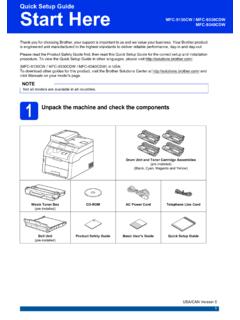
Transcription of Quick Setup Guide Start Here
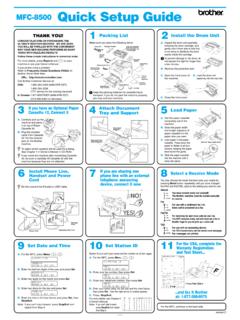
1 Quick Setup Guide Start Here MFC-7360N. MFC-7365DN. MFC-7460DN. Please read the Safety and Legal booklet first before you set up your machine. Then, please read this Quick Setup Guide for the correct Setup and installation. To view the Quick Setup Guide in other languages, please visit WARNING indicates a potentially hazardous situation which, if not avoided, WARNING could result in death or serious injuries. CAUTION indicates a potentially hazardous situation which, if not avoided, may CAUTION result in minor or moderate injuries. 1 Unpack the machine and check the components Installation CD-ROM, Product Registration AC Power Cord Documentation CD-ROM Sheet (USA only). Basic User's Guide Quick Setup Guide Telephone Line Cord Drum Unit and Toner Cartridge Assembly Safety and Legal booklet (pre-installed). WARNING. Plastic bags are used in the packaging of your machine.
2 Plastic bags are not toys. To avoid danger of suffocation, please keep these bags away from babies and children and dispose of them properly. USA/CAN Version 0. 1. CAUTION. CAUTION. When you move the machine, grasp the side handholds that are under the scanner. DO NOT carry the machine by holding it at the bottom. Note Keep a minimum gap around the machine as shown in the illustration. in. (250 mm). in. in. in. (90 mm). (100 mm) (100 mm). The components included in the box may differ depending on your country. Please save the original packaging should you need to ship the machine in future. If for any reason you must ship your machine, carefully repack the machine in the original packaging to avoid any damage during transit. The machine should be adequately insured with the carrier. For how to repack the machine, see Packing and shipping the machine in the Advanced User's Guide .
3 The interface cable is not a standard accessory. Buy the appropriate interface cable for the interface you want to use (USB or Network). USB cable It is recommended to use a USB cable (Type A/B) that is no longer than 6 feet (2 meters). DO NOT connect the interface cable at this time. Connecting the interface cable is done during the MFL-Pro installation process. Network cable Use a straight-through Category5 (or greater) twisted-pair cable for 10 BASE-T or 100 BASE-TX Fast Ethernet Network. 2. Remove the packing d 2. Lift the elastic band off the drum. material from the machine IMPORTANT. DO NOT connect the AC power cord yet. a Remove the packing tape from the outside of the machine and the film covering the scanner glass. b Open the front cover. e Pull the paper strip to remove the protective material as shown in the illustration. c Remove the Silica Pack from the inside of the machine.
4 F Take out the drum unit and toner cartridge assembly. CAUTION. CAUTION. DO NOT eat the Silica Pack. Please discard. If ingested seek medical attention immediately. 3. g 3. Gently shake it from side to side several times to distribute the toner evenly inside the Load paper in the paper assembly. tray a Pull the paper tray completely out of the machine. h Put the drum unit and toner cartridge assembly back in the machine. b While pressing the green paper- Guide release lever a, slide the paper guides to fit the paper size you are loading in the tray. Make sure that the guides are firmly in the slots. i Close the front cover of the machine. 1. 4. Note d Put paper in the tray and make sure: The paper is below the maximum paper For Legal or Folio size paper, press the release mark (b b b) a. button in the bottom of the paper tray and then Over filling the paper tray will cause paper pull out the back of the paper tray.
5 Jams. (Legal or Folio size paper are not available in The side to be printed on must be face down. some regions.). The paper guides touch the sides of the paper so it will feed properly. 1. c Fan the stack of paper well to avoid paper jams and misfeeds. e Put the paper tray firmly back in the machine. Make sure that it is completely inserted into the machine. For more information about recommended paper, see Recommended paper and print media in the Basic User's Guide . 5. 4 Connect the power cord WARNING. and telephone line The machine must be grounded using a 3-prong plug. Since the machine is grounded through the IMPORTANT power outlet, you can protect yourself from potentially hazardous electrical conditions on DO NOT connect the interface the telephone network by keeping the power cable yet. cord connected to your machine when you connect it to a telephone line.
6 Similarly, you a Connect the AC power cord to the machine, can protect yourself when you want to move and then plug it into an AC power outlet. your machine by disconnecting the telephone line first and then the power cord. b Turn on the machine's power switch. Note If you are sharing one telephone line with an external telephone, connect it as shown below. Before you connect the external telephone, remove the protective cap a from the EXT. jack on the machine. 1. 2. c Connect the telephone line cord. Connect one end of the telephone line cord to the jack on the 1. machine marked LINE and the other end to a modular wall jack. 1 Extension telephone 2 External telephone IMPORTANT. The telephone line cord MUST be connected to the jack on the machine marked LINE. 6. 5. Note If you are sharing one telephone line with an Choose your language external telephone answering machine, connect it (if needed).
7 As shown below. Before you connect the external telephone a Press Menu, 0, 0. answering machine, remove the protective cap a from the EXT. jack on the machine. b Press a or b to choose your language. Press OK. c Press Stop/Exit. 1. Set the receive mode to External TAD if you have an external answering machine. See Choose the correct Receive Mode on page 8. For additional details, see Connecting an external TAD (telephone answering device) in the Basic User's Guide . 7. 6 Choose the correct Receive Mode The correct Receive Mode is determined by the external devices and telephone subscriber services (Voice Mail, Distinctive Ring, etc.) you have (or will be using) on the same line as the Brother machine. Will you be using a Distinctive Ring number for receiving faxes? Brother uses the term Distinctive Ring but telephone companies may have other names for this service such as Custom Ringing, RingMaster, Personalized Ring, Teen Ring, Ident-A-Call, and Smart Ring.
8 See Distinctive Ring in the Basic User's Guide for instruction on setting up your machine using this feature. Will you be using Voice Mail on the same telephone line as your Brother machine? If you have Voice Mail on the same telephone line as your Brother machine, there is a strong possibility that Voice Mail and the Brother machine will conflict with each other when receiving incoming calls. See Voice Mail in the Basic User's Guide for instructions on setting up your machine using this service. Will you be using a Telephone Answering Device on the same telephone line as your Brother machine? Your external telephone answering device (TAD) will automatically answer every call. Voice messages are stored on the external TAD and fax messages are printed. Choose External TAD as your receive mode. See the instructions below. Will you be using your Brother machine on a dedicated fax line?
9 Your machine automatically answers every call as a fax. Choose Fax Only as your receive mode. See the instructions below. Will you be using your Brother machine on the same line as your telephone? Do you want to receive voice calls and faxes automatically? The Fax/Tel receive mode is used when sharing the Brother machine and your telephone on the same line. Choose Fax/Tel as your receive mode. See the instructions below. Important Note: You cannot receive voice messages on either Voice Mail or an answering machine when choosing the Fax/Tel mode. Do you expect to receive very few faxes? Choose Manual as your receive mode. You control the telephone line and must answer every call yourself. See the instructions below. For details, see Using receive modes in the Basic User's Guide . a Press Menu, 0, 1. b Press a or b to choose the receive mode. Press OK.
10 C Press Stop/Exit. 8. d 7. Enter the two digits for the day on the dial pad, Set the LCD contrast and then press OK. (if needed) Date&Time Day:25. If you are having difficulty reading the LCD, try ( Enter 2, 5 for 25th.). changing the contrast setting. e Enter the time in 24-hour format on the dial a Press Menu, 1, 5. pad, and then press OK. b Press c to increase the contrast. Date&Time OR Time:15:25. Press d to decrease the contrast. ( Enter 1, 5, 2, 5 for 3:25 ). Press OK. f Press Stop/Exit. c Press Stop/Exit. 8 Set the date and time The machine displays the time, and if you set up the station ID the date and time will be added to each fax you send. a Press Menu, 0, 2, 1. b Enter the last two digits of the year on the dial pad, and then press OK. Date&Time Year:2011. ( Enter 1, 1 for 2011.). c Enter the two digits for the month on the dial pad, and then press OK.