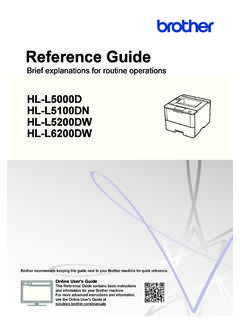
Transcription of Reference Guide MFC-J895DW MFC-J690DW
1 Reference Guide Brief explanations for routine operations MFC-J690DW . MFC-J895DW . Brother recommends keeping this Guide next to your Brother machine for quick Reference . Online User's Guide For more advanced instructions, information, and product specifications, see the Online User's Guide at User's Guides and Where to Find Them Which Guide ? What's in It? Where Is It? Product Safety Guide Read this Guide first. Please read the Safety Printed / In the box Instructions before you set up your machine. See this Guide for trademarks and legal limitations. Quick Setup Guide Follow the instructions for setting up your Printed / In the box machine, and installing the Full Driver &.
2 Software Package for the operating system and connection type you are using. Reference Guide Learn the basic PC-Print, PhotoCapture Printed or on Brother Center, Scan, Copy and Fax operations and Installation Disc / In basic machine maintenance. See the Box troubleshooting tips. Online User's Guide This Guide includes the additional contents of Brother Solutions the Reference Guide . Center 1. In addition to information about the PC-Print, PhotoCapture Center, Scan, Copy, Fax, Internet services, Mobile Functions and Brother ControlCenter operations, useful information is included about using the machine on a network. 1 Visit For the Latest Driver Updates Go to your model's Downloads page on the Brother Solutions Center at to download drivers.
3 To keep your machine's performance up-to-date, check there for the latest firmware upgrades. 2017 Brother Industries, Ltd. All rights reserved. 1. Questions or Problems? Take a Look at our FAQs, Solutions, and Videos Online. Go to your model's FAQs & Troubleshooting page on the Brother Solutions Center at Provides several ways to search Displays related questions for more information Receives regular updates based on customer feedback 2. 1 General Information Control Panel Overview 1 2 3 4. 1. General Information 5. 1. NFC (Near Field Communication) 4. LED Power Indicator symbol The LED lights up depending on the machine's power status. ( MFC-J895DW ).
4 When the machine is in Sleep Mode, the If your Android device supports the NFC LED blinks. feature, you can print from your device or scan documents to your device in the 5. Power On/Off same way. 2. Touchscreen Liquid Crystal Display Press to turn on the machine. (LCD). Press and hold down to turn off the Access menus and options by pressing them on the touchscreen. machine. The touchscreen displays [Shutting Down] and stays on for a 3. Menu buttons few seconds before turning itself off. If you have connected an external telephone or (Back) TAD, it is always available. Press to go back to the previous menu. If you turn off the machine using , it will still clean the print head periodically to (Home).
5 Maintain print quality. To prolong print Press to return to the Home screen. head life, provide better ink efficiency, and maintain print quality, keep your machine (Cancel) connected to a power source at all times. Press to cancel an operation. 3. Touchscreen LCD There are three Shortcuts screens. You can program four shortcuts on Overview each screen. You can switch Home screens by pressing d or c. From the Home screens, you can access Wi- Fi setup, Shortcuts, Ink levels and Settings screens. Home Screen 1 2. To display the other Shortcuts screens, press d or c. 4. Wireless Status Each icon in the following table shows the wireless network status: 3 4 5 6 7 Your machine is not connected to This screen shows the machine's status when the wireless access point/router.
6 The machine is idle. When displayed, it Press this button to configure indicates that your machine is ready for the wireless settings. For more next command. detailed information, see the Quick 1. Date & Time Setup Guide . Displays the date and time set on the Wireless network is connected. machine. A three-level indicator in each of 2. Quiet Mode the Home screens displays the current wireless signal strength. This icon appears when the [Quiet Mode] setting is set to [On]. The wireless access point/router The Quiet Mode setting can reduce cannot be detected. printing noise. When Quiet Mode is turned The wireless setting is disabled. on, the print speed becomes slower.
7 For more detailed information, see the Online User's Guide . You can configure wireless settings by 3. [Shortcuts] pressing the Wireless Status button. Create Shortcuts for frequently-used 5. [Settings]. operations, such as sending a fax, copying, scanning, Web Connect and Press to access the [Settings] menu. Apps services. 4. 6. [Ink] 9. Warning icon 9. Displays the available ink volume. Press to access the [Ink] menu. When an ink cartridge is near the end of its life or having a problem, an error icon is displayed on the ink color. 7. Modes: 1. Press to switch to each mode. General Information [Fax] / [Copy] / [Scan] / [Photo] /. [Web] / [Apps].
8 For more information on [Web] and The warning icon appears when there [Apps], see the Online User's Guide . is an error or maintenance message;. 8. Information icon press to view the details, and then 8 press to return to the Home screen. Navigate the touchscreen Press your finger on the LCD to operate it. To display and access all the options, press d c or a b on the LCD to scroll through them. New information from Brother appears in the information bar when the notification settings such as [Message from IMPORTANT. Brother] and [Firmware Auto DO NOT press the LCD with a sharp object Check] are set to [On]. such as a pen or stylus. It may damage the (Internet connection is needed, and data machine.)
9 Rates may apply.). Press to view the details. NOTE. This product adopts the font of ARPHIC. TECHNOLOGY CO., LTD. DO NOT touch the LCD immediately after plugging in the power cord or turning on the machine. Doing this may cause an error. 5. 2 Paper Handling Load Paper 1 Load the paper in the paper tray as follows. Fan the stack of paper well. The paper size determines the orientation when loading paper. Tray #1 How to Load Paper Letter/A4 Printing surface: Face down Legal Executive Adjust the paper guides. A5/A6. Photo 2L. Index card Envelopes Photo Printing surface: Face down Adjust the paper guides. Photo Bypass How to Load Paper Tray ( MFC-J690DW ).
10 Photo Slide the whole output Photo L paper tray cover. Printing surface: Face down 6. Manual Feed Slot 1 How to Load Paper Letter/A4 Printing surface: Face up Legal Executive A5/A6 Adjust the manual feed slot paper guides. Photo Photo L/2L. Index card Envelopes 2. 1 You can load only one sheet of paper into the manual feed slot at a time. Paper Handling For more detailed information, see the Online User's Guide : Load Paper. 2 Unfold the paper support flap. Change the paper size setting in the machine's menu, if needed. 2. 1. Load Documents Place the document in the ADF or on the scanner glass as shown in the illustration. Automatic Document Feeder (ADF) Scanner Glass Place your document face down in the ADF.