Transcription of TELSTRA GATEWAY PRO ™ USER GUIDE
1 TELSTRA GATEWAY PRO user GUIDE2 TELSTRA GATEWAY PRO user GUIDECONTENTS1. Introduction Getting to know your TELSTRA GATEWAY Pro What s in the box? Features and Benefits Getting To Know the GATEWAY 62. Setting Up Your TELSTRA GATEWAY Pro Alternative placement methods for the GATEWAY Setting up your TELSTRA GATEWAY Pro for ADSL and VDSL Setting up your GATEWAY with an NBN box (Fibre to the Premises) TELSTRA GATEWAY Pro Quick Start GUIDE 133. Initial TELSTRA GATEWAY Pro Configuration Initial Setup Using The Installation Wizard Configuring TELSTRA GATEWAY Pro Using the Control Panel (GUI) 184. Further Configuration of GATEWAY Settings Changing your GATEWAY login Password Customising your LAN/WAN Settings Configuring your GATEWAY Wi-Fi Setup Voice Calling Connecting devices to the TELSTRA GATEWAY Pro Setting up USB Mobile Broadband Backup 315.
2 Advanced Settings Guest Wireless Network Setup Content Sharing LAN IP Pool/DHCP Change Port Forwarding Secure Remote Access via VPN 436. Troubleshooting & General Tips The Internet is not working or WAN light is off My devices aren t connecting There is a red internet light (ADSL) Re-setting TELSTRA GATEWAY Pro Wireless Adaptor Faults 497. Technical Specifications Devices compatible for use with the TELSTRA GATEWAY Pro About the TELSTRA GATEWAY Pro 51 TELSTRA Corporation Limited (ACN 051 775 556).3 TELSTRA GATEWAY PRO user GUIDE1. Getting to know your TELSTRA GATEWAY Pro TELSTRA has worked with our partner Netgear to bring you the TELSTRA GATEWAY Pro (Netgear model number v7610). The TELSTRA GATEWAY Pro is an advanced GATEWAY , providing high speed Wi-Fi and connectivity for a variety of business devices.
3 It can connect to the Internet using: ADSL VDSL (including NBN Fibre to the Basement and NBN Fibre to the Node connections) NBN Fibre to the Premises The GATEWAY is compatible with optional USB mobile broadband device for peace of mind in case of an unlikely service TELSTRA GATEWAY Pro features world leading Wi-Fi and the best connectivity available so you get the most out of your TELSTRA fi xed Broadband service. Enjoy faster Wi-Fi with the latest Wi-Fi AC technology Experience seamless dual band connectivity of multiple devices on your network Make calls on your new business phone with TELSTRA s Digital Voice service Securely access your business fi les from home with our remote access What s in the box?The Quick Start GUIDE outlines all the components that are included with the TELSTRA GATEWAY Pro and can be found on using the following link: Note the reference letters for the bundled cables, which will be used later in this 1: What s In The Box?
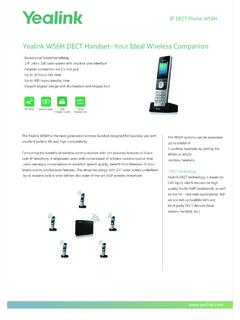
4 4 TELSTRA GATEWAY PRO user Features and Benefi ts Faster Wi-Fi with the latest AC technologyThe TELSTRA GATEWAY Pro is a world leading GATEWAY using the best Wi-Fi standard available, Wi-Fi AC, to maximise your Wi-Fi experience in the offi ce. The TELSTRA GATEWAY Pro also has 4 x 4 Wi-Fi streams to deliver the best possible coverage for your Connect multiple devices via dual band Wi-FiThis GATEWAY enables connection of devices such as laptops, smart phones and tablets to the Internet via two separate Wi-Fi bands: band for B/G/N devices 5 GHz band for A/N/AC devicesThis allows you to spread your devices across both bands (depending on device compatibility) to make the best use of your Wi-Fi network coverage. The Wi-Fi Network Security Card provided with your GATEWAY provides the Wi-Fi Network (SSID) name for both the and 5 GHz bands. The Wireless Security Key (WPA password) is also provided on this Make phone calls with TELSTRA s Digital Voice ServiceDigital Offi ce Technology (DOT) customers can use one of TELSTRA s IP Phones, compatible with this GATEWAY , to deliver digital calls over the Fixed Broadband service.
5 TELSTRA s Digital Voice service supports up to 10 services/lines at one site and provides a number of useful calling features to enable smart call management including: Fixed MessageBank Simultaneous and Sequential Ring Call Forwarding when not reachable Virtual Receptionist (Auto-attendant)Figure 2: Wi-Fi Network Security Card5 TELSTRA GATEWAY PRO user GUIDET here are a number of compatible business IP phones to choose from including: Panasonic cordless IP DECT handset with Base Station (KK-TPG600) TELSTRA (Yealink) T42G IP handset TELSTRA (Yealink) T48G IP HandsetRefer section for a full list of compatible IP more information about DOT Digital Voice services or the handsets outlined above refer to the following link: Secure Remote Access FeatureThe GATEWAY s Remote Access feature enables secure access to your business files from home. Refer to the VPN configuration GUIDE available at: small-business/bundles/ Always connected with TELSTRA s Mobile Broadband USB The Mobile Broadband USB back up feature provides piece of mind in case of an unlikely Fixed Broadband service interruption.
6 This feature ensures that the GATEWAY is always connected to the Internet via the TELSTRA Mobile Network USB in the unlikely event that the Broadband service is GATEWAY supports the use of a compatible TELSTRA Mobile Broadband USB device providing 2 USB ports, one port on the side of the device and the other port can be found on the back of the device. The following USB Mobile Broadband devices are compatible for use with the TELSTRA GATEWAY Pro : Netgear 320U (Sierra Wireless). TELSTRA 4Gx e8372 (Huawei).6 TELSTRA GATEWAY PRO user Getting To Know the GATEWAY Understanding the lights and what they meanFigure 3: TELSTRA GATEWAY Pro Front PanelPower LED around the TELSTRA LogoInternet LED WAN LED Phone LED Wi-Fi On/Off buttonWPS buttonDECT button7 TELSTRA GATEWAY PRO user GUIDEF ront Panel LED & button descriptionLED Activity DescriptionPower LED around the TELSTRA LogoSolid blueIndicates power is on and the GATEWAY is operatingOffNo power is being received by the Panel LED & button descriptionLED Activity DescriptionInternet LEDS olid bluePhysical WAN port is connected successfully.
7 Authentication of username and password is successful and a public IP address has been assignedFlashing orange Authentication of username and password in progressOff Physical WAN port is not connected or Mobile Broadband not activeSolid redPhysical WAN port is connected but authentication of username and password was redLED is illuminated red and turns off briefly every 5 seconds when operating in mobile fail over modeWAN LEDS olid blueWAN port is connected successfully to DSL or NBNF lashing orangeIn progress, layer 2 WAN interface connectingOffPhysical WAN port is not connected (Note: individual LED on the physical Ethernet port at the back panel to indicate: Amber = 10/10 Mbps, GREEN = 1 Gbps) Phone LEDS olid bluePhone service is working between the GATEWAY and Broadworks voice platform. Registration/authentication has been successful on ALL the configured SIP accounts (FXS and DECT).Flashing orangeEstablishing a new SIP registration to the Broadworks platform for any one or more configured SIP service registered.
8 Phone service On/Off and 5 GHz status and configuration will be available in the GATEWAY Control Panel. Important Note: To switch Wi-Fi on or off, press the Wi-Fi button for at least 3 seconds. The Wi-Fi button LED will either switch on or blueInbuilt Wi-Fi access point for and 5 GHz is up and operatingFlashing orangePackets are transmittingOffInbuilt Wi-Fi access point for both and 5 GHz is disabledWPS buttonPress this button to open a 2-minute window for the GATEWAY to connect with other WPS-enabled devices. Solid blueConnection succeeded under Wi-Fi Protected Setup (WPS)Flashing orangeWPS is active, pairing has been initiated and in progress (Negotiation is in progress under WPS) Solid redWPS has not connected successfullyOffWPS is disabled or not initiatedDECT buttonThis functionality will be available in a future software update of the the front of the GATEWAY there are 3 LEDs and 3 buttons.
9 The meaning of the various light sequences and buttons are listed in the following table:8 TELSTRA GATEWAY PRO user Getting to know the back panelBack Panel LED & port descriptionLED Activity DescriptionDSL portNoneThe DSL port is connected for ADSL and VDSL connectionsFXO portNoneN/A FXS1 portNonePlug an analogue phone / device into this port when voice is enabled on the GatewayFXS2 portNoneIf enabled plug a second analogue device into this portUSB ( ) port None To plug a Mobile Broadband backup device and/or a storage device to share on the network. There is one USB port on the back and one USB on the side of the ports 1-4 Solid GreenLAN port is connected at 1000 Mbps Flashing greenLAN port is connected at 10/100 Mbps / packets are transmitting OffNo traffic transmitted or no Ethernet cable plugged inWAN portSolid green WAN port is connected successfully Blinking greenPackets are sending and receiving OffPhysical WAN port is not connected (Note: individual LED on the physical Ethernet port at the back panel to indicate: AMBER = 10/10 Mbps, GREEN = 1 Gbps)On/Off buttonNoneTurns on the power to the GatewayReset buttonNoneUsing a paperclip to initiate the reset function.
10 This will take the device back to default factory settings. Refer for more portNonePlug in power pack/cable supplied to the power point and turn power point on from the wall to turn on power to the the diagram above there are a number of ports and buttons on the back of the GATEWAY . These ports and buttons are described in the table below:Figure 4: TELSTRA GATEWAY Pro Back Panel9 TELSTRA GATEWAY PRO user Product label on the bottom of the GatewayLabelDescription1. GATEWAY Login DetailsEnables you to access the GATEWAY Control Panel to manage and customise your GATEWAY settings. Please refer to Section 3 of this GUIDE for more detail on how to manage your GATEWAY Serial NumberNumber supplied by the manufacturer and Mac AddressRegistered identified number which interfaces with the TELSTRA Wi-Fi Network NameBroadcast name for the band of the Wi-Fi Network enabling you to connect your devices via 5 GHz Wi-Fi Network NameBroadcast name for the 5 GHz band of the Wi-Fi Network enabling you to connect your devices via Network Key (WPA2)Password that authenticates the use of devices with the GATEWAY s Wi-Fi will find a number of important pieces of information on the product label on the bottom of the GATEWAY including:Figure 5: TELSTRA GATEWAY Pro Label12364510 TELSTRA GATEWAY PRO user GUIDEThe TELSTRA GATEWAY Pro Quick Start GUIDE provides a full set of instructions on how to set up your GATEWAY .