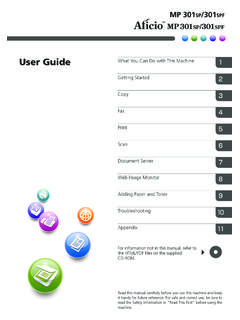
Transcription of User Guide What You Can Do with This Machine - Ricoh
1 Read this manual carefully before you use this Machine and keep it handy for future reference. For safe and correct use, be sure to read the Safety Information in "Read this First" before using the information not in this manual, refer to the HTML/PDF files on the supplied TroubleshootingAdding Paper and TonerWeb Image MonitorDocument ServerScanPrintFaxCopyGetting StartedWhat You Can Do with this MachineUser GuideTABLE OF CONTENTSHow to Read the Used in the of Major what You Can Do with this MachineI Want to Save Want to Convert Documents to Electronic Formats Want to Register Want to Operate the Machine More Can Customize the [Home] Screen as You Can Make Copies Using Various Can Print Data Using Various Can Utilize Stored Can Send and Receive Faxes without Can Send and Receive Faxes Using the Can Use the Facsimile and the Scanner in a Network Can Prevent Information Leakage (Security Functions)..22 You Can Monitor and Set the Machine Using a Can Prevent an Unauthorized Getting StartedGuide to Names and Functions of to Components (mainly Europe).
2 25 Guide to Components (mainly Asia)..27 Guide to Components (mainly North America)..30 Guide to Functions of the Machine 's to Functions of the Machine 's External Options (mainly Europe)..33 Guide to Functions of the Machine 's External Options (mainly Asia)..34 Guide to Functions of the Machine 's External Options (mainly North America)..34 Guide to the Names and Functions of the Machine 's Control to Use the [Home] Icons to the [Home] Functions in a of On/Off the On the Main Off the Main the Authentication Screen is Code Authentication Using the Control In Using the Control Out Using the Control Originals on the Exposure Glass (mainly Europe)..53 Placing Originals on the Exposure Glass (mainly Asia)..53 Placing Originals on the Exposure Glass (mainly North America)..54 Placing Originals in the Auto Document CopyBasic the Original and Copy onto Custom Size Paper from the Bypass onto the Number of Data in the Document FaxBasic Procedure for Transmissions (Memory Transmission).
3 75 Sending Originals Using the Exposure Glass (Memory Transmission)..76 Registering a Fax a Fax while Checking Connection to Destination (Immediate Transmission)..80 Sending Originals Using the Exposure Glass (Immediate Transmission)..81 canceling a a Transmission Before the Original Is a Transmission While the Original Is Being a Transmission After the Original Is Scanned (While a Transmission Is in Progress)..83 canceling a Transmission After the Original Is Scanned (Before a Transmission Is Started)..83 Sending at a Specific Time (Send Later)..85 Storing a Stored the Journal PrintQuick the Printer Driver Using the PCL 6 Printer a Locked Print a Locked Print File Using the Control a Hold Print a Hold Print File Using the Control a Stored Print a Stored Print File Using the Control ScanBasic Procedure When Using Scan to a Shared Folder on a Computer Running Windows/Confirming a Computer's an SMB an SMB Registered the Path to the Destination Procedure for Sending Scan Files by an E-mail an E-mail an E-mail Address Procedure for Storing Scan a Stored File Selected from the the File Send Document ServerStoring Stored Web Image MonitorDisplaying Top Received Fax Documents Using Web Image Adding Paper and TonerLoading Paper into Paper Paper into the Bypass to Use the Bypass Tray under the Printer Orientation-Fixed Paper or Two-Sided Paper Sizes and Faxes or Scanned Documents When Toner Has Run of Used an Indicator for the
4 [Check Status] Key Is You Have Problems Operating the Messages Are Displayed on the Control Displayed When Using the Copy/Document Server Displayed When Using the Facsimile Displayed When Using the Printer Displayed When Using the Scanner Messages Are Displayed on Your Computer Displayed When Using the Scanner to Read the ManualsSymbols Used in the ManualsThis manual uses the following symbols:Indicates points to pay attention to when using the Machine , and explanations of likely causes of papermisfeeds, damage to originals, or loss of data. Be sure to read these supplementary explanations of the Machine 's functions, and instructions on resolving symbol is located at the end of sections. It indicates where you can find further relevant information.[ ]Indicates the names of keys on the Machine 's display or control instructions stored in a file on a provided CD-ROM.(mainly Europe and Asia), (mainly Europe), or (mainly Asia)(mainly North America)Differences in the functions of Region A and Region B models are indicated by two symbols.
5 Read theinformation indicated by the symbol that corresponds to the region of the model you are using. Fordetails about which symbol corresponds to the model you are using, see "Model-SpecificInformation".6 Model-Specific InformationThis section explains how you can identify the region your Machine belongs is a label on the rear of the Machine , located in the position shown below. The label containsdetails that identify the region your Machine belongs to. Read the following information is region-specific. Read the information under the symbol that corresponds tothe region of your Machine .(mainly Europe and Asia)If the label contains the following, your Machine is a region A model: CODE XXXX -27, -29 220 240 V(mainly North America)If the label contains the following, your Machine is a region B model: CODE XXXX -17 120 127 V Dimensions in this manual are given in two units of measure: metric and inch. If your Machine is aRegion A model, refer to the metric units.
6 If your Machine is a Region B model, refer to the inchunits. If your Machine is a region A model and "CODE XXXX -27" is printed on the label, see"(mainly Europe)". If your Machine is a region A model and "CODE XXXX -29" is printed on the label, see"(mainly Asia)".7 Names of Major FeaturesIn this manual, major features of the Machine are referred to as follows: Auto Document Feeder ADF81. what You Can Do with this MachineYou can search for a description by what you want to Want to Save PaperBRL059 SPrinting multi-page documents on both sides of sheets (Duplex Copy) See "Duplex Copying", Copy/ Document multi-page documents and received faxes on a single sheet (Combine (Copier/Fax)) See "Combined Copying", Copy/ Document Server. See "Combine Two Originals", received faxes on both sides of sheets (2 Sided Print) See "Two-Sided Printing", received faxes to electronic formats (Paperless Fax) See "Confirming/Printing/Deleting Received and Stored Documents", files from the computer without printing them (LAN-Fax) See "Sending Fax Documents from Computers", how much paper is saved ([Information] screen)
7 See "How to Use the [Information] Screen", Getting Want to Convert Documents to ElectronicFormats EasilyBQX138 SSending scan files See "Basic Procedure for Sending Scan Files by E-mail", the URL of the folder in which scan files are stored See "Sending the URL by E-mail", scan files in a shared folder See "Basic Procedure When Using Scan to Folder", scan files on media See "Basic Procedure for Saving Scan Files on a Removable Memory Device", transmitted faxes to electronic formats and sending them to a computer See "Overview of Folder Transmission Function", and using documents converted to electronic formats (Document Server) See "Relationship between Document Server and Other Functions", Copy/ Document what You Can Do with this Machine10I Want to Register DestinationsBRL060 SUsing the control panel to register destinations in the Address Book See "Registering Entered Destinations to the Address Book", Fax. See "Registering a destination in the address book manually", Web Image Monitor to register destinations from a computer See "Registering Internet Fax Destination Information Using Web Image Monitor", destinations registered in the Machine to the LAN-Fax driver destination list See "Using the Machine 's Address Book as the LAN-Fax destination list", Want to Register Destinations11I Want to Operate the Machine MoreEffectivelyBQX139 SRegistering and using frequently-used settings (Program) See "Registering Functions in a Program", Convenient frequently-used settings as initial settings (Program as Defaults (Copier/DocumentServer/Fax/Scanner))
8 See "Changing the Default Functions of the Initial Screen", Convenient frequently-used printing settings to the printer driver See "Using One Click Presets", the initial settings of the printer driver to frequently-used printing settings See "Displaying the Printing Preferences Dialog Box", shortcuts to frequently used programs or Web pages See "Adding Icons to the [Home] Screen", Convenient the order of the function and shortcut icons See "Changing the Order of Icons on the [Home] Screen", Convenient what You Can Do with this Machine12 You Can Customize the [Home] Screen as YouLikeThe icons of each function are displayed on the [Home] You can add shortcuts to often used programs or Web pages to the [Home] screen. The programsor Web pages can be recalled easily by pressing the shortcut icons. You can display only the icons of functions and shortcuts that you use. You can change the order of the function and shortcut icons. For details about the features on the [Home] screen, see "How to Use the [Home] Screen", Can Customize the [Home] Screen as You Like13 You Can Make Copies Using Various FunctionsCMQ002 You can make copies in full color.
9 You can switch the color copy mode depending on the type oforiginals used and the desired finish. You can adjust the color tones and image quality of your copies. You can reduce or enlarge the copy image. with the Auto Reduce/Enlarge function, the machineautomatically calculates the reproduction ratio based on the sizes of the originals and the paperyou have specified. Copier functions such as Duplex and Combine allow you to save on paper by copying multiplepages onto single sheets. You can copy onto various types of paper such as envelopes and OHP transparencies. You can sort copies. See Copy/ Document what You Can Do with this Machine14 You Can Print Data Using Various FunctionsCMQ003 this Machine supports network and local connections. You can send PDF files directly to the Machine for printing, without having to open a PDFapplication. You can print or delete print jobs stored on the Machine 's hard disk, which have been previouslysent from computers using the printer driver.
10 The following types of print jobs can be selected:Sample Print, Locked Print, Hold Print, and Stored Print. You can collate printed paper. If the PictBridge card is installed, you can connect a PictBridge-compatible digital camera to thismachine using a USB cable. this allows you to print the photographs stored on the camera usingthe camera's own interface. You can print files stored on a removable memory device and specify print conditions such as printquality and print size. See Can Print Data Using Various Functions15 You Can Utilize Stored DocumentsYou can store files scanned in copier, facsimile, printer, or scanner mode on the Machine 's hard Web Image Monitor, you can use your computer to search for, view, print, delete, and sendstored files via the network. You can also change print settings and print multiple documents (DocumentServer).CJQ603 You can retrieve stored documents scanned in scanner mode to your computer. Using the file format converter, you can download documents stored in copier, Document Server,or printer mode to your computer.