Transcription of USER’S GUIDE - Brother
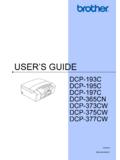
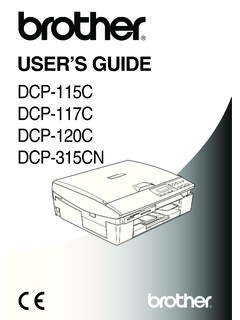
1 user S GUIDEDCP-7030 DCP-7040 DCP-7045 NVersion A UK/IRE/SAFIf you need to call Customer ServicePlease complete the following information for future reference:Model Number: DCP-7030, DCP-7040 and DCP-7045N (Circle your model number)Serial Number: 1 Date of Purchase: Place of Purchase: 1 The serial number is on the back of the unit. Retain this user s GUIDE with your sales receipt as a permanent record of your purchase, in the event of theft, fire or warranty your product on-line at By registering your product with Brother , you will be recorded as the original owner of the product.
2 Your registration with Brother : may serve as confirmation of the purchase date of your product should you lose your receipt; and may support an insurance claim by you in the event of product loss covered by insurance. 2008 Brother Industries, and Publication NoticeUnder the supervision of Brother Industries Ltd., this manual has been compiled and published, covering the latest product descriptions and contents of this manual and the specifications of this product are subject to change without reserves the right to make changes without notice in the specifications and materials contained herein and shall not be responsible for any damages (including consequential) caused by reliance on the materials presented, including but not limited to typographical and other errors relating to the Declaration of Conformity iiiTable of ContentsSection I General1 General information2 Using the documentation.
3 2 Symbols and conventions used in the documentation .. 2 Accessing the Software user s GUIDE and Network user s GUIDE (DCP-7045N only) .. 3 Viewing documentation .. 3 Control panel overview .. 52 Loading paper and documents6 Loading paper and print media .. 6 Loading paper in the paper 6 Loading paper in the manual feed slot .. 7 Unprintable area .. 10 Acceptable paper and other print 11 Recommended paper and print media .. 11 Type and size of paper .. 11 Handling and using special paper .. 12 Loading documents .. 15 Using the automatic document feeder (ADF) (DCP-7040 and DCP-7045N).. 15 Using the scanner glass .. 163 General setup17 Paper 17 Paper type .. 17 Paper 17 Volume settings .. 17 Beeper volume.
4 17 Ecology features .. 18 Toner Save .. 18 Sleep 18 LCD 19 user Settings 19 Network Configuration List (DCP-7045N only) .. 19 Section II Copy4 Making copies22 How to copy .. 22 Entering copy 22 Making a single copy .. 22ivMaking multiple copies .. 22 Stop copying .. 22 Copy options (temporary settings) ..23 Enlarging or reducing the image copied .. 23 Adjusting contrast ..24 Using the Options key ..25 Improving copy quality ..25 Sorting copies using the ADF (DCP-7040 and DCP-7045N) ..26 Making N in 1 copies (page layout) ..26 Out of memory message .. 27 Section III Software5 Software and Network (DCP-7045N only) features30 How to read HTML user s GUIDE ..30 For Windows ..30 For Macintosh.
5 31 Section IV AppendixesASafety and legal34 Choosing a location ..34 Important information ..35 Safety precautions ..35 IEC60825-1+A2:2001 device ..38 Wiring information ( only).. 38 LAN connection (DCP-7045N only) ..39 Radio interference ..39EU Directive 2002/96/EC and ENERGY STAR Compliance safety and routine maintenance43 Troubleshooting ..43If you are having difficulty with your machine ..43 Improving the print quality ..48 Error and maintenance messages ..54 Document jams (DCP-7040 and DCP-7045N only) ..56 Paper jams ..57 Routine maintenance ..62 Cleaning the outside of the machine ..62 Cleaning the scanner glass ..63 Cleaning the laser scanner window ..63 Cleaning the corona wire.
6 65vCleaning the drum unit .. 67 Replacing the consumable 69 Replacing a toner cartridge .. 69 Replacing the drum 73 Changing LCD language .. 76 Machine information .. 76 Checking the serial 76 Checking the page 76 Checking the Drum life .. 76 Packing and shipping the machine .. 77 CMenu and features78On-screen 78 Menu 78 Memory 78 Menu keys .. 78 How to access the menu mode .. 79 Menu table .. 80 DSpecifications85 General .. 85 Print 87 Copy .. 88 Scan .. 89 Print .. 90 Interfaces .. 90 Computer requirements .. 91 Consumable items .. 93 Ethernet wired network (DCP-7045N only).. 94 EGlossary95 FIndex96viSection IGeneralIGeneral information2 Loading paper and documents6 General setup1721 Using the documentation1 Thank you for buying a Brother machine!
7 Reading the documentation will help you make the most of your and conventions used in the documentation1 The following symbols and conventions are used throughout the in this user s GUIDE are based on the DCP-7045N. General information1 BoldBold style identifies keys on the machine control panel or computer style emphasizes an important point or refers you to a related New Courier New font identifies the messages shown on the LCD of the machine. Warnings tell you what to do to prevent possible personal injury. Cautions specify procedures you must follow or avoid to prevent possible damage to the machine or other objects. Electrical Hazard icons alert you to a possible electrical shock. Hot Surface icons warn you not to touch machine parts that are hot.
8 Incorrect setup icons alert you to devices and operations that are not compatible with the machine. Note icons give useful information31 Accessing the Software user s GUIDE and Network user s GUIDE (DCP-7045N only)1 This user s GUIDE does not contain all the information about the machine such as how to use the advanced features of Printer, Scanner and Network (DCP-7045N only). When you are ready to learn detailed information about these operations, read the Software user s GUIDE and Network user s GUIDE (DCP-7045N only).Viewing documentation1 Viewing documentation (Windows )1To view the documentation, from the Start menu, point to Brother , DCP-XXXX (where XXXX is your model name) from the program group, and then click user s Guides in HTML you have not installed the software, you can find the documentation by following the instructions below:aTurn on your the Brother CD-ROM labelled Windows into your CD-ROM the language selection screen appears, click your the model name screen appears, click your model CD-ROM main menu will appear.
9 If this window does not appear, use Windows Explorer to find and run the program from the root directory of the Brother the documentation you want to read: HTML documents (3 manuals): user s GUIDE for stand-alone operations, Software user s GUIDE and Network user s GUIDE (DCP-7045N only) in HTML format is recommended for viewing on your computer. PDF documents (4 manuals): user s GUIDE for stand-alone operations, Software user s GUIDE , Network user s GUIDE (DCP-7045N only) and Quick Setup format is recommended for printing the manuals. Click to go to the Brother Solutions Center, where you can view or download the PDF documents. (Internet access and PDF Reader software are required.)Chapter 14 How to find scanning instructions1 There are several ways you can scan documents.
10 You can find the instructions as follows:Software user 's GUIDE :1 Scanning a document using the TWAIN driver in Chapter 2 Scanning a document using the WIA driver (For Windows XP/Windows Vista only) in Chapter 2 Using ControlCenter3 in Chapter 3 Network Scanning in Chapter 4 (DCP-7045N only)ScanSoft PaperPort 11SE with OCR How-to-Guides1 The complete ScanSoft PaperPort 11SE with OCR How-to-Guides can be viewed from the Help selection in the ScanSoft PaperPort 11SE documentation (Macintosh)1aTurn on your the Brother CD-ROM labelled Macintosh into your CD-ROM following window will appear. cDouble-click the Documentation the language selection screen appears, double-click your the top page file to view the user s GUIDE , Software user s GUIDE and Network user s GUIDE (DCP-7045N only) in HTML the documentation you want to read.