Transcription of USER’S GUIDE - Brother
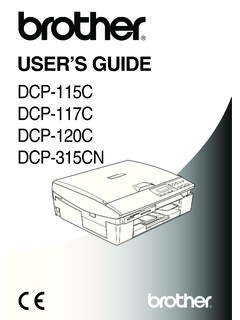
1 Read this User s GUIDE before you start using your this User s GUIDE in a handy place for future reference. USER S GUIDEaINTRODUCTIONGETTING STARTEDEDITING A LABELLABEL PRINTINGUSING THE FILE MEMORYTROUBLESHOOTINGAPPENDIXINDEXMAINTA INNING YOUR P-TOUCH LABELERESPA OLELECTRONIC LABELING SYSTEMELECTRONIC LABELING SYSTEMINTRODUCTION Thank you for purchasing the P-touch labeler new P-touch labeler is an easy to operate, feature packed labeling system that makes creating professional, high quality labels a manual contains various precautions and basic procedures for using this labeler. Read this manual carefully before using and keep in a handy place for future and Publication Notice Under the supervision of Brother Industries, Ltd., this manual has been compiled and published, covering the latest product s descriptions and contents of this manual and the specifications of this product are subject to change without new versions of the PT-2030 software become available, this manual may not reflect the updated features.
2 Therefore, you may find that the software and the contents in this manual are trade names and product names of companies appearing on Brother products, related documents and any other materials are all trademarks or registered trademarks of those respective Canada Compliance Statement (Canada Only)This Class B digital apparatus complies with Canadian InformationShould you have questions, or need information about your Brother Product, we have a variety ofsupport options for you to choose from:Customer Service1-877- Brother (877-276-8437)Fax: (514) 685-4898 World Wide / 1-877-BROTHER1 rue H tel de Ville, Dollard-des-Ormeaux, Qu bec, H9B 3H6 CanadaPlease record your model and serial number and your date and location of Purchase below for yourrecords. Keep this information with your proof of purchase (bill of sale) in case your Productrequires # _____Serial # _____Date of purchase:_____Store where purchased: _____Location of store: _____Important: We recommend that you keep all original packing materials, in the event you ship Time - Register On-Line!
3 Don t stand in line at the post office or worry about lost mail. Visit us on-line product will immediately be registered in our database and you can be on your way!Also, while you're there, look for contests and other exciting information!INTRODUCTION1 How to use the P-touch labeler ..4 Safety Precautions ..5 General Precautions ..8 Symbols Used in this GUIDE ..9 GETTING STARTED .. 10 Unpacking Your P-touch labeler ..10 General Description ..10 LCD Display & Keyboard ..11 LCD Display ..11 Key Names and Supply ..14 Battery ..14AC Adapter ..15 Inserting a Tape Cassette ..16 Turning Power On/Off ..17 Feeding Tape ..18 Feed function ..18 LCD Display ..18 LCD Contrast ..18 Setting Language and ..19 Unit ..19 EDITING A LABEL .. 20 Entering and Editing Text from the Keyboard.
4 20 Adding a New a New the Cursor ..20 Inserting Text ..20 Inserting a Tab ..20 Deleting Symbols ..22 Entering Symbols Using the Symbol Accented Characters ..24 Contents1234567892 INTRODUCTIONS etting Character Attributes .. 25 Setting Character Attributes by Label .. 25 Setting Character Attributes by Each Line .. 25 Setting Auto Fit Style .. 28 Setting Label Attributes .. 29 Using Auto-Format 31 Using Templates - Example creating an Asset 31 Using Block Layouts .. 34 Creating a Bar Code 37 Setting Bar Code Parameters .. 37 Entering Bar Code 38 Editing and Deleting a Bar 40 LABEL 41 Label 41 Printing a Label .. 41 Printing a Single Copy .. 42 Printing Multiple Copies .. 42 Auto-numbering 43 Mirror Printing .. 44 Setting Margin .. 45 Adjusting the Label 46 Attaching 46 Printing from the Label Collection.
5 47 Printing a label from the Label Collection Stored in the Machine .. 47 USING THE FILE 51 Storing a Label into Memory .. 51 Opening a Stored Label 51 Printing a Stored Label File .. 52 Deleting a Stored Label File .. 52 MAINTAINING YOUR P-TOUCH LABELER .. 53 Resetting the P-touch 53 Resetting the data to factory settings (Label collections stored in Favorites is not reset.).. 53 Cleaning the Unit .. 53 Cleaning the Print 53 Cleaning the Tape 54 INTRODUCTION3 TROUBLESHOOTING .. 55 What to do ..55 Error Messages ..56 APPENDIX .. 59 Specifications .. 601234567894 INTRODUCTIONHow to use the P-touch labeler Create a label with the P-touch labelerGETTING STARTEDCREATING A LABELLABEL PRINTING Printing from the Label CollectionUsing the Label Collection function, labels can be created easily by selecting and then printing designs already built into the to use the P-touch labeler1 Prepare the P-touch labeler.
6 P. 102In addition to entering text, the P-touch labeler has a large range of formatting labels like these : Entering and Editing text. Entering Symbols. Entering Accented Characters. Using Auto-Format Layouts. P. 20P. 22P. 24P. 313 Before printing, you can check the layout of your label using the preview labels like these : Printing a label. Setting Margin. Printing from the Label collection. P. 41P. 45P. 47 INTRODUCTION5 Safety PrecautionsTo prevent injury and damage, important notes are explained using various symbols. The symbols and their meanings are as follows: The symbols used in this manual are as follows:Safety PrecautionsWARNINGI ndicates a potentially hazardous situation which, if not avoided, could result in death or serious a potentially hazardous situation which, if not avoided, may result in minor or moderate NOT allowedDO NOT disassemble the NOT splash the product with or immerse the product in NOT touch a given portion of the actionUnpluggingSafety alertAlerts to the possibility of electrical shockWARNINGP-touch LabelerFollow these guidelines to avoid fire, electric shock, the risk of injury and/or NOT allow the printer to get wet in any way.
7 DO NOT touch any metal parts near the print head. The print head becomes very hot during use and remains very hot immediately after use. Do not touch it directly with your NOT disassemble the P-touch inspection, adjustment, and repair of the printer, contact the retail outlet where the P-touch labeler was purchased or your local authorized service center. Plastic bags are used in the packaging of your printer. To avoid danger of suffocation, keep these bags away from babies and children. Disconnect the AC adapter and remove batteries immediately and stop using when you notice abnormal odor, heat, discoloration deformation or anything unusual while using or storing prevent damage, do not drop or hit the P-touch labeler. DO NOT use the P-touch labeler with a foreign object in it.
8 If water, metallic substance or any foreign object enters the P-touch labeler, disconnect the AC adapter and remove batteries, and contact the retail outlet where the P-touch labeler was purchased or your local authorized service INTRODUCTIONS afety PrecautionsBatteryFollow these guidelines to avoid liquid leakage, heat, rupture of the battery and cause personal NOT throw into fire, heat up, short-circuit, recharge, or disassemble the adapterFollow these guidelines to avoid fire, damage, electric shock, failure or the risk of injury. Always use the specified voltage (120V) and the suggested AC adapter. Failure to observe this may result in an accident or damage. Brother shall not assume any responsibility for any accident or damage resulting from not using the specified AC adapter, adapter cord.
9 DO NOT connect the enclosed AC adapter , adapter cord to other products. Unplug the AC adapter cord immediately and stop using the P-touch labeler during an electrical storm . There may be a remote risk of electric shock from lightning. DO NOT touch the AC adapter or power plug with wet NOT use the AC adapter in places of high humidity such as NOT use a damaged adapter cord or power NOT place heavy objects on, damage or modify the adapter cord or plug. Do not forcibly bend or pull the adapter NOT drop, hit or otherwise damage the AC sure that the plug is fully inserted in the power outlet. Do not use an outlet that is CutterDO NOT touch the blade of the cutter PrecautionsCAUTIONB atteryFollow these guidelines to avoid liquid leakage, heat or rupture of the battery.
10 DO NOT use old and new batteries NOT mix alkaline batteries with other type NOT set the positive and negative end in the wrong the batteries if you do not intend to use the P-touch labeler for an extended period of adapterIf you do not intend using the P-touch labeler for an extended period of time, please disconnect the AC adapter from the power hold the AC adapter when disconnecting from the power CutterFollow these guidelines to avoid minor personal injury and damage to the labeler printer. DO NOT open the tape compartment cover when operating the cutter NOT apply excessive pressure to the cutter LabelerFollow these guidelines to avoid minor personal injury and damage to the P-touch the P-touch labeler on a flat, stable surface such as a NOT leave the P-touch labeler within reach of children with the tape compartment cover NOT place any heavy objects on top of the P-touch labeler.