Transcription of WARNING Quick Setup Guide - Brother
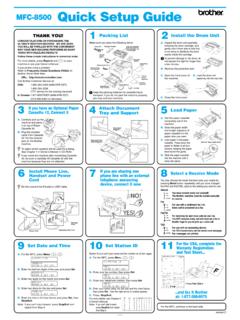
1 NOTENOTE specifies the operating environment, conditions for installation, or special conditions of use. WARNINGWARNING indicates a potentially hazardous situation which, if not avoided, could result in death or serious plain Letter/A4 paperPull the paper tray completely out of the the output paper tray cover the telephone line the jack marked the on-screen instructions to install the ink machine will prepare the ink tube system for the machine has finished the initial cleaning process, follow the on-screen instructions to configure the machine settings. Check print quality Set date and time Set Firmware Update Notice Print the installation sheetOpen the ink cartridge cover, and then remove the orange protective part from the the paper well and load it in the tray, and then adjust the paper the output paper tray cover, and then slowly push the tray completely into the the power cord. The machine will power on your machine is sharing one telephone line with an external telephone, connect it as shown below.
2 Before you connect the external telephone, remove the white protective cap c from the E X T. jack of the can adjust the control panel angle to read the LCD more out the paper support a, and unfold the paper support flap b so that the printed pages do not Extension telephoneb. External telephonec. Protective capQuick Setup GuideMFC-J460DW / MFC-J480DW / MFC-J485 DWRead the Product Safety Guide first, then read this Quick Setup Guide for the correct installation the power cord4 Install starter ink cartridges5 Machine settingsLEW787001-00 USA/CANV ersion 0 The correct Receive Mode is determined by the external devices and telephone subscriber services (Voice Mail, Distinctive Ring, etc.) you will be using on the same line as the Brother more information, see Receive Modes in chapter 6 of the Basic User s Press Press a or b to select the following:a. Select [Initial Setup ]. Press Select [Local Language]. Press Select your language. Press Press Press Press a or b to select the following:a.
3 Select [Fax]. Press Select [ Setup Receive]. Press Select [Receive Mode]. Press Press your preferred Receive Mode. Press Press your name and fax number so the machine prints it on all outgoing fax more information, see Enter Text on Your Brother Machine in Appendix of the Basic User s Press Press a or b to select the following:a. Select [Initial Setup ]. Press Select [Station ID]. Press Enter your fax number (up to 20 digits) using the dial pad, and then press Enter your name (up to 20 characters) using the dial pad, and then press Press your language (if needed)8 Set your Station IDIf you are not using your machine as a fax, go to 92 Connect the telephone line cordIf you are not using your machine as a fax, go to 37 Choose the correct Receive ModeIf you are not using your machine as a fax, go to 9 Unpack the machine and check the components1. Remove the protective tape and film covering the machine and the Make sure you have all components shown below.
4 WARNINGP lastic bags are used in the packing of your machine. Plastic bags are not toys. To avoid the danger of suffocation, keep these bags away from babies and children, and dispose of them in Spanish for these models are available at en Espa ol para este modelo est n disponibles en Most of the illustrations in this Quick Setup Guide show the MFC-J480DW. Save all packing materials and the box in case for any reason you must ship your machine. You must purchase the correct interface cable for the interface you want to use (for a USB connection).USB cableWe recommend using a USB cable (Type A/B) that is no more than 6 feet (2 meters) Ink Cartridges [x4] Black Yellow Cyan MagentaQuick Setup GuideBasic User s GuideProduct Safety GuideCD-ROMT elephone Line Cord121231 Watch our FAQ Videos for help with setting up your Brother the Brother support website the Wireless Setup WizardUse Brother s Wireless Setup Wizard to manually connect your Brother machine to your wireless network.
5 Your computer, smartphone, or mobile device must be connected to the same wireless network if you want to print wirelessly. 2015 Brother Industries, Ltd. All rights Solutions Center: Turn off your wireless access point/router, wait 10 seconds, and then turn it on from and scan to smartphones and other mobile devices using our free application Brother iPrint& from a computerDownload and install Brother iPrint&Scan at or 2. Find your SSID (Network Name) and Network Key (Password) on your wireless access point/router and write them in the table provided you cannot find this information, ask your network administrator or wireless access point/router Press b to display the wireless settings menu, and then press a or b to select [ Setup Wizard]. Press Press a or b to select the Network Name (SSID) you found in 2. Press Enter the Network Key (Password) you found in 2 using the dial pad, and then press the CD-ROM into your CD/DVD drive. If you do not have a CD/DVD drive, download the software:For Windows : Macintosh: If the Brother screen does not appear automatically, click (Start) > Computer (My Computer).
6 (For Windows 8: click the File Explorer icon on the taskbar, and then go to Computer (This PC).)Double-click the CD/DVD-ROM icon, and then double-click you selected Wireless Network Connection (Wi-Fi):When the Wireless Device Setup screen appears, select Setup without a USB cable (Recommended). If the User Account Control screen appears, click Yes to continue the device installation screen appears, follow the on-screen you reach Connection Type, select the connection type you to follow the on-screen instructions. When Installation Complete appears, your Brother machine is successfully installed. Click can also use AirPrint, a mobile printing solution that lets you wirelessly print photos, emails, web pages, and documents from your iPad, iPhone and iPod touch without the need to install a driver. For more information about using AirPrint, see the AirPrint Guide on your model s Manuals smartphone or mobile device must be connected to the Brother machine wirelessly.
7 Connect your smartphone or mobile device to a wireless access point/router, and connect your Brother machine to the same wireless access point/router, using the Wireless Setup Wizard. See Using the Wireless Setup you select Local Connection (USB), DO NOT connect the USB cable until the on-screen instructions to continue wireless connection is not successful, connect your machine manually using the control panel, following the instructions below in Using the Wireless Setup When wireless Setup is successful, the LCD displays [Connected]. Press OK, and then return to step 9 to install the the machine does not connect to the network, verify your Network Key (Password) and repeat these additional help, see your model s FAQs & Troubleshooting page on the Brother Solutions Center at you selected Local Connection (USB):Wait until the on-screen instructions tell you to connect to your computer: lift the scanner cover, insert your cable into the jack indicated below, and Guide the cable out the back of the machine.
8 Close the scanner cover, and then connect the cable to your from a smartphone or other mobile deviceSSID (Network Name)Network Key (Password) To install the machine on additional computers, repeat this procedure for each : XXXXXXXN etwork key: XXXXSSID of access pointNetwork KeyABC_